
Keep drives awake
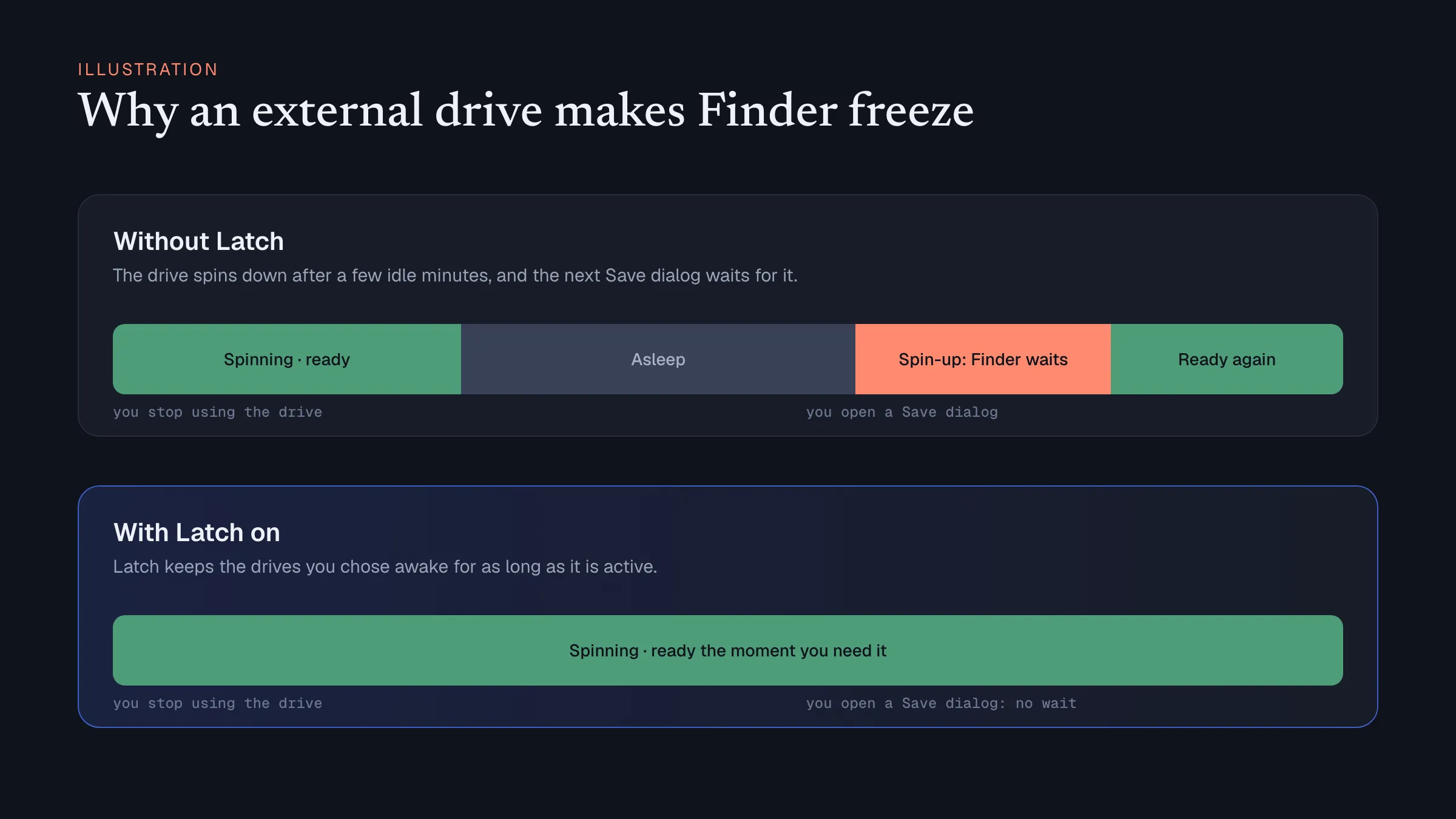
Many external hard drives go to sleep on their own after a few idle minutes. When you then open Finder or a Save dialog, everything freezes for several seconds while the drive spins back up. Latch can keep the drives you choose awake while it’s active.
Choose the drives
Section titled “Choose the drives”- Open Settings → Drives.
- Turn on Keep chosen drives awake while Latch is active.
- Switch on the drives you want to keep awake. Drives that are chosen but not connected are listed as such.
- Write every sets how often Latch touches each drive: 1, 2, 3, 4, 5 or 8 minutes.
To keep a drive spinning, Latch briefly writes and deletes a tiny hidden file on it.
Keep Drives Awake in the menu bar turns this on or off at any time, even in the middle of a session.
A drive Latch can’t write to
Section titled “A drive Latch can’t write to”If a drive is read-only to Latch, its settings say so and offer two ways out:
- Add “Keep Awake” Volume: Latch adds a small Keep Awake volume to the same disk and keeps that awake instead. It shares the disk’s free space and doesn’t touch anything on your drive.
- Or select the drive in Finder, choose File → Get Info, and tick Ignore ownership on this volume.