
Activity
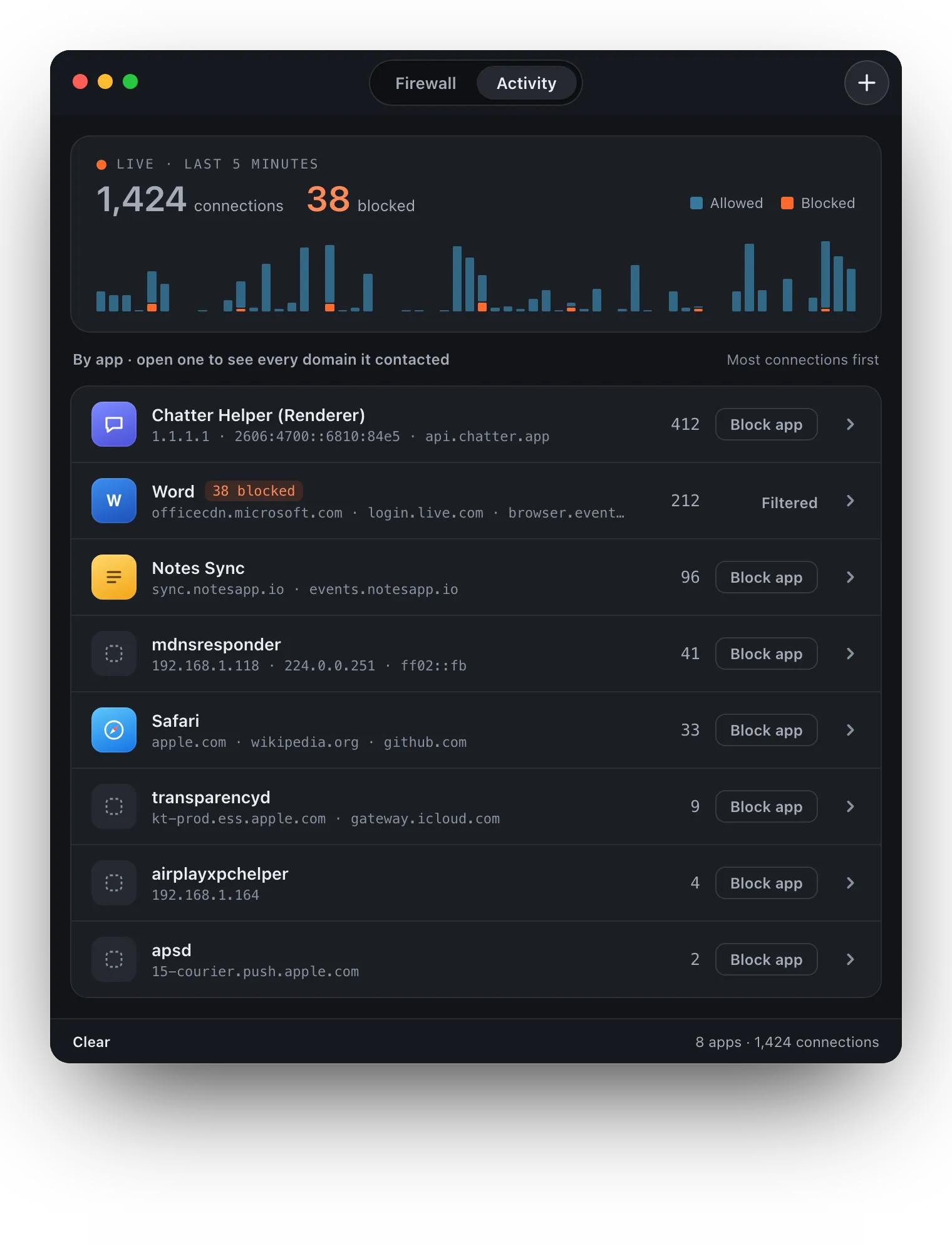
Activity shows every connection the firewall saw in the last 5 minutes. It fills while the firewall is on (Armed).
What you see
Section titled “What you see”- The top card shows how many connections there were, how many were blocked, and a timeline: blue for allowed, orange for blocked.
- Below it, apps and processes are listed with the most connections first. Each row shows how many connections it made, how many were blocked, and the domains or addresses it reached most recently. Background processes without an app icon, such as
mdnsresponderorapsd, are part of macOS. - An app that’s already on your Firewall list shows its state (Blocked, Filtered or Allowed). Any other shows a Block app button.
Block or allow from here
Section titled “Block or allow from here”- Open a row to see every domain the app contacted, with the number of connections, a label and whether new connections to it are Allowed or Blocked.
- Click Block or Allow next to a domain. The choice is saved to that app’s rule on the Firewall tab. If the app isn’t on your list yet, blocking a domain adds it, with only that domain blocked.
- The button is unavailable when a connection only reported an IP address: rules need a domain name.
- Block app blocks all of an app’s traffic, and adds it to your list if needed.
- After each change a message appears at the bottom for a few seconds, with Undo.
- Clear hides the connections collected so far. New ones keep appearing.
Activity is also how you find what a plug-in connects to inside your music app: see Audio plug-ins.