
Audio plug-ins
MacBulwark controls apps. Audio plug-ins aren’t apps, so they need a slightly different approach – but you can still cut off exactly what a plug-in sends, without taking your music app offline.
Why a plug-in can’t be added on its own
Section titled “Why a plug-in can’t be added on its own”A plug-in (.vst, .vst3, .component, .aaxplugin, .clap) has no process of its own. Your music app – your DAW, such as Logic Pro, Ableton Live or Cubase – loads it and runs it inside its own process. When the plug-in goes online, for example to check its licence, report usage or look for updates, macOS reports that connection as coming from the DAW. No firewall can tell which plug-in inside an app opened a connection.
So a plug-in’s connections show up under the DAW. If you drag a plug-in into MacBulwark, it explains this and offers to add your music app instead.
The way round it: let the DAW stay online, and block only the domains the plug-in talks to. Those are almost always the plug-in maker’s own domains, which your DAW itself never needs.
Find and block a plug-in’s connections
Section titled “Find and block a plug-in’s connections”1. Add your DAW. Click + and choose your music app, for example Logic Pro. It’s added as Blocked.
2. Let the DAW work. Open the DAW’s row and set Everything else to Allowed, so the DAW and its own downloads keep working. The DAW is now Filtered, with nothing blocked yet.
3. Make the plug-in go online. Open a project that uses the plug-in, or add the plug-in to a track. Plug-ins usually connect when they load, when you open their window, or when they check for updates – give it a minute. If you can, open its registration or update screen too.
4. Watch the Activity tab. Switch to Activity. Find your DAW in the list – the busiest apps are at the top – and open its row. You now see every domain the DAW contacted in the last 5 minutes, including the plug-in’s.
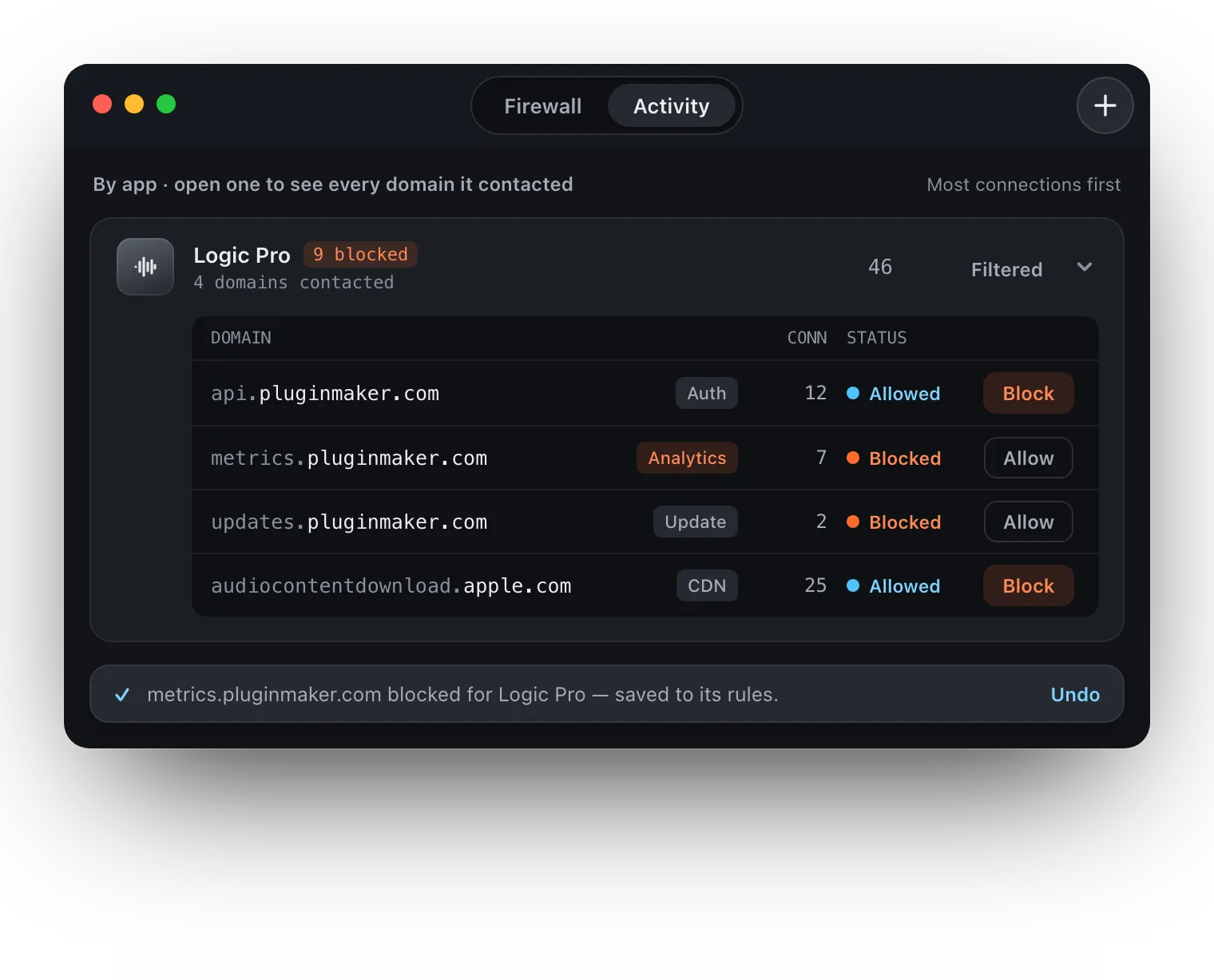
5. Tell the plug-in’s domains apart. Look for names that belong to the plug-in maker rather than to your DAW’s maker:
- They usually contain the maker’s name or the plug-in’s name, such as
pluginmaker.comorapi.pluginmaker.com. - Their label helps: Telemetry and Analytics (orange) are reporting, Update is update checks, Auth is often a licence check.
- Domains of your DAW’s own maker – for Logic Pro, Apple domains such as
audiocontentdownload.apple.com– are the DAW’s own: leave them allowed. - If you’re not sure which plug-in a domain belongs to, close the project, click Clear, and load only that one plug-in. What appears under the DAW now is that plug-in’s.
6. Block just those domains. Click Block next to each of the plug-in’s domains. Each one is saved to the DAW’s rule straight away, and a message confirms it with Undo if you change your mind. The DAW keeps working; only the plug-in’s connections are dropped.
7. Check. Quit and reopen the DAW, so rules apply to every connection, and load the project again. In Activity, the plug-in’s domains now show as Blocked.
Which domains to block
Section titled “Which domains to block”- Telemetry, analytics, update checks: usually safe to block. The plug-in works as before; it just stops reporting and stops looking for updates.
- Licence or activation checks (often Auth): many plug-ins check their licence online now and then, and some stop working or fall back to demo mode if they can’t. Block those only if you know the plug-in copes offline – or allow them again in the DAW’s domain list on the Firewall tab.
- Sound content and libraries: if the plug-in downloads presets or samples, blocking that domain stops the downloads.
You can always undo: on the Firewall tab, open the DAW and switch any domain back to allowed.
To take the DAW offline completely
Section titled “To take the DAW offline completely”Set the DAW to Blocked. That also blocks every plug-in it loads – handy for a session where nothing should go online at all. Switch it back to Filtered or Allowed when you need its online features again.
Exceptions
Section titled “Exceptions”- AUv3 plug-ins run as extensions of the app they came with. They follow that app’s rule, so add the app.
- Helper apps: some plug-ins install a separate app or background helper – licence managers, updaters, sound library managers. Those are real apps: they show up in Activity under their own name, and you can add and block them like any other app.