
The Firewall tab
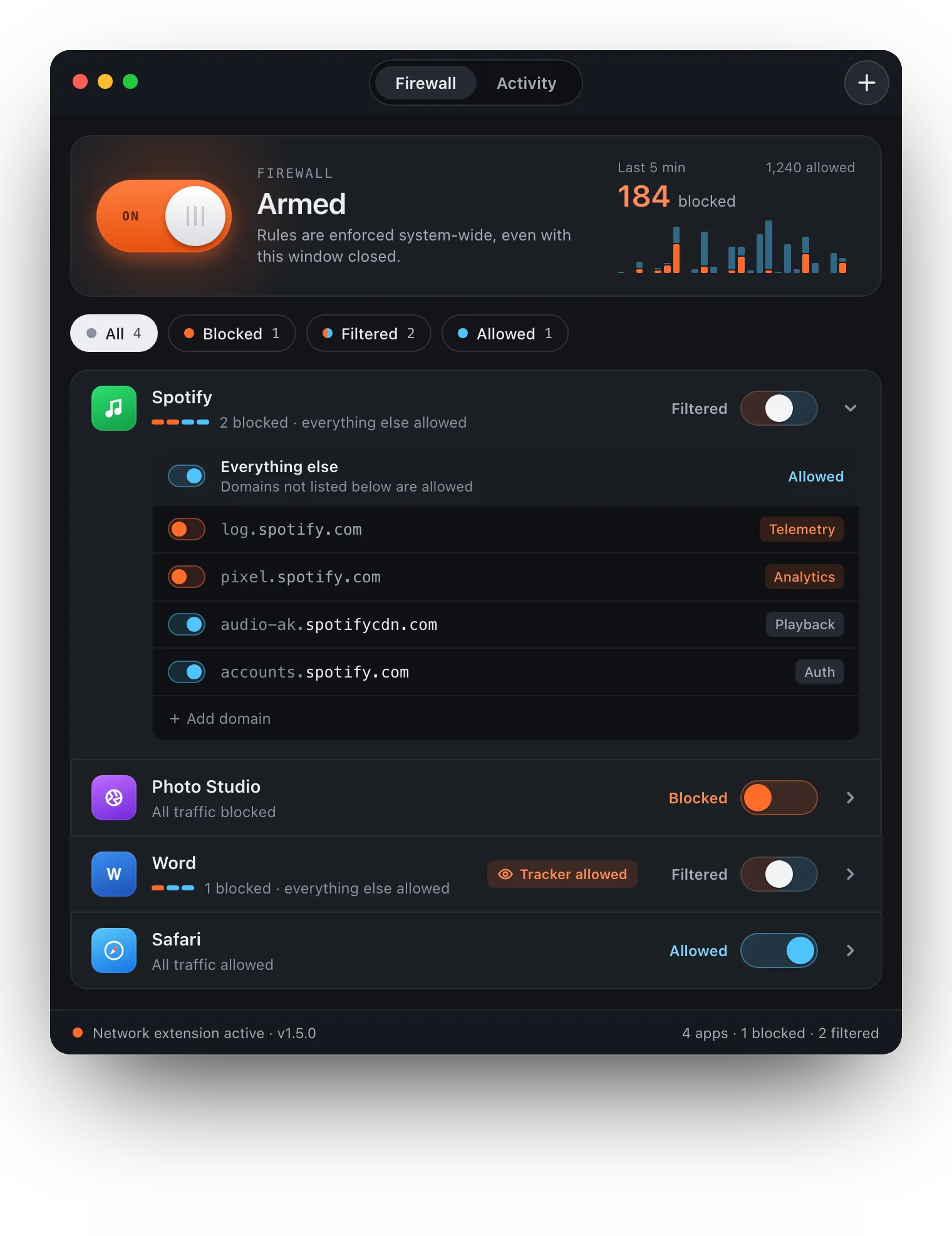
The master switch
Section titled “The master switch”The card at the top shows whether the firewall is on.
- Armed: rules are enforced system-wide, even with the window closed.
- Off: nothing is blocked. Your rules are kept and apply again as soon as you switch back on. The app list is dimmed while the firewall is off.
- Needs approval: macOS is waiting for you to approve the extension. Click Open System Settings: see Getting started.
On the right are the connections blocked and allowed in the last 5 minutes, with a small timeline.
Add an app
Section titled “Add an app”- Click + in the toolbar and choose an app, or drag an app from Finder into the window.
- A newly added app is Blocked: all its traffic is dropped until you allow something.
- Audio plug-ins can’t be added on their own. See Audio plug-ins.
Block, filter or allow an app
Section titled “Block, filter or allow an app”Each app has a switch with three positions:
| Position | Label | Meaning |
|---|---|---|
| Left, orange | Blocked | All traffic is dropped. |
| Middle | Filtered | Some domains are allowed and some are blocked. See How rules work. |
| Right, blue | Allowed | All traffic is allowed. |
Click the switch to change it. Blocked → Allowed happens at once; Allowed or Filtered → Blocked asks you to confirm first.
The line under the app’s name sums up its rule, for example Only 2 allowed · everything else blocked. The small bars stand for its listed domains: blue is allowed, orange is blocked. Tracker allowed appears when a telemetry or analytics domain is still allowed for that app.
An app’s domains
Section titled “An app’s domains”Click an app’s row, or its arrow, to open its domain list.
- Everything else decides what happens to domains that are not in the list:
- Blocked: only the domains you allow get through (an allow-list).
- Allowed: everything gets through except the domains you block (a block-list).
- Each listed domain has its own switch (blue allowed, orange blocked), its name (the subdomain dimmed) and a label.
- Hover over a domain to edit (pencil) or remove (×) it, or right-click it for Block / Allow, Edit… and Remove Domain.
- Add domain adds one: type the subdomain (optional) and the domain, pick a label, set the switch, and press Return to save or Esc to cancel. A new domain starts as the opposite of Everything else, because that’s usually why you’re adding it.
The quickest way to fill an app’s list is from Activity, which shows every domain it actually contacted.
Remove an app
Section titled “Remove an app”Hover over the app’s row and click ×, or right-click it and choose Remove from List. An app that isn’t on the list isn’t filtered at all.
Filter the list
Section titled “Filter the list”The buttons above the list – All, Blocked, Filtered and Allowed – show only apps in that state, each with its count.
The status bar
Section titled “The status bar”The bar at the bottom shows the state of the network extension and a summary of your rules, such as 5 apps · 2 blocked · 1 filtered.