
Opening and browsing
Open an archive
Section titled “Open an archive”- Press ⌘O (File ▸ Open Archive…) and choose an archive.
- Drop an archive on the Mochi Press window. If an archive is already open, the dropped one replaces it.
- In Finder, right-click an archive and choose Mochi Press ▸ Open with Mochi Press.
- Double-click an archive while holding ⌘⌃, if Mochi Press is the app that opens it. A plain double-click extracts. See Double-click.
Opening an archive never extracts it. Nothing is written next to it until you choose to extract.
The viewer
Section titled “The viewer”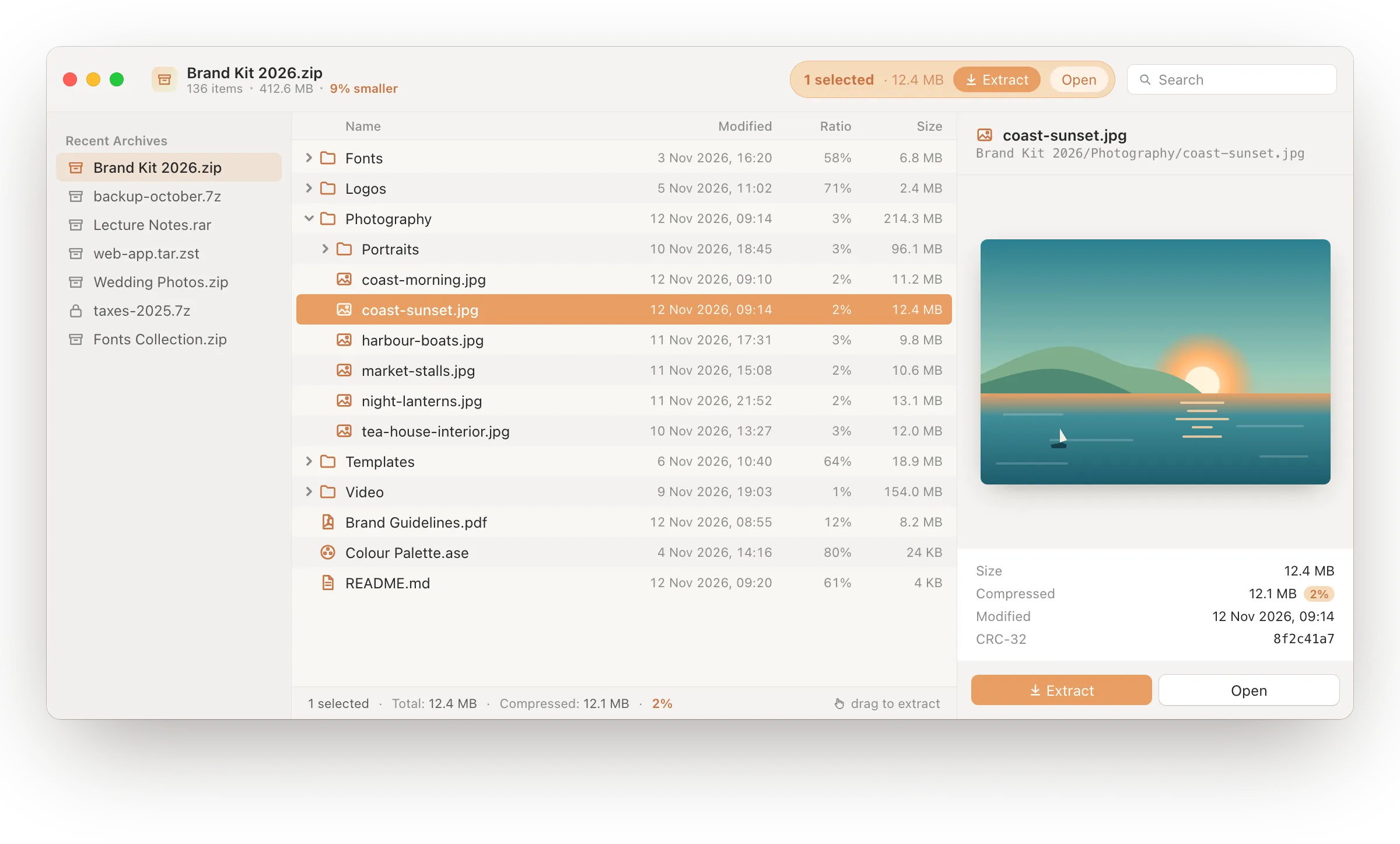
The toolbar. On the left, the archive’s name with the number of items, its size, and how much smaller it is than its contents (“62% smaller”). A split archive also shows how many parts it has. On the right:
- Extract: extracts the whole archive. See Extracting.
- Compress: choose files or folders and make a new archive from them. See Compressing.
- Preview: shows or hides the preview pane (⇧⌘P).
- Search: type to show only the items whose names contain the text.
The sidebar. Under Recent Archives, the archive that’s open.
The file list. Folders and files as a tree, with four columns: Name, Modified, Ratio (how much a file was compressed) and Size. A folder’s size is the total of everything in it. The top-level folders open by themselves; click the arrow beside a folder to open or close it. Password-protected files show a small lock.
The status bar. With nothing selected it says Select entries to extract. With a selection it shows how many items, their Total size, their Compressed size and how much was saved.
Select files
Section titled “Select files”Click a file or folder to select it. ⌘-click adds or removes items, ⇧-click selects a range, and the ↑ and ↓ keys move through the list (hold ⇧ to extend the selection).
When something is selected, the toolbar shows how many items and their size, with two buttons:
- Extract: extracts just the selection.
- Open: opens the selected files in the apps that normally open them, up to five at a time.
Preview a file
Section titled “Preview a file”Select one file and the preview pane on the right shows it, like Quick Look in Finder. Below the preview are its Size, Compressed size, Modified date and CRC-32 checksum, with two buttons:
- Extract: extracts this one file.
- Open: opens it in its usual app.
If the Mac can’t preview that kind of file, the pane says No preview available. Select a folder and it simply says Folder.
To preview a file, Mochi Press unpacks a copy of it into a cache. The cache is cleared when the archive closes; to clear it now, use Settings ▸ Storage ▸ Clear Cache Now.
Drag files out
Section titled “Drag files out”Drag any file or folder from the list to a Finder window or the desktop, and only that item is extracted there. Select several items to drag them all at once. A folder comes with everything inside it, even while a search hides some of its contents.
Password-protected files can’t be dragged out. Extract them instead.
Password-protected archives
Section titled “Password-protected archives”- ZIP archives with a password open like any other: you can see the file names, and the protected files show a lock. When you extract, Mochi Press asks for the password: Encrypted Archive, then Extract. If it’s wrong, it says Incorrect Password and asks again.
- 7-Zip archives that hide their file names ask for the password as soon as you open them: This archive is password-protected. Enter the password to view its contents. Type it and click Unlock. Cancel closes the archive.
Split archives
Section titled “Split archives”An archive split into parts opens as one. Keep all the parts in the same folder, then open the first part: the .7z.001 or .zip.001 file, the .zip of a ZIP split into .z01, .z02… parts, or the .rar of an older RAR split into .r00, .r01… parts. The toolbar shows how many parts it found, for example “4 parts”.
Damaged and empty archives
Section titled “Damaged and empty archives”If an archive was cut short, by an interrupted download for example, Mochi Press shows the items it could read, with a banner: This archive appears incomplete. The rest of the archive is missing, so extract what’s there and get a fresh copy if you need it all.
An archive with nothing in it shows This archive is empty.