


Mochi Press
Look inside an archive before you unpack it.
Mochi Press is a free archive app for the Mac. It opens ZIP, RAR, 7-Zip and 16 other formats in a window, so you see what’s inside and drag out only the files you need. Compressing is a right-click in Finder, and before you pick a format, Mochi Press shows how big the archive will be and how long it will take.
Free · macOS 14+
Apple silicon & Intel · signed & notarized

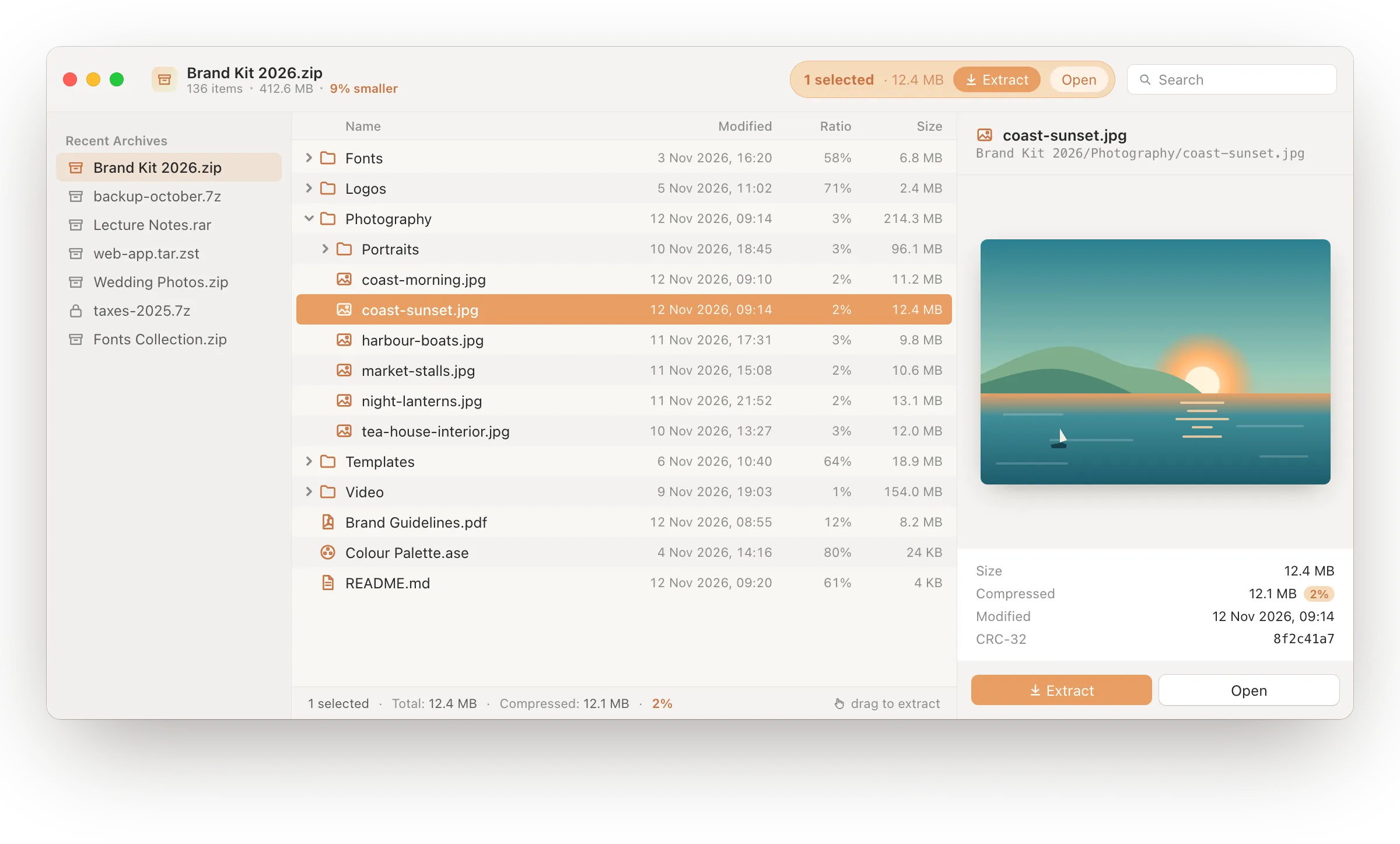
See what’s in it before anything lands on your disk
Open an archive and its folders appear at once, with sizes, dates and how well each file compressed. Nothing is extracted until you say so.
- 01
Take only what you need
Select a few files and drag them into Finder. Only those come out.
- 02
Preview first
Select a file to see it in the preview pane, with its size, date and checksum.
- 03
Search
Type part of a name to find a file deep inside the folders.
- 04
Parts and passwords
Archives split into parts open as one. A password-protected ZIP asks for its password.
Most days, you won’t open the app at all
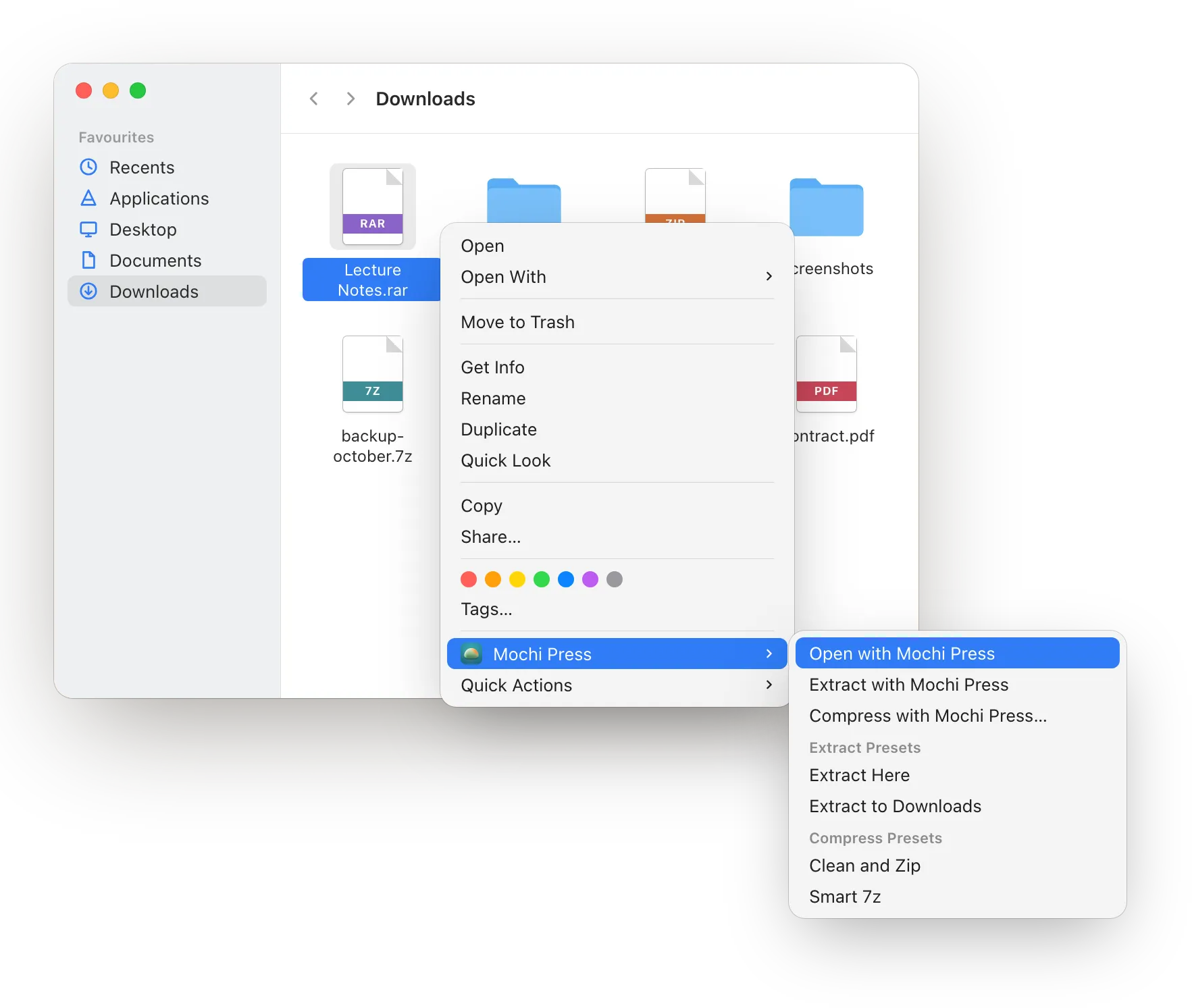
Right-click a file or folder in Finder and choose Mochi Press. Open an archive, extract it next to the original, or compress a selection, all from the menu. Your favourite presets sit right there too, so “unpack to Downloads” or “zip without the .DS_Store files” is one click.
Mochi Press works quietly from Finder: no window jumps in front of what you were doing. It’s in Quick Actions and the Services menu as well, and you can drop files on its Dock icon.
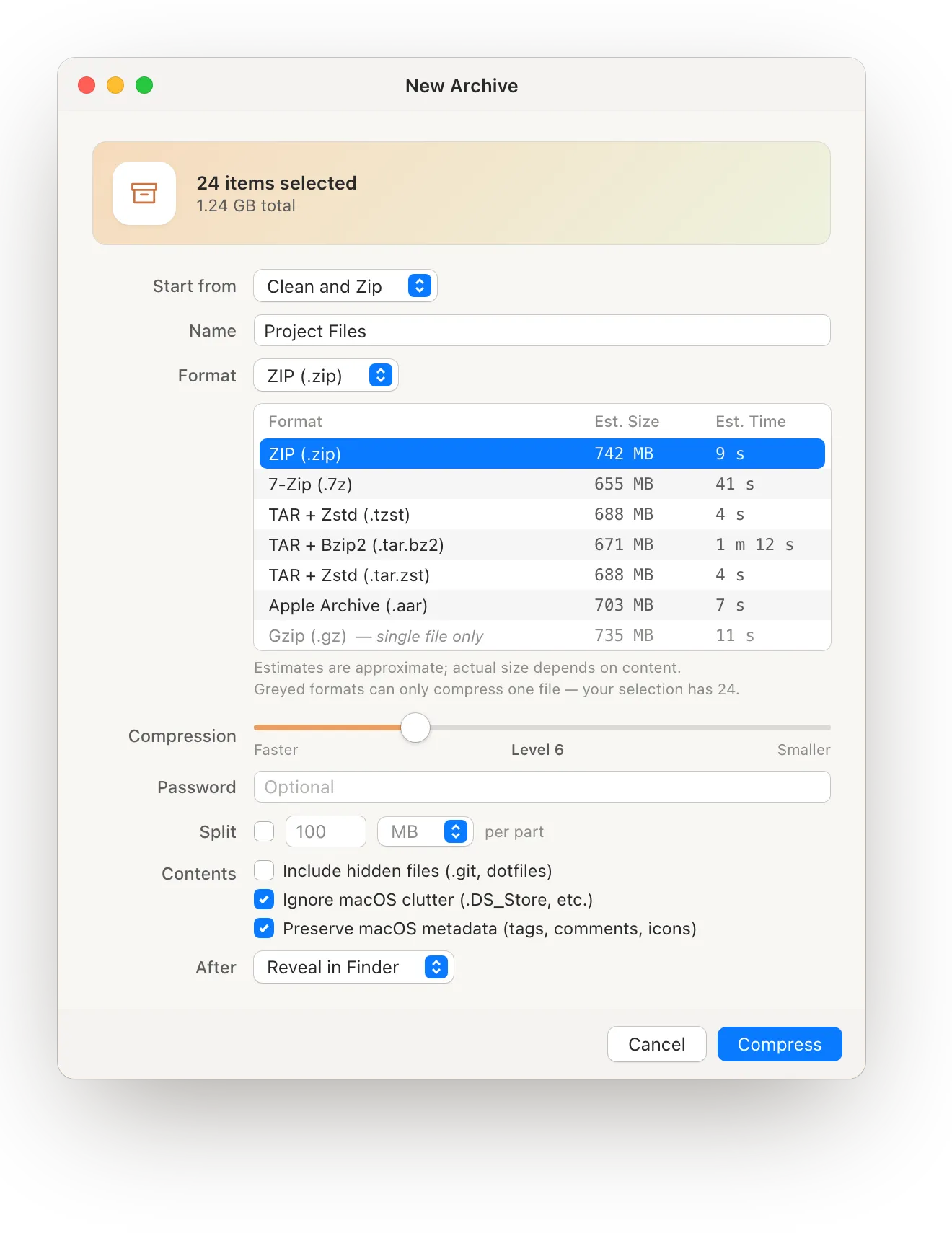
Choose a format by how big it gets and how long it takes
ZIP, 7-Zip or TAR with Zstandard? Instead of guessing, look at the table. Mochi Press estimates the size of your archive in every format from the files you picked, and the time from how fast your own Mac compresses. Then click the row you like.
- Passwords
- ZIP and 7-Zip archives can be locked with AES-256. 7-Zip can hide the file names too.
- Split
- Cut a big ZIP or 7-Zip archive into parts of the size you choose.
- Clean
- Leave out .DS_Store and other macOS clutter, or keep Finder tags and comments.
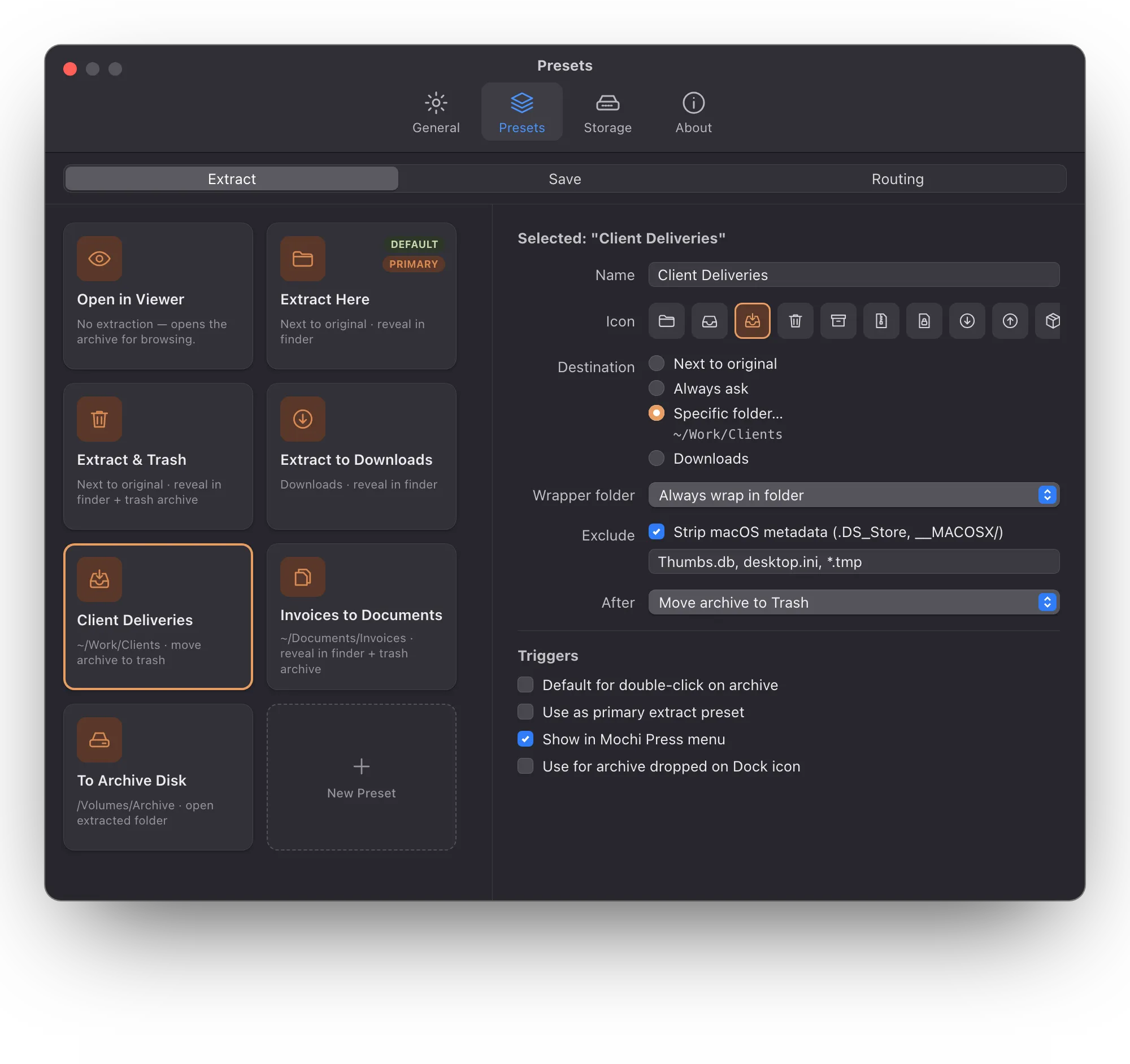
Your archives, handled your way
Most archive apps do the same thing with every archive. In Mochi Press you decide once what should happen to which archive, and from then on it just happens.
Make as many presets as you like
A preset is a recipe for extracting: where the files go, whether they get a folder of their own, which junk files stay out, and what happens to the archive afterwards. Keep it, move it to the Trash, open the folder. Make one for client deliveries, one for invoices and one that sends big archives to your backup disk.
Show presets in the Finder menu or make one the double-click default. Compress presets work the same way, with format, compression level and what to leave out.
Rules pick the preset for each archive
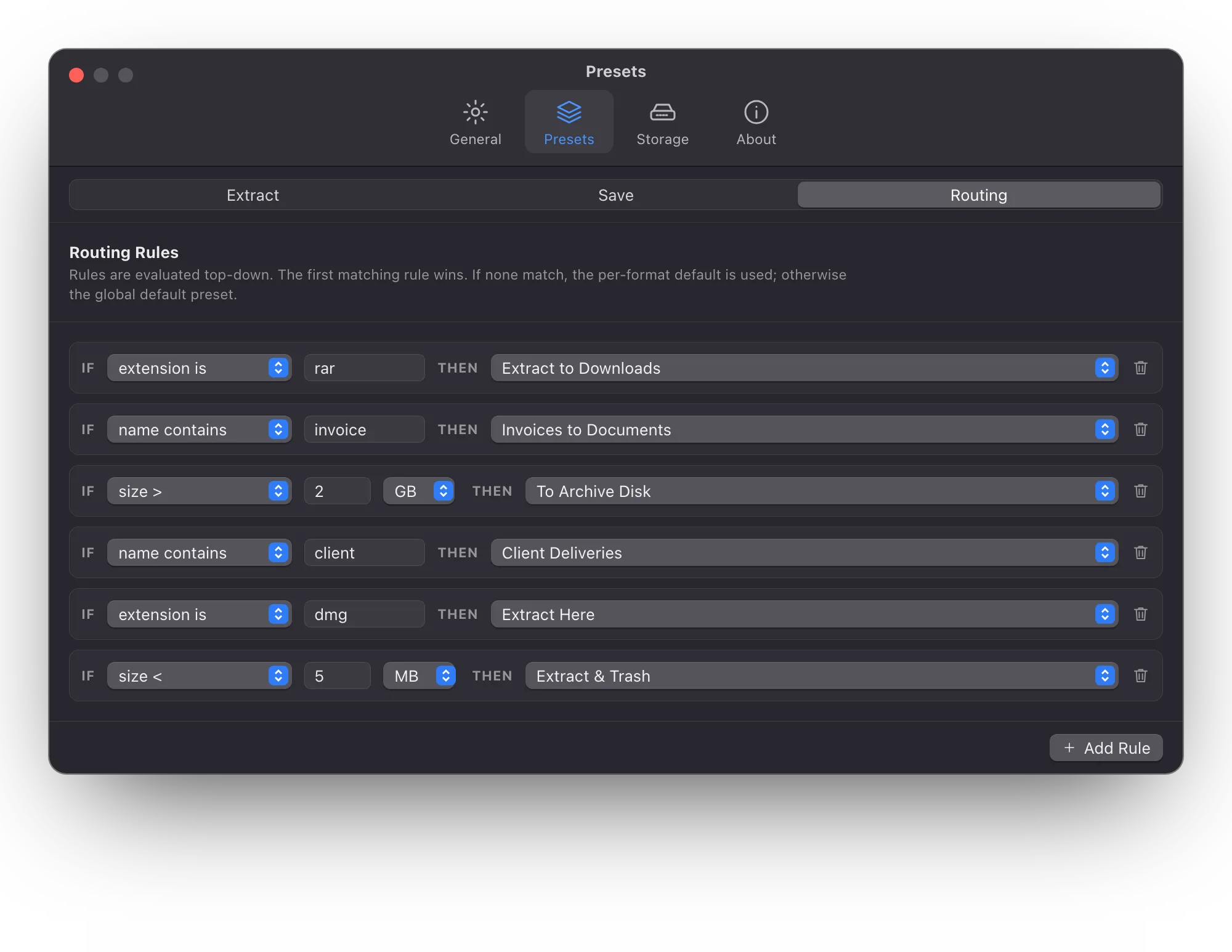
A rule looks at an archive’s extension, size or name and hands it to a preset: RAR files to Downloads, anything over 2 GB to the archive disk, anything with “invoice” in its name to your documents. Rules are checked from the top, the first one that fits wins, and archives no rule matches get your default preset.
Set it up once. From then on, a double-click puts every archive where it belongs.
Busy without getting in the way
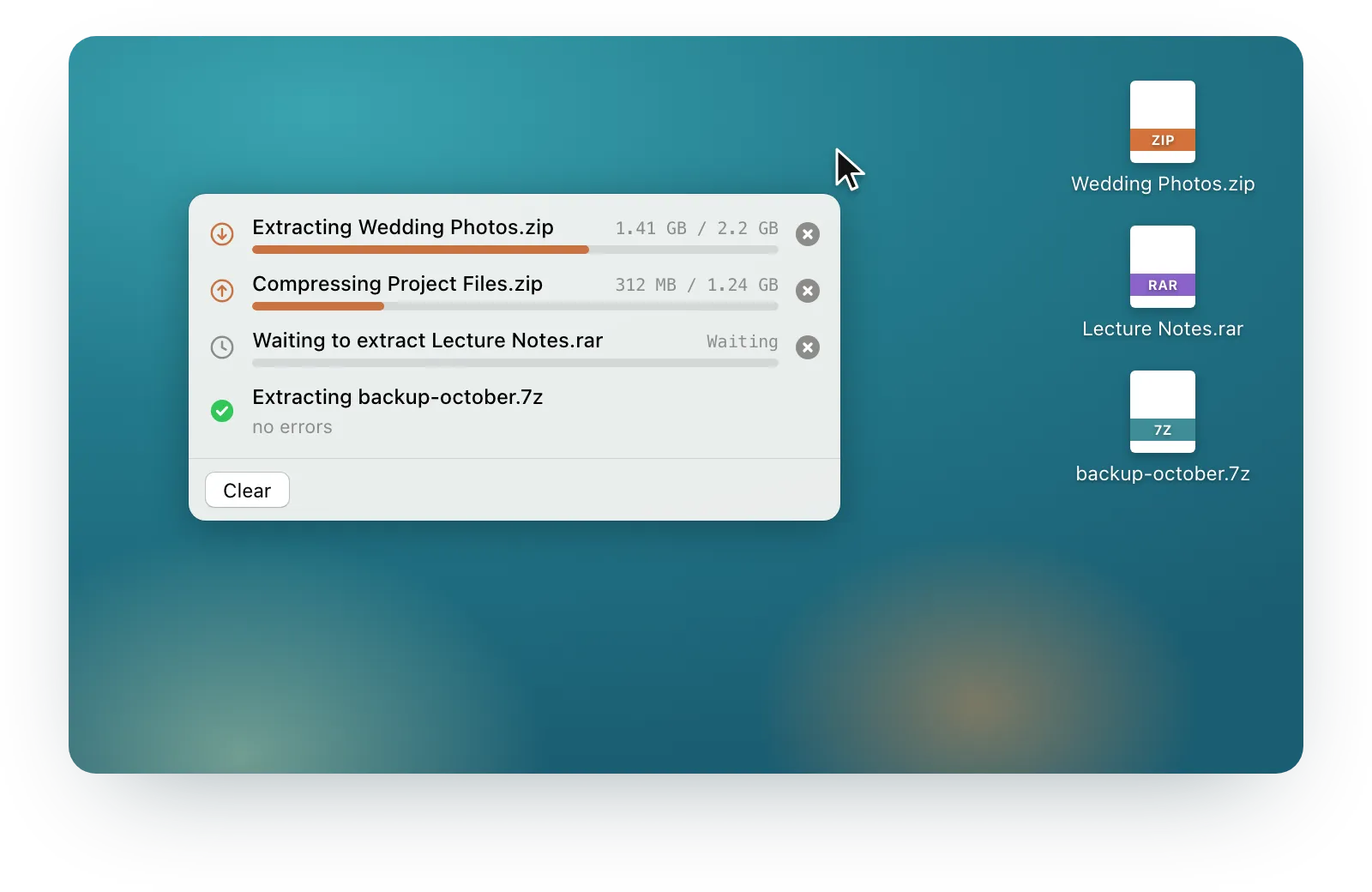
Jobs run in a small panel next to the pointer, up to ten at once, each with its own progress bar. Cancel a job and its half-written files are cleaned up. If a file couldn’t be extracted, the panel says which one and why.
Built for Apple silicon and still at home on Intel, Mochi Press reads big archives in pieces instead of loading them into memory, so a huge backup opens as calmly as a small download.
Formats
Opens and extracts 19
- ZIP
- 7Z
- RAR
- TAR
- TAR.GZ
- TAR.BZ2
- TAR.ZST
- TAR.XZ
- TAR.LZ
- GZ
- BZ2
- ZST
- XZ
- LZ
- CAB
- WIM
- ISO
- DMG
- AAR
Creates 12
- ZIP
- 7Z
- TAR
- TAR.GZ
- TAR.BZ2
- TAR.ZST
- GZ
- BZ2
- ZST
- DMG
- ISO
- AAR
Archives split into parts open from their first part. RAR is a closed format: Mochi Press extracts it but can’t create it.
Everything else it does
Free
No price, no trial, no account. Every update is included.
Updates itself
Mochi Press tells you when a new version is out and installs it for you.
Double-click your way
Choose whether a double-clicked archive opens in the window or extracts straight away. Hold ⌘⌃ to do the other.
Dock drops
Drop an archive on the Dock icon to extract it, or files to open the Compress window with your preset already picked.
One archive each
A compress preset can pack every selected folder into its own archive: twenty folders, twenty archives.
Finder toolbar
Add a Mochi Press button to the Finder toolbar for compress and extract.
On your Mac
Your files are never uploaded. Mochi Press only goes online to check for updates.
Launch at login
Keep it ready in the background, so the Finder menu responds at once.
Questions
Is Mochi Press really free?
Yes. There’s no paid version, no trial and no account, and future updates are free too.
How is it different from other free archive apps?
Many free archive apps only unpack: you double-click and everything lands in a folder. Mochi Press does that too, but it can also open the archive in a window first, so you can look around and take out just the files you need. And when you compress, it shows the size and time for each format before you choose.
Can Mochi Press create RAR files?
No. RAR is a closed format that only its own makers’ software may create. Mochi Press opens and extracts RAR archives, and creates ZIP, 7-Zip and ten other formats.
How do I make archives open in Mochi Press when I double-click them?
In Finder, select a ZIP file and choose File ▸ Get Info. Under Open with, pick Mochi Press and click Change All. Repeat for RAR, 7-Zip or any other format you use. In Mochi Press’s Settings ▸ Presets you then choose whether a double-click opens the archive or extracts it.
The Mochi Press menu doesn’t show up in Finder. What now?
Finder only shows it when the Mochi Press extension is turned on. In System Settings, open General ▸ Login Items & Extensions (on macOS 14: Privacy & Security ▸ Extensions) and switch on Mochi Press under Finder. Then check that Show Mochi Press in Finder context menu is on in Mochi Press’s Settings ▸ General.
Does it work with password-protected archives?
Mochi Press asks for the password when you open or extract a protected ZIP archive. When you compress, you can lock ZIP and 7-Zip archives with AES-256; a locked 7-Zip archive hides its file names too.
Does Mochi Press send my files anywhere?
No. Everything happens on your Mac. The app only goes online to check whether a new version is out.
Which Macs does it run on?
Any Mac with macOS 14 Sonoma or later, with Apple silicon or Intel.

Free, and yours to keep.
Download the DMG, drag Mochi Press into Applications and right-click any file in Finder.