
Presets and routing rules
A preset is a saved way to extract or compress: where the files go, which format, what happens afterwards. Use one from Finder’s Mochi Press submenu and it runs straight away, with no window.
Presets live in Mochi Press ▸ Settings… ▸ Presets, which has three parts: Extract, Save (the compress presets) and Routing. Each preset is a card. Click a card to edit it on the right; changes are saved as you make them. Click New Preset to add one, and Delete Preset at the bottom of the editor to remove it.
The starter presets
Section titled “The starter presets”Mochi Press comes with six presets. Rename, change or delete them as you like.
| Preset | What it does |
|---|---|
| Extract Here | Extracts next to the archive, then shows the files in Finder |
| Extract & Trash | The same, but leaves out .DS_Store and __MACOSX, and moves the archive to the Trash |
| Extract to Downloads | Extracts into a new folder in Downloads, then shows it in Finder |
| Clean and Zip | ZIP at level 6, next to the originals, without macOS clutter |
| Smart 7z | 7-Zip at level 9, next to the originals, without macOS clutter |
| Tar.zst (modern) | TAR + Zstd at level 19, next to the originals |
Extract presets
Section titled “Extract presets”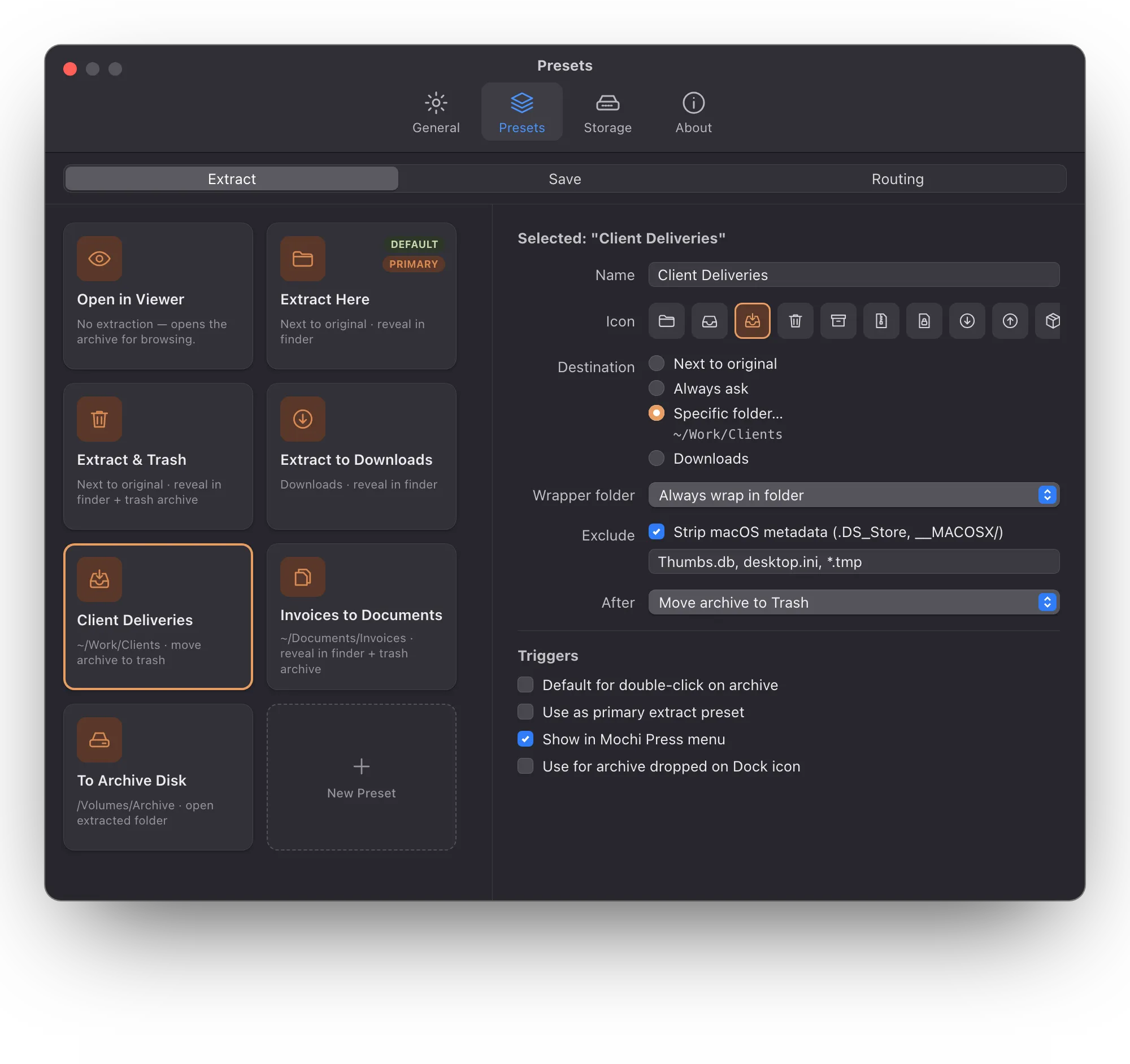
- Name and Icon: how the preset appears on its card and in the Finder menu.
- Destination: Next to original, Always ask, Specific folder… or Downloads.
- Wrapper folder: Always wrap in folder, Never wrap in folder, or Smart (only when archive has multiple roots).
- Exclude: Strip macOS metadata (.DS_Store, __MACOSX/) leaves those out. Add your own names in the field below, separated by commas.
- After: Do nothing, Reveal in Finder, Open extracted folder, Move archive to Trash, or Reveal in Finder + trash archive.
Where the files go explains each choice.
Triggers decide where the preset is used:
- Default for double-click on archive: a double-click in Finder extracts with this preset. Its card shows DEFAULT.
- Use as primary extract preset: what a double-click extracts with when no preset is the default, for example when the viewer is the default and you hold the invert keys. Its card shows PRIMARY.
- Show in Mochi Press menu: adds the preset to Finder’s Mochi Press submenu, under Extract Presets.
- Use for archive dropped on Dock icon: archives dropped on the Dock icon are extracted with this preset. It also wins for double-clicks, which reach Mochi Press the same way.
Only one preset at a time can be the default, the primary or the Dock preset. Ticking one on a preset takes it off the others. Any number of presets can be in the Finder menu.
The Open in Viewer card
Section titled “The Open in Viewer card”The first card in Extract isn’t a preset. Select it and tick Default for double-click on archive to make a double-click open archives in the viewer, with nothing written to disk. It then wears DEFAULT, and no extract preset does.
Double-click explains the order in which Mochi Press picks a preset.
Save presets
Section titled “Save presets”The compress presets.
- Name and Icon.
- Format: any format Mochi Press can create. See Formats.
- Compression: the level, from Faster to Smaller.
- Destination: Next to original, Always ask, Specific folder… or Downloads.
- Cleanup:
- Include hidden files (.git, dotfiles)
- Ignore macOS clutter (.DS_Store, __MACOSX, ._*)
- Preserve macOS metadata (Finder tags, comments, icons)
- Compress each item individually: one archive per selected item, each named after it, instead of one archive for everything.
- After: Do nothing, Reveal in Finder, or Move source files to Trash.
New presets take their Cleanup settings from Settings ▸ General ▸ New compression presets.
A preset never stores a password. To make a password-protected archive, use the Compress window. See Compressing.
Triggers:
- Default for compress dialog: the Compress window starts from this preset. Its card shows DEFAULT.
- Show in Mochi Press menu: adds the preset to Finder’s Mochi Press submenu, under Compress Presets.
- Use for files dropped on Dock icon: files dropped on the Dock icon open the Compress window with this preset.
A save preset run from the Finder menu writes the archive straight to its destination. With Always ask, Mochi Press asks where to save it first.
Routing rules
Section titled “Routing rules”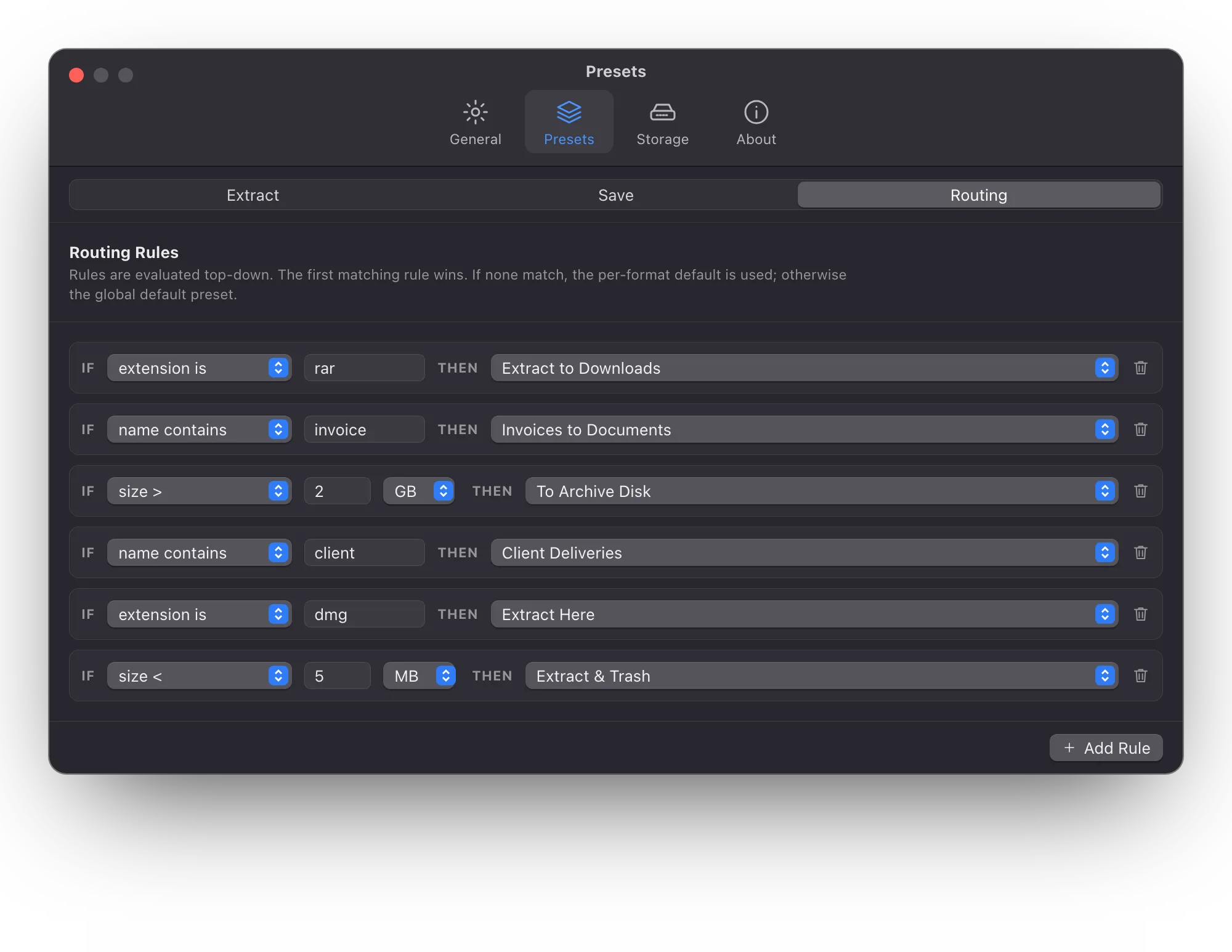
Routing rules choose an extract preset by looking at the archive. Open Settings ▸ Presets ▸ Routing and click Add Rule. Each rule reads IF a condition THEN a preset:
- extension is: for example
dmg,rarortar.gz. - name contains: for example
invoice. - size > or size <: a size in KB, MB or GB. This is the size of the archive file.
- is encrypted: the archive has password-protected files. This one works for Extract in the viewer only.
After typing a value, press Return to save it. Click the bin to delete a rule.
Rules are checked from the top, and the first one that matches wins. They apply when you double-click an archive or drop it on the Dock, and when you click Extract in the viewer. On a double-click they only come into play when a double-click extracts: with Open in Viewer as the default, the archive opens in the viewer instead, unless you hold the invert keys. Extract with Mochi Press in the Finder menu, the Quick Action and the Services menu don’t use them.
Some ideas:
- IF extension is
rarTHEN Extract & Trash. - IF size >
2 GBTHEN a preset with Always ask, so big archives go where you choose. - IF name contains
invoiceTHEN a preset with a Specific folder… for your paperwork.