
Finder and the Dock
The Mochi Press submenu
Section titled “The Mochi Press submenu”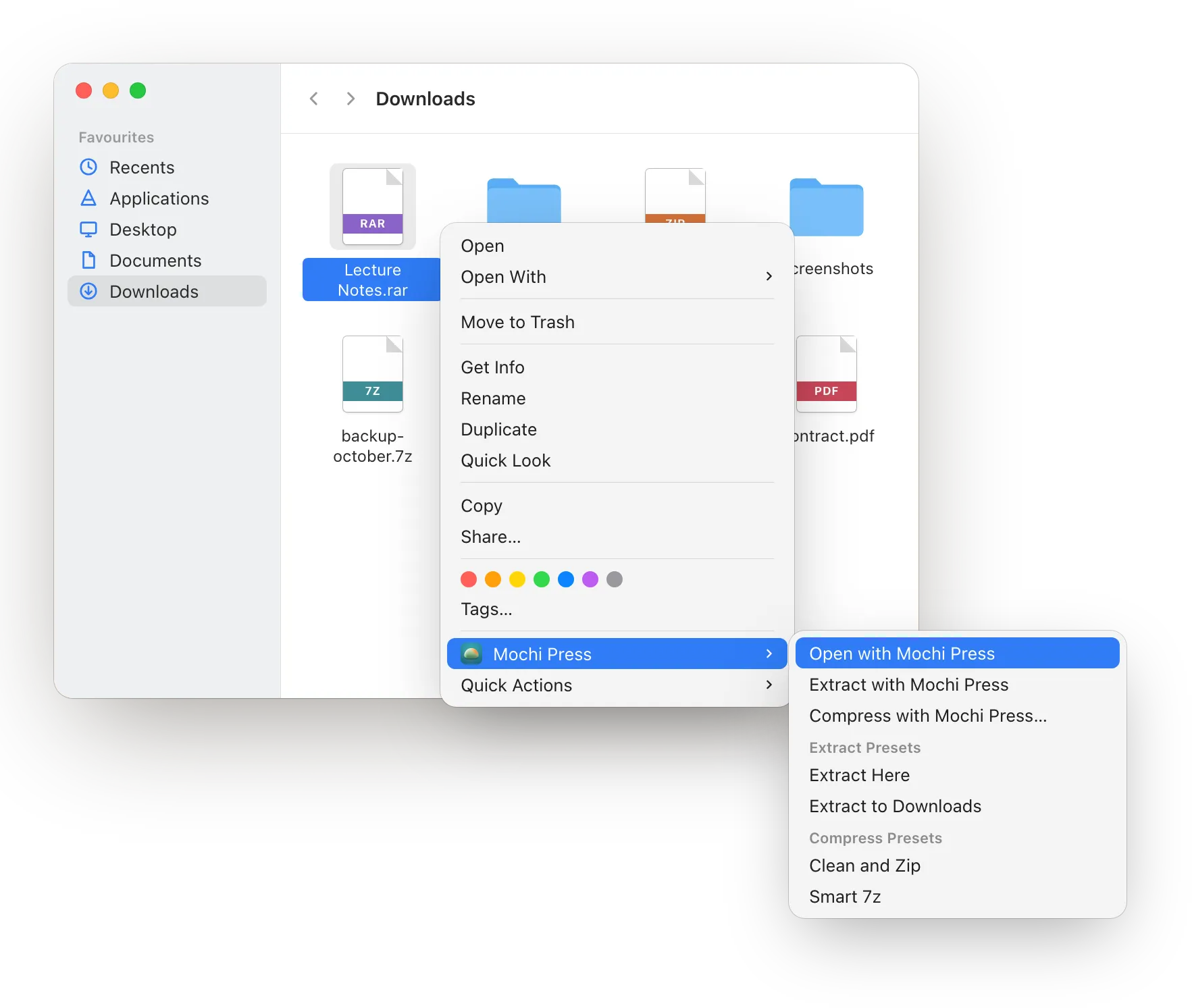
Right-click files, folders or archives in Finder and choose Mochi Press:
- Open with Mochi Press: opens the archive in the viewer. With several archives selected, it opens the first.
- Extract with Mochi Press: extracts each selected archive into a folder next to it, named after the archive, and shows it in Finder.
- Compress with Mochi Press…: opens the Compress window with everything you selected. See Compressing.
The first two appear only when the selection contains an archive.
Below them come your own presets, under Extract Presets and Compress Presets. A preset appears here when Show in Mochi Press menu is ticked in its settings. Choosing one runs it straight away, with no window: an extract preset on every selected archive, a compress preset on the whole selection. The progress panel shows the job, and Finder stays in front, unless the preset asks where to save. See Presets and routing rules.
To hide the submenu, turn off Show Mochi Press in Finder context menu in Settings ▸ General.
External drives in the sidebar. Because of how macOS handles Finder extensions, your external drives may show the Mochi Press icon in the Finder sidebar. It’s only cosmetic: everything keeps working. If it bothers you, turn off the submenu and use the Quick Actions or Services instead.
Quick Actions
Section titled “Quick Actions”Right-click in Finder and open Quick Actions:
- Compress with Mochi Press: opens the Compress window with the selection.
- Extract with Mochi Press: extracts each selected archive into a folder next to it, like the submenu item.
They also appear in the preview pane of a Finder window. If you don’t see them, choose Quick Actions ▸ Customize… and tick them.
Services
Section titled “Services”Right-click in Finder and open Services, or choose Finder ▸ Services:
- Open with Mochi Press
- Extract with Mochi Press
- Compress with Mochi Press…
They do the same as the submenu items of the same name. They never use your presets, so they always do the same thing.
Double-click
Section titled “Double-click”When Mochi Press is the app that opens a kind of archive (see Make Mochi Press open your archives), double-clicking one either extracts it or opens it in the viewer.
Out of the box, a double-click extracts. It uses Extract Here (next to the archive, then shown in Finder), and Mochi Press shows only the progress panel. No window opens.
Hold ⌘⌃ to do the opposite. Holding Command and Control while you double-click opens the archive in the viewer instead. If the viewer is your default, the same keys extract. To use ⌘⌥ (Command and Option) instead, or to switch this off, change Invert double-click action in Settings ▸ General: Off, ⌘⌃ Command + Control or ⌘⌥ Command + Option.
Make the viewer the default. In Settings ▸ Presets ▸ Extract, select the Open in Viewer card and tick Default for double-click on archive. Now a double-click opens the viewer, and ⌘⌃ extracts.
Choose what a double-click extracts with. Tick Default for double-click on archive on any extract preset. Its card shows DEFAULT.
When a double-click extracts, Mochi Press picks the preset in this order:
- The preset marked Use for archive dropped on Dock icon, if there is one. macOS hands Mochi Press a double-click and a Dock drop the same way, so this preset wins for both.
- The first routing rule that matches the archive.
- The preset marked Default for double-click on archive (DEFAULT).
- The preset marked Use as primary extract preset (PRIMARY).
- The first extract preset in the list.
Finder’s Open With ▸ Mochi Press counts as a double-click.
If you double-click several archives while the viewer is the default, only the first one opens.
Dock drops
Section titled “Dock drops”Drop files on Mochi Press’s icon in the Dock:
- Archives are handled like a double-click: extracted, or opened in the viewer if that’s your default.
- Anything else, or a mix of files and archives, opens the Compress window. If a compress preset is marked Use for files dropped on Dock icon, the window starts from that preset.
Dropping on the empty Mochi Press window is different: one archive opens in the viewer, and anything else opens the Compress window. Drop an archive on the viewer and it replaces the one that’s open.