
Extracting
Ways to extract
Section titled “Ways to extract”| Where | What happens |
|---|---|
| Extract in the viewer’s toolbar | The whole archive, with your extract preset |
| Extract beside a selection, or in the preview pane | Just the selected items, or the previewed file, with your extract preset |
| Dragging items from the viewer to Finder | Just those items, where you drop them. See Drag files out |
| Double-clicking an archive in Finder | The whole archive, with your double-click preset. See Double-click |
| Mochi Press ▸ Extract with Mochi Press in Finder, or the Quick Action or Service of the same name | Each selected archive into a folder next to it |
| A preset in the Mochi Press submenu | Each selected archive with that preset |
| Dropping archives on the Dock icon | Like a double-click |
Which preset the viewer uses
Section titled “Which preset the viewer uses”The viewer’s Extract buttons follow your extract presets:
- The first routing rule that matches the archive.
- Otherwise, the preset marked Default for double-click on archive.
- Otherwise, the first extract preset in the list.
Out of the box there are no rules and no default, so the viewer uses Extract Here: the files go next to the archive, and Finder shows them when it’s done.
Where the files go
Section titled “Where the files go”Each extract preset decides three things.
Destination.
- Next to original: in the folder that holds the archive.
- Always ask: Mochi Press asks where, each time.
- Specific folder…: always the same folder, chosen once.
- Downloads: your Downloads folder.
Wrapper folder. Whether the files land in a new folder named after the archive:
- Always wrap in folder: always a new folder, for example
photosforphotos.zip. - Never wrap in folder: straight into the destination.
- Smart (only when archive has multiple roots): if the archive holds a single folder or file at the top, it goes straight into the destination. If it holds several, they go into a new folder named after the archive, so they don’t spill across the destination.
After. What happens when the files are out: Do nothing, Reveal in Finder, Open extracted folder, Move archive to Trash, or Reveal in Finder + trash archive.
Extract with Mochi Press (in the Finder submenu, the Quick Action and the Services menu) doesn’t use a preset. It always makes a folder named after the archive, next to it, and shows it in Finder.
Password-protected archives
Section titled “Password-protected archives”When a ZIP archive needs a password to extract, Mochi Press asks for it before it starts: Encrypted Archive, then Extract. See Password-protected archives.
When Mochi Press can’t write to a folder
Section titled “When Mochi Press can’t write to a folder”If macOS won’t let Mochi Press write into the destination, it asks you to choose that folder, or any folder above it, and click Grant Access. It remembers the choice, so you’re asked only once for that place. Settings ▸ Storage ▸ Saved Folder Access lists these folders.
The progress panel
Section titled “The progress panel”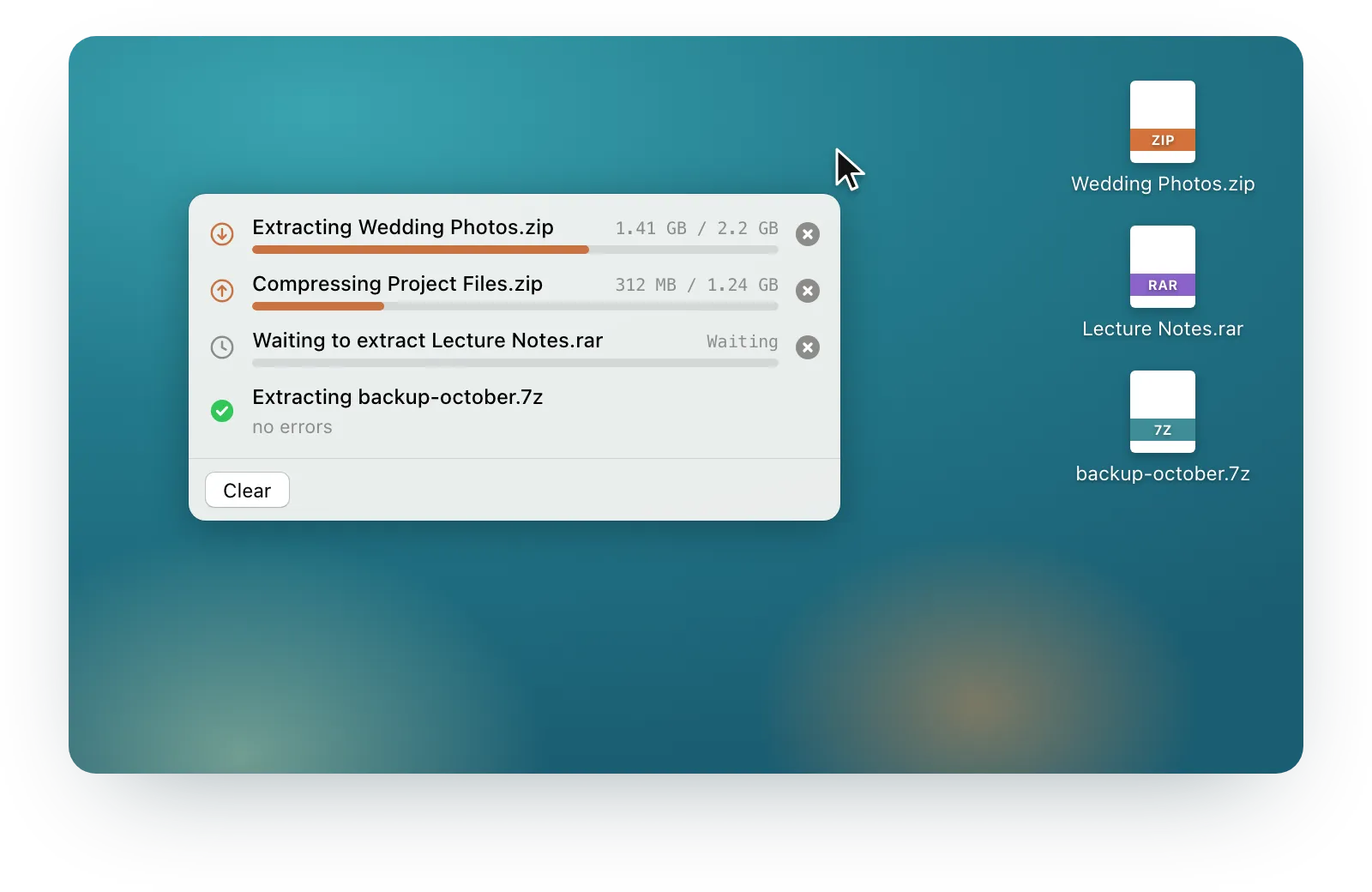
While Mochi Press extracts with a preset or compresses, a small progress panel appears near the pointer. It floats above your windows and doesn’t take the focus from the app you’re in. Drag it anywhere.
Each job has a row:
- Preparing photos.zip while Mochi Press reads the archive (Reading…).
- Waiting to extract… or Waiting to compress… when it’s queued.
- Extracting photos.zip or Compressing photos.zip with a progress bar and how much is done, for example “1.2 GB / 3.4 GB”.
Click the × at the end of a row to cancel that job.
Up to 10 jobs run at the same time. Any more wait their turn, shown as “+3 more queued”.
When a job finishes, its row stays as a log line: no errors, done, with warnings, failed — see details or cancelled. If anything went wrong, a section at the bottom opens by itself, for example “1 error, 2 warnings”, with the full message for each job. A compress that had to skip files, because they were missing or changed while being read, lists them there.
Clear removes the finished rows. When nothing is left, the panel goes away.
If Mochi Press was opened only to extract, from a double-click or the Finder menu, it quits by itself once the work is done and you’ve cleared the panel, or about half a minute later if you leave it.