
Cropping and zooming
Pick the crop tool and drag out the part you want to keep. While you crop, the editing bar shows Cancel and Crop in place of colour and width: click Crop or press Return to keep the selection, Esc to cancel.
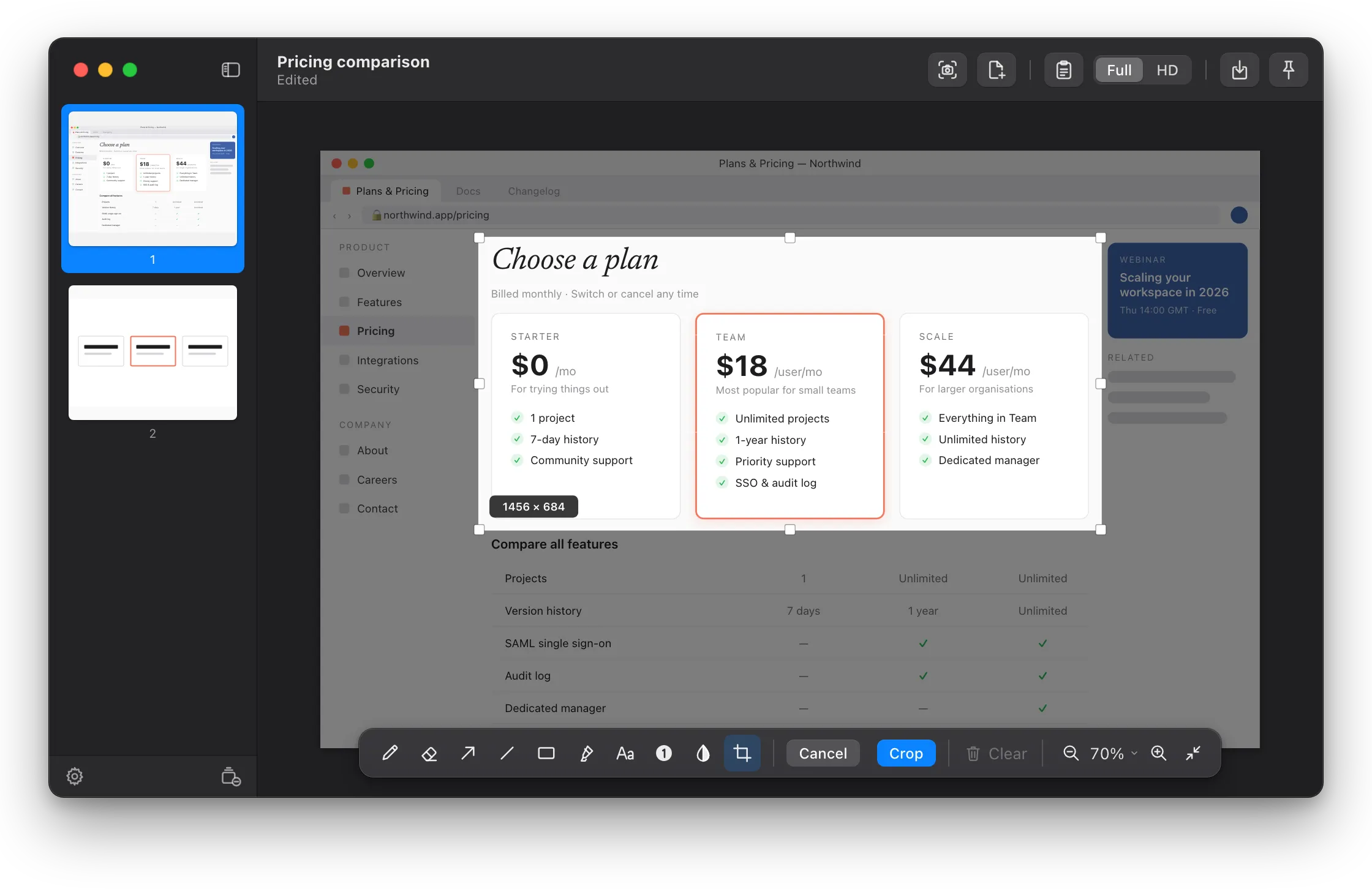
- The screenshot, your pen strokes and every annotation move together, so nothing ends up out of place. Anything outside the crop is discarded.
- The whole crop is one undo step:
⌘Zreverses it. Clear doesn’t. - StepSnip goes back to the pen afterwards.
The zoom controls are at the end of the editing bar: zoom out, the percentage, zoom in, and Fit, which goes back to fit-to-window. The percentage is a menu with Fit to Window, 50%, 100% and 200%; in a narrow bar it also holds Zoom In and Zoom Out. ⌘=, ⌘- and ⌘0 zoom in, out and back to fit.
- Zoom runs from 12.5% to 800%, to check fine detail well past full size, or to step back from a tall page.
- When a page is larger than the window, scroll to move around it.
- Each page keeps its own zoom as you move between pages. Fit-to-window is the default.