
Saving and exporting
The toolbar has Copy Image, the Full / HD switch and the Export menu (the tray with a down arrow).
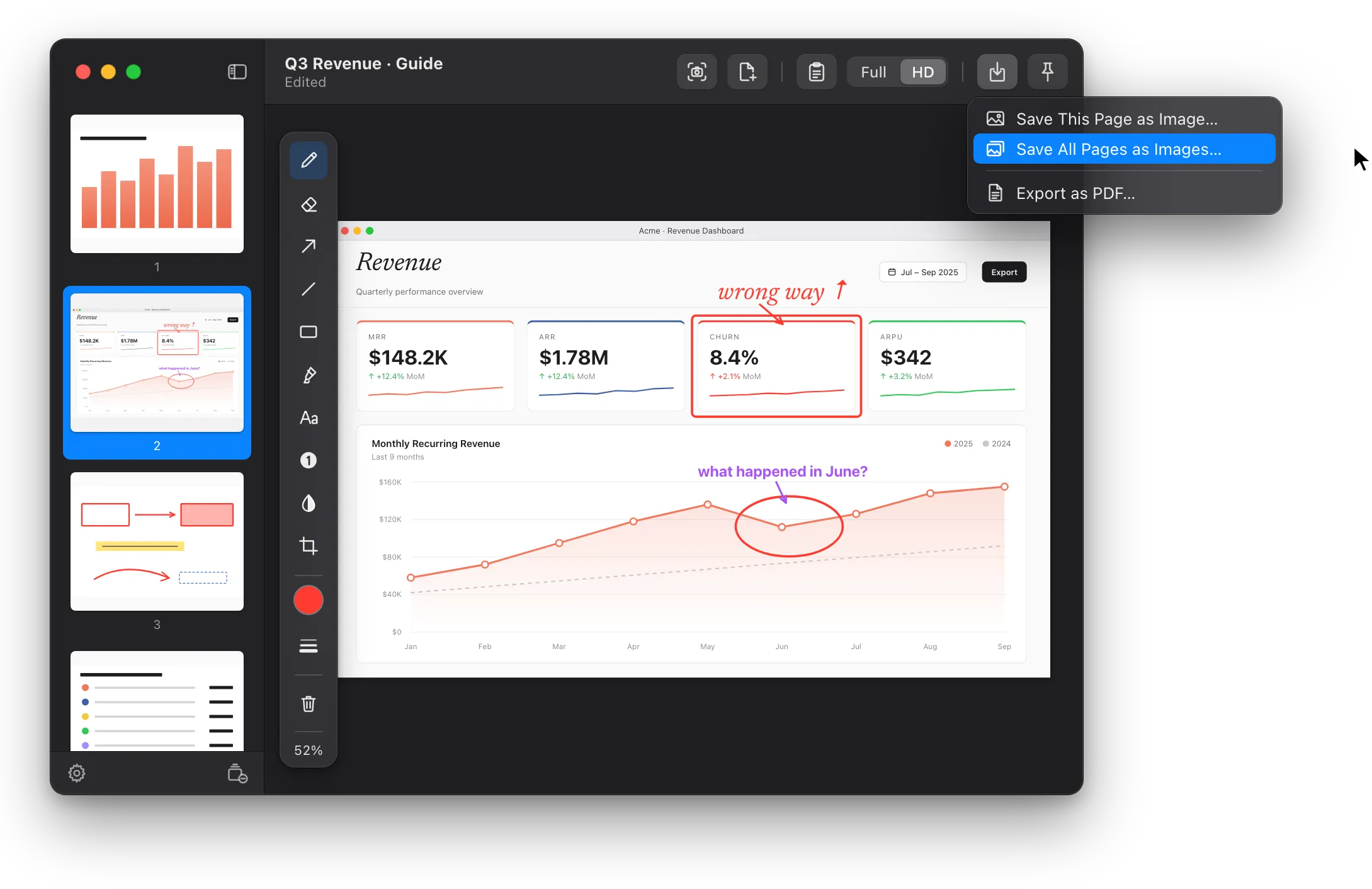
- Export → Save This Page as Image… saves the current page as one image, as PNG or JPG (Settings → General).
- Export → Save All Pages as Images… saves every page as its own image, into a folder you pick.
- Export → Export as PDF… exports the whole document, every page with its markup, as one PDF.
- To save only some pages, select them in the sidebar, right-click and choose Save 3 Images… (or however many you picked), or drag them to Finder. See Pages and documents.
- Copy Image copies the current page as a PNG, ready to paste into Slack, Mail and the like. The button shows a tick once it’s on the clipboard.
- Full / HD, beside the Copy button, sets the size of copied images. Full copies at full Retina resolution; HD at 1×, with the longest side at most 2000 px, for smaller images that travel better through chat apps. It applies to the Copy button and to screenshots copied automatically when you capture them.
- Save and Save As (
⌘S,⇧⌘S) save the editable.stepsnipdocument, to open again later. Once a document is saved, StepSnip keeps the file up to date as you work. - New and Open (
⌘N,⌘O) start or open a document. File → Open Recent lists recent ones; Clear Menu empties the list.
Pin Window, in the toolbar, keeps the StepSnip window floating above other apps, for when you’re switching back and forth with the thing you’re documenting.