
The editing bar
Everything you use on a page sits in one bar: the ten markup tools, the colour and width, Clear, and the zoom controls. The window’s own toolbar keeps the document actions: screenshot, new page, copy, Full / HD, Export and Pin.
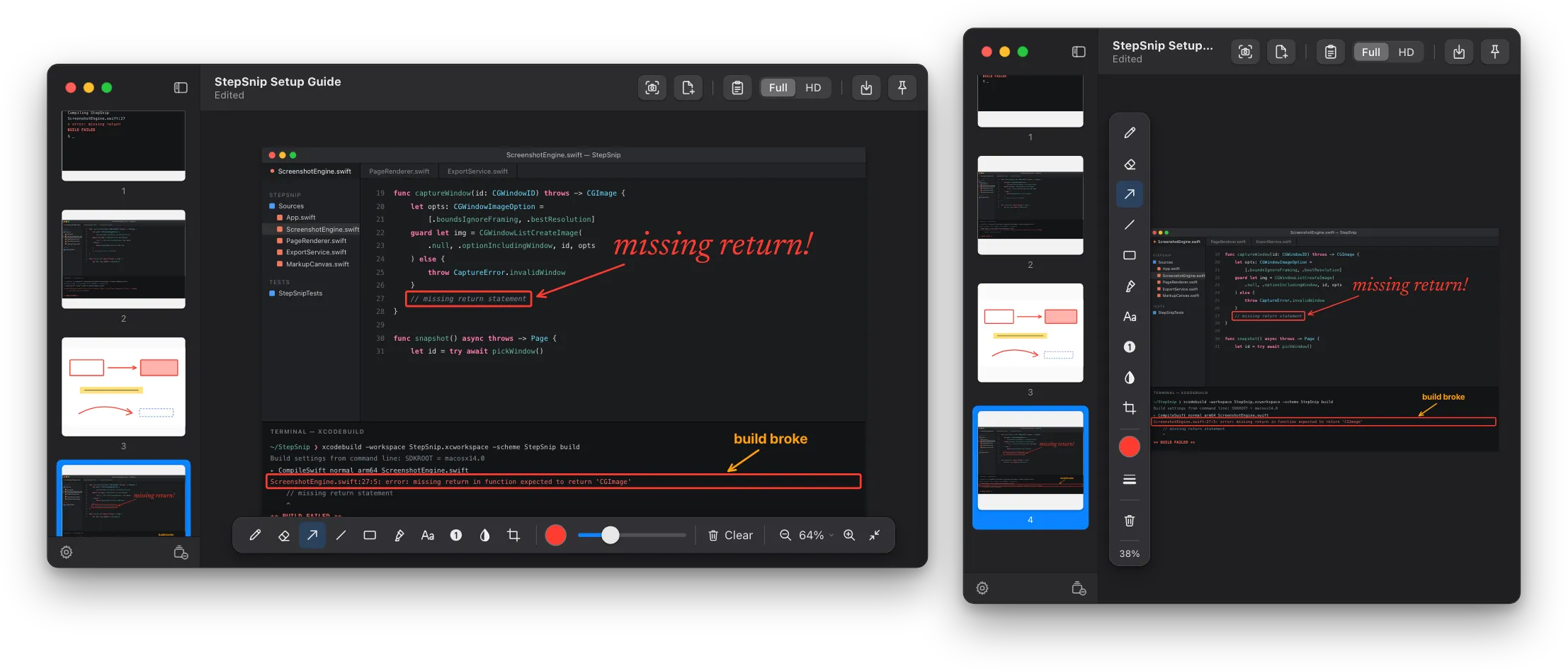
Docked or floating
Section titled “Docked or floating”Choose in Settings → General → Editing bar → Style.
- Floating (the default) hovers over the canvas on a frosted panel and gives the page more room.
- Docked takes its own strip of the window and never covers the image.
Position
Section titled “Position”Settings → General → Editing bar → Position:
- Left: a column down the left side of the canvas.
- Bottom (floating) or Top (docked): a row across the canvas.
- Automatic (the default): a row while the whole bar fits the width of the canvas, and a column on the left once the window gets narrower than that. Widen the window again and the bar goes back.
Small windows
Section titled “Small windows”As the window shrinks, the bar folds up instead of cutting anything off:
- First the width slider becomes a button that opens it, Clear becomes an icon, and the zoom controls fold into the percentage menu.
- Then the tools go on one line and the rest on a second (or, on the left, two columns).
- In the smallest windows the bar scrolls.
The window goes down to 600 × 450.