
Markup tools
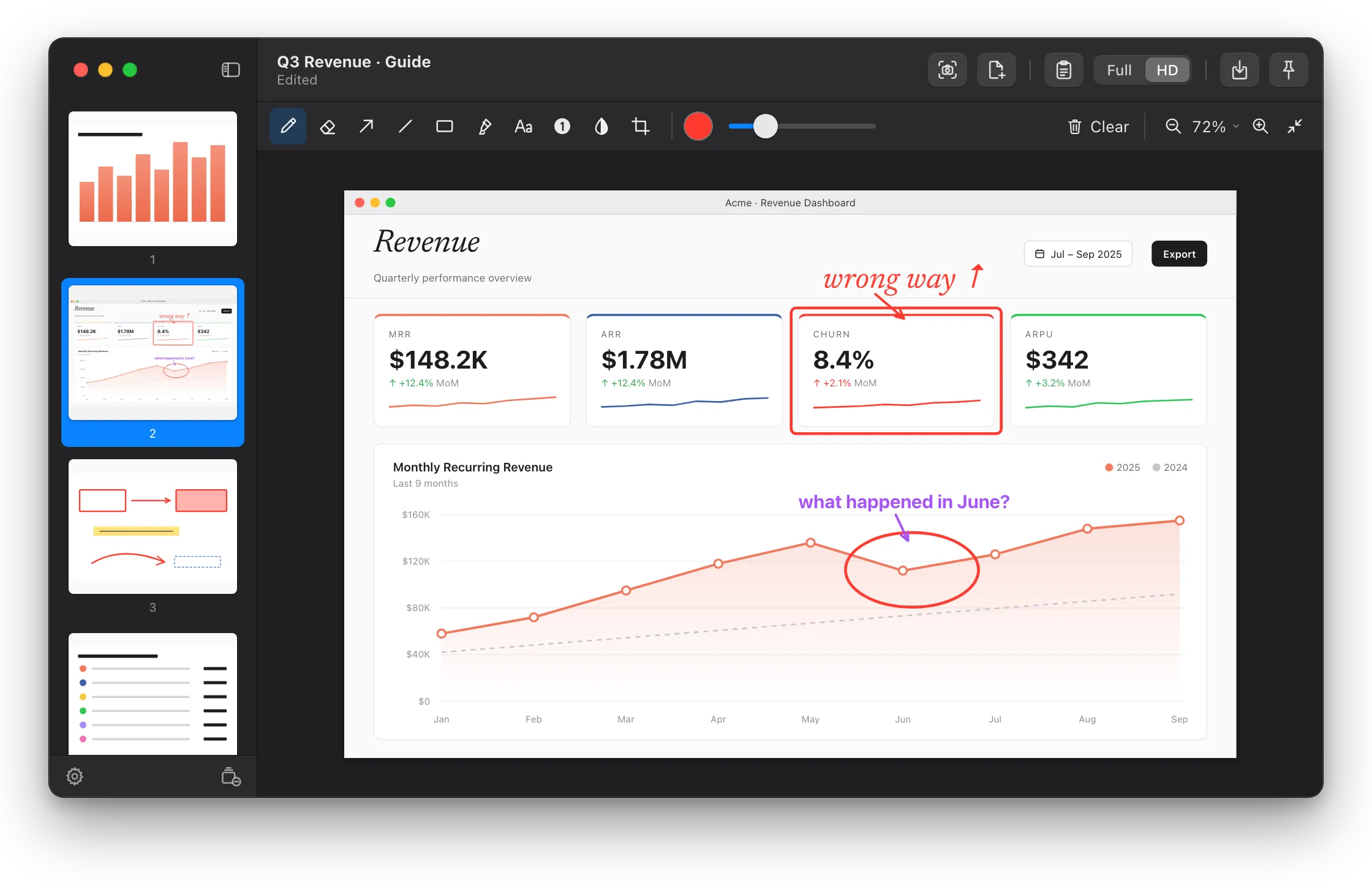
The drawing tools sit in the editing bar, together with colour, width, Clear and zoom. Click a tool, then draw on the page.
The tools
Section titled “The tools”In the order they appear in the bar:
- Pen: a freehand line.
- Eraser: removes pen strokes under the pointer.
- Arrow: a straight arrow, with its head at the end point.
- Line: a straight line without a head.
- Rectangle: an outlined rectangle.
- Highlight: a see-through filled rectangle, to point at something without hiding it.
- Text: click to place text. While you type, a slider above the text box sets the size, 8–96 pt.
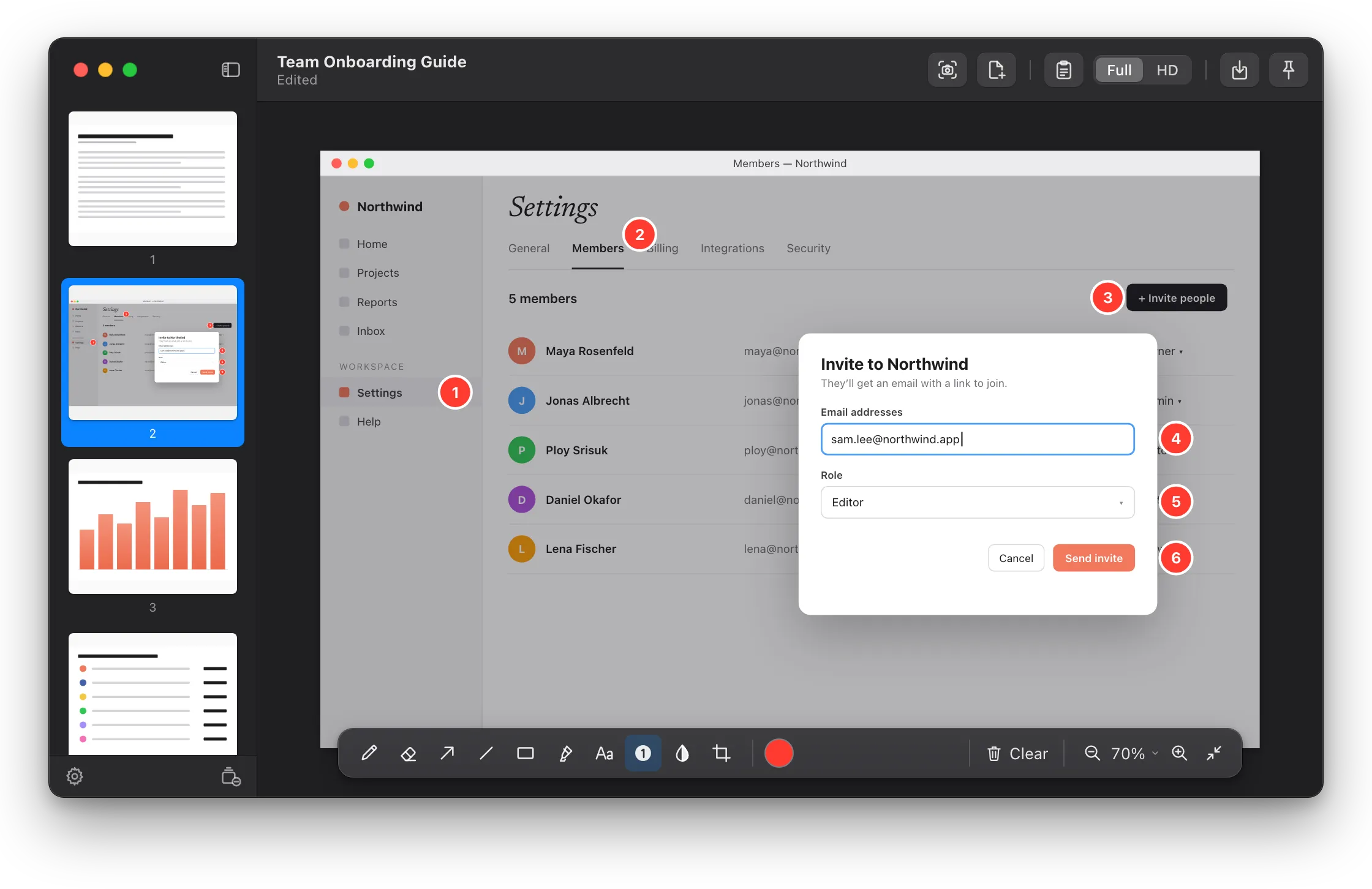
- Step marker: a numbered circle (1, 2, 3…), for step-by-step guides.
- Blur: a blurred rectangle, to hide passwords, names and other private details.
- Crop: see Cropping and zooming.
Step markers
Section titled “Step markers”Pick the step marker and click wherever the next step happens: each click places the next number on that page, starting at 1. Markers take the current colour, and you can move, recolour or delete them like any other mark. Removing one doesn’t renumber the rest; the next marker continues after the highest number on the page.
Colour and width
Section titled “Colour and width”Beside the tools are a colour well and a width slider (1–20). In a narrow bar the width is a button that opens the slider. They show only what the tool uses: colour for everything except the eraser, blur and crop; width for the pen, arrow, line and rectangle.
Editing what you’ve drawn
Section titled “Editing what you’ve drawn”Click a shape to select it: a dashed outline and handles appear, so you can move it, resize it, or press Delete to remove it.
- While a shape is selected, the colour and width show its values, and changing them changes the shape at once. The new values carry on to the next shape you draw.
- A shape or step marker is selected as soon as you draw it, so you can adjust it straight away.
- Pen strokes can’t be selected: undo them with
⌘Z, or rub them out with the eraser.
Every edit can be undone.
Clearing markup
Section titled “Clearing markup”To remove all markup from a page and keep the screenshot, use Clear in the editing bar, the Edit menu, or the page’s right-click menu in the sidebar. It’s one undo step, and it doesn’t undo a crop.