
Export and copy
With a transcript open, choose from the Edit menu, or from ⋯ at the top right of the transcript:
- Copy Transcript as Markdown (⇧⌘C)
- Copy Transcript as Plain Text (⌥⌘C)
- Copy Transcript as Rich Text, for Pages, Word, Mail and Notes
⋯ ▸ Share… sends the transcript as Markdown through the macOS share menu, to Mail, Messages, Notes and the like.
Export
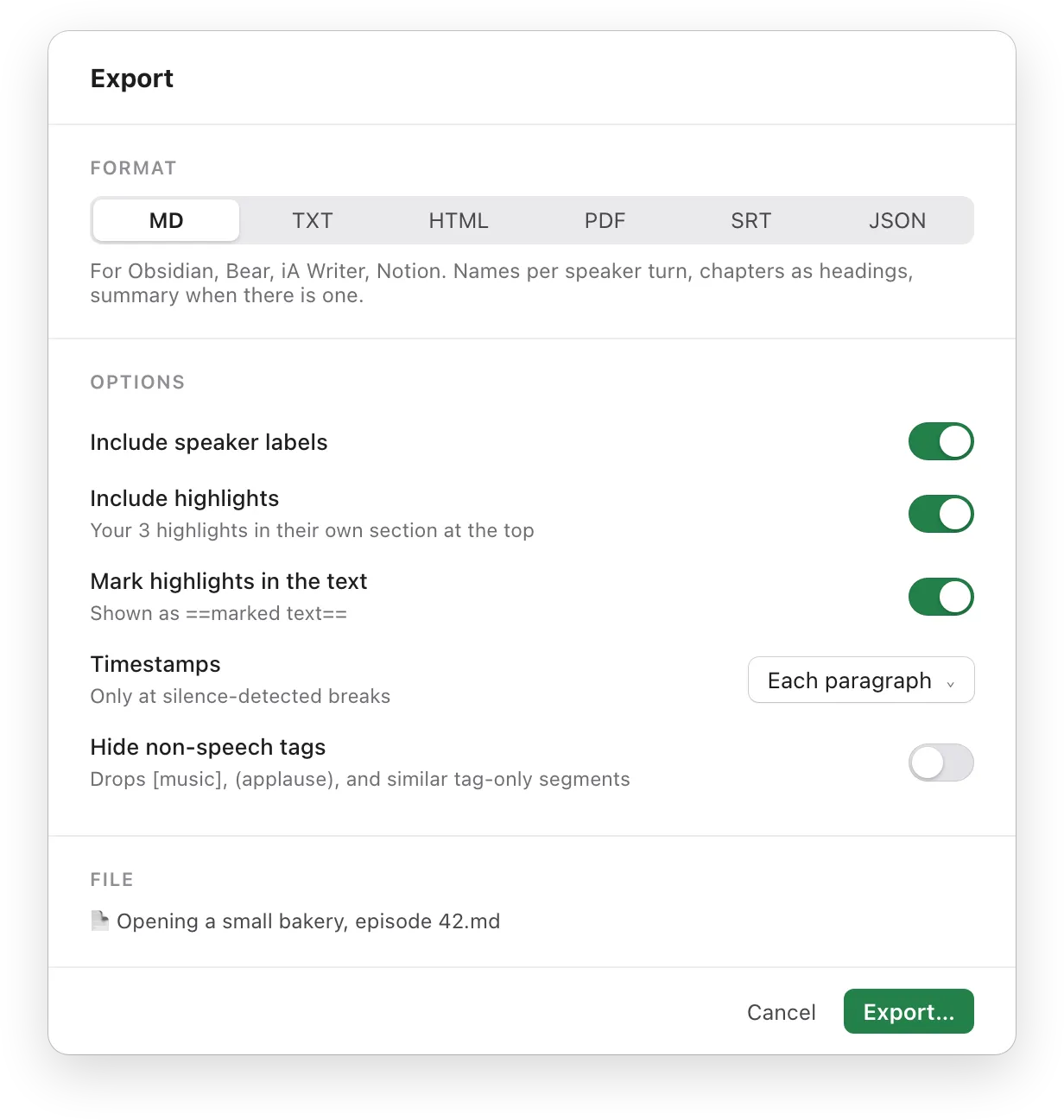
Section titled “Export”Choose File ▸ Export Transcript… (⌘E), or ⋯ ▸ Export…. Pick a format and the options, then click Export… and choose where to save. The file is named after the transcript; the save window starts in Documents ▸ Wolfgang, or the folder in Settings ▸ Export. When it’s saved, Show in Finder takes you to it.
Formats
Section titled “Formats”| Format | What it’s for | |
|---|---|---|
| TXT | Plain text with timestamps | Free |
| SRT | Subtitles for video players and editors. Always one subtitle per line, with its exact times | Free |
| MD | Markdown for Obsidian, Bear, iA Writer or Notion: names per speaker turn, chapters as headings, the summary when there is one | Pro |
| HTML | A web page with the same layout as Markdown, for any browser | Pro |
| A printable document with the same layout | Pro | |
| JSON | All the transcript’s data, for your own scripts | Pro |
On Free, choosing a Pro format says so and links to Pro.
Options
Section titled “Options”The options depend on the format:
- Include speaker labels: each speaker’s name before what they say. Not for SRT.
- Include highlights: your highlights in their own section at the top. Mark highlights in the text also marks them where they are:
==like this==in Markdown and plain text, in yellow in HTML and PDF. Both show only when the transcript has highlights. - Timestamps: on each line, at each paragraph, once a minute, or off for plain prose.
- Merge consecutive by speaker (TXT): folds a speaker’s lines into one paragraph. Markdown, HTML and PDF always group by speaker turn.
- Hide non-speech tags: drops lines that are only [music], (applause) and the like.
Batches and watch folders export each transcript automatically, in the format you set for them: see Batches and watch folders.