
Files and YouTube
Everything starts on the New Transcription page (⌘N). Its four tabs are File, YouTube, Record and Batch. This page covers the first two; see Recording and meetings and Batches and watch folders for the others.
A file
Section titled “A file”Drop an audio or video file on the File tab, or click Browse to choose one. Wolfgang reads MP4, MOV, M4V, MP3, M4A, WAV, AIFF, AAC, CAF and FLAC. Then click Transcribe (⌘↵).
The file stays where it is: Wolfgang plays it from there and doesn’t copy it. If you move, rename or delete it later, the transcript keeps its text, but it can’t be played back or re-transcribed until the file is back. The folder button at the top of the transcript shows a warning when the file is missing.
Drop several files at once and Wolfgang makes a batch of them (Pro): see Batches.
A YouTube video
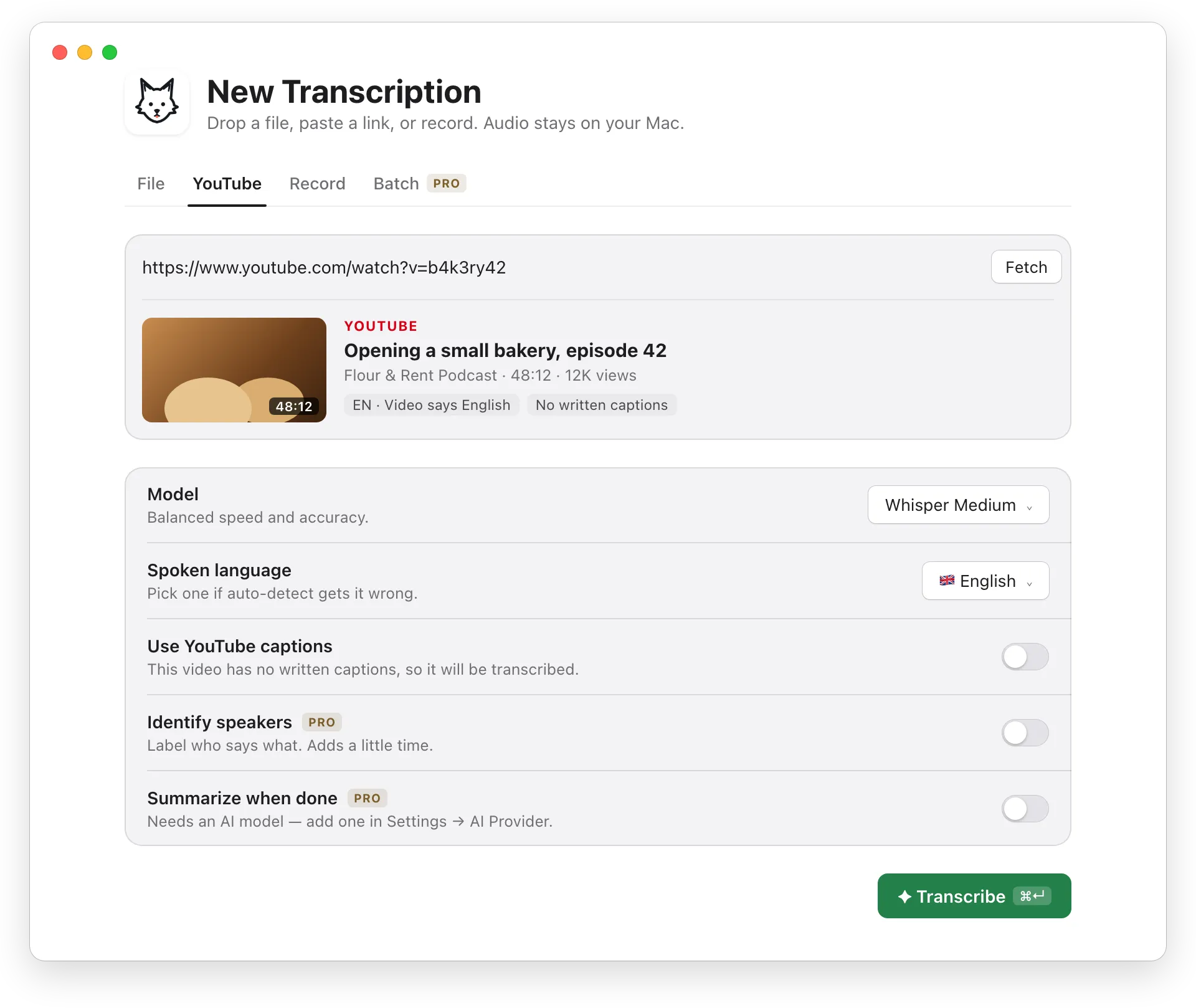
Section titled “A YouTube video”- Paste the link on the YouTube tab. Links to videos, Shorts and
youtu.belinks all work. - Click Fetch (or press ⌘↵). A preview shows the title, channel, length, the language the video says it’s in, and whether it has written captions.
- Click Transcribe (⌘↵).
Wolfgang downloads only the audio and keeps it so you can play the transcript back. What Wolfgang does with YouTube, from single videos to whole channels, is on the YouTube page. A link from a playlist (watch?v=…&list=…) transcribes just that one video; to transcribe a whole playlist or channel, use a batch.
Use YouTube captions
Section titled “Use YouTube captions”When a video has captions written by a person, Use YouTube captions imports them in seconds instead of transcribing. Captions YouTube generates by itself are never used. If the video has no written captions in a matching language, Wolfgang transcribes it as usual. To make this the default, turn on Settings ▸ Transcription ▸ Use YouTube captions when available.
Age-restricted and members-only videos
Section titled “Age-restricted and members-only videos”Some videos open only when you’re signed in. In Settings ▸ Transcription ▸ Use browser cookies, choose the browser you watch YouTube in. Wolfgang then reads that browser’s YouTube sign-in, only when it contacts YouTube.
- Safari keeps its cookies in a protected folder: give Wolfgang Full Disk Access in System Settings ▸ Privacy & Security.
- Chrome and other browsers: macOS asks once whether Wolfgang may read the browser’s saved-password key, which unlocks its cookies.
Helper tools for YouTube
Section titled “Helper tools for YouTube”The YouTube downloader comes with Wolfgang and updates itself daily. Two optional helpers sit in Settings ▸ Models ▸ Helper Tools:
- Audio converter (28 MB): for the few videos whose audio macOS can’t read directly. Without it, such a video stops with a message that points here.
- JavaScript runtime (39 MB): YouTube protects more and more videos with a script check, and the downloader needs this to get past it. If videos that play fine in your browser fail in Wolfgang, install it.
The options
Section titled “The options”The same options sit under every tab except Batch:
- Model: the transcription model. Installed models are listed first, then the ones that download the first time you use them. See Which model to use.
- Spoken language: leave it on auto-detect, or pick the language if auto-detect gets it wrong. Each model lists only the languages it knows. The default for new transcriptions is in Settings ▸ Transcription.
- Use YouTube captions (YouTube only): see above.
- Identify speakers (Pro): label who says what. It adds 10–25% to the time. The first time, Wolfgang downloads a small speaker model (about 60–80 MB). See Speakers and people.
- Summarize when done (Pro): writes a summary as soon as the transcript is ready, with your AI model. See AI tools.
With a Parakeet model, Wolfgang also estimates how long the transcription will take, next to the Transcribe button.
Paragraphs
Section titled “Paragraphs”Wolfgang starts a new paragraph wherever the speaker pauses. Settings ▸ Transcription ▸ Paragraph Breaks ▸ Silence threshold sets how long that pause must be. It applies to new transcripts; re-transcribe an older one to use a new threshold.