
Speakers and people
Speakers are part of Wolfgang Pro.
Identify who is speaking
Section titled “Identify who is speaking”Turn on Identify speakers before you click Transcribe, or make it the default with Settings ▸ Transcription ▸ Speaker diarization. Wolfgang then labels each part of the transcript Speaker A, B, C and so on, each in its own colour. It runs on your Mac and adds 10–25% to the time.
The first time, Wolfgang downloads its speaker model (about 60–80 MB). To download it ahead of time and see the progress, use Settings ▸ Models ▸ Speaker Diarization.
For meetings, record the call with Also record call audio: your own voice then always lands on your side. See Recording and meetings.
Name them
Section titled “Name them”Click a speaker’s name (or the pencil beside it) in the transcript, type the real name and click Rename. Every line of that speaker in the transcript gets the name. To go back to “Speaker B”, open it again and click Clear.
The speakers chip at the top of the transcript opens the Speakers panel:
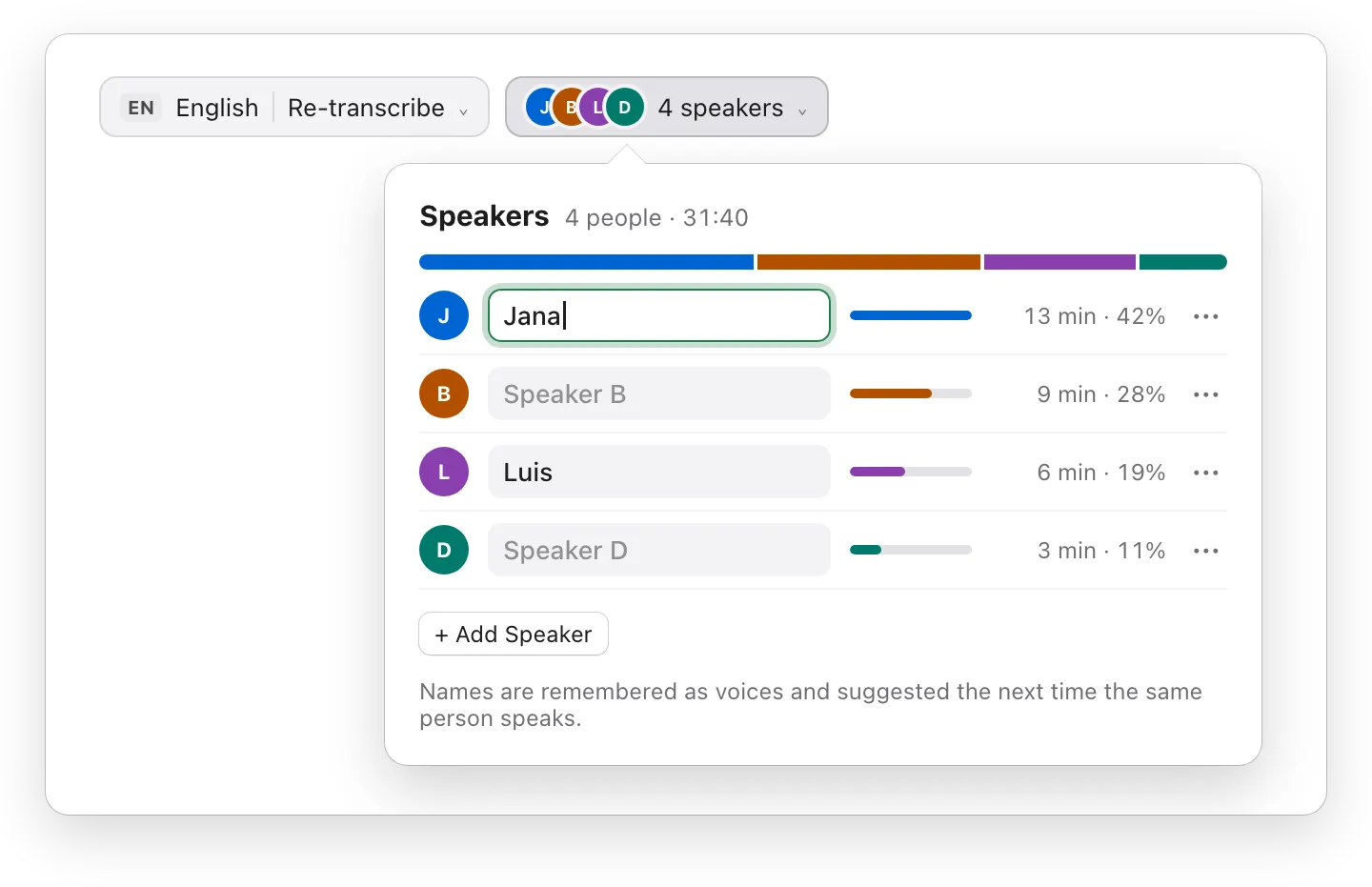
- the bar shows everyone’s share of the talking;
- each row has a name field, the talk time and share (point at it for the number of words), and a ⋯ menu;
- type in a field and press Return to name that speaker.
Move lines to another speaker
Section titled “Move lines to another speaker”When speaker detection gives a sentence to the wrong person:
- select the words and right-click ▸ Move Selection to Speaker, then pick the right person. Only the selected words move, even from the middle of a line;
- or right-click a paragraph without selecting and choose Move Paragraph to Speaker.
The list shows everyone in the transcript, plus New Speaker for someone who isn’t there yet. A message says “Moved 3 lines to Anna”, with Undo; ⌘Z works too.
Merge two speakers
Section titled “Merge two speakers”Sometimes one person is split into two speakers. In the Speakers panel, click ⋯ on the speaker that shouldn’t exist and choose who to merge them into. Their lines and name go to that person, and a message offers Undo.
Add a speaker
Section titled “Add a speaker”Add Speaker at the bottom of the panel adds a named person with no lines yet, so you can move lines to them.
Voices Wolfgang remembers
Section titled “Voices Wolfgang remembers”When you name a speaker, Wolfgang remembers their voice. In later transcripts with speaker detection on, it names that person by itself, and a message tells you which voices it recognised. This works for single files, YouTube videos, batches, re-transcriptions and the call side of meetings. Batches recognise voices before they write summaries, so action items carry real names.
Voices stay on your Mac and are never exported. In Settings ▸ Transcription ▸ Known Voices:
- Recognize known voices turns this on or off.
- Matching sets how sure Wolfgang must be. Strict names someone only on a very close match (fewer wrong names, more unnamed speakers); Loose names more speakers but can mix up similar voices. Normal sits in between.
People
Section titled “People”Everyone you’ve named is listed under People in the sidebar, with the number of transcripts they appear in. Click a person to:
- rename them everywhere at once: in every transcript, the Trash and their remembered voice. A name that someone else already has is refused;
- see every transcript they speak in, with their talk time; click one to open it;
- Forget Voice…: new recordings won’t name them any more. Their name stays in the transcripts it’s already in.
A voice belongs to the person, not to a transcript: it stays when you delete the transcript it was learned from.