
The library sidebar
Slide the sidebar in and out with ⌃⌘S, or the sidebar button at the top of the sidebar, at its right edge (beside the window buttons while the sidebar is hidden). momo remembers whether it was open.
As in Bear, every row looks alike: an icon, the name and, on the right, how many notes or items it holds. The sections are rows too, with an arrow on the left that folds them, and a thin line between them. Click a section’s name to fold it away, and again to bring it back. momo remembers what’s folded.
From top to bottom: Active, Notes, Quick Access, Folders and Tags. At the bottom left is the momo peach, which opens Settings, and opposite it the + that adds a folder.
Active
Section titled “Active”Active, at the top, lists your scratch notes (the newest first) and any file you opened from outside your folders, from Finder, File → Open… or Open Recent, with the newest at the top. Clicking one leaves it in its place. It all comes back after a restart.
- Hover over a row for its button: a scratch note goes to the Trash (so you can still get it back), and another file just leaves the list.
- Right-click a scratch note to rename it.
- To keep a scratch note for good, drag it onto one of your folders, or press
⌘S(Save to File…) and pick a name and a place anywhere on your disk.
Click Active for its notes in the note list (the list opens if it was hidden). The list stays there until you choose something else.
Notes is a heading, which folds like the other sections. Under it:
- All: every note in your folders.
- My Things: notes with a task due today or before and not done. It also shows the My Things page.
- Reminders: notes with a dated task not done, the soonest first.
- Untagged: notes without a tag.
- Todo: notes with a task not done yet (
- [ ]). - Recent: notes made or changed today.
- Pinned: your pinned notes.
Each row shows its number of notes. Click one for its notes; the note list opens with them if it was hidden. With the list hidden, Pinned also opens like a folder, to show the pinned files themselves.
Quick Access
Section titled “Quick Access”Quick Access, between Notes and Folders, holds the notes and folders you want at hand, each with a star. It’s separate from pins.
- Add one with Add to Quick Access in a note’s or a folder’s right-click menu, in the sidebar or the note list. Remove from Quick Access takes it out again.
- A note opens with a click. A folder shows in the tree, and in the note list while that’s open.
- The row you clicked stays marked, rather than the note’s place in the tree, until you choose something else.
- Quick Access is kept per library folder, like pins. It follows renames and moves, and an item moved to the Trash leaves it.
- While it’s empty it says Right-click a note to add it.
Folders
Section titled “Folders”Folders lists each folder you added, with a tree of its markdown files below it. Other file types are hidden. Folders have a folder icon and files have a page.
- Click a file to open it. What’s open is marked with a soft rounded highlight, as in Bear.
- Point at a folder and a
+shows in place of its count: click it for a new file there. (While the note list is open, use the list’s own compose button.) - Changes on disk, such as new files, deletions and renames by other apps, show up live.
- The folder you sync with your iPhone and iPad has a cloud, and folders synced inside it a peach dot. See Sync with iPhone and iPad.
Tags lists the tags in your notes, as in Bear: the notes in your folders and your scratch notes. #word anywhere in a note is a tag, and #parent/child nests child under parent. See What renders for what counts as a tag.
- Each tag shows how many notes have it. Click one for its notes.
- Right-click a tag and choose Edit Tag… to give it an icon from the grid (type in the search field to find one) or a new name. momo asks, then changes
#oldto#newin every note, nested tags too, and keeps the icon.
Add and remove folders
Section titled “Add and remove folders”Add a folder with ⇧⌘O (File → Add Folder…) or the + at the bottom of the sidebar. You can pick several at once.
A folder that is already in the sidebar, or sits inside one that is (or contains one), is skipped with a beep. Its notes would otherwise show twice.
Remove a folder by right-clicking its row and choosing Remove from Sidebar. Nothing on disk changes. Add it again later and its pins come back with it.
File operations
Section titled “File operations”Right-click in the sidebar for:
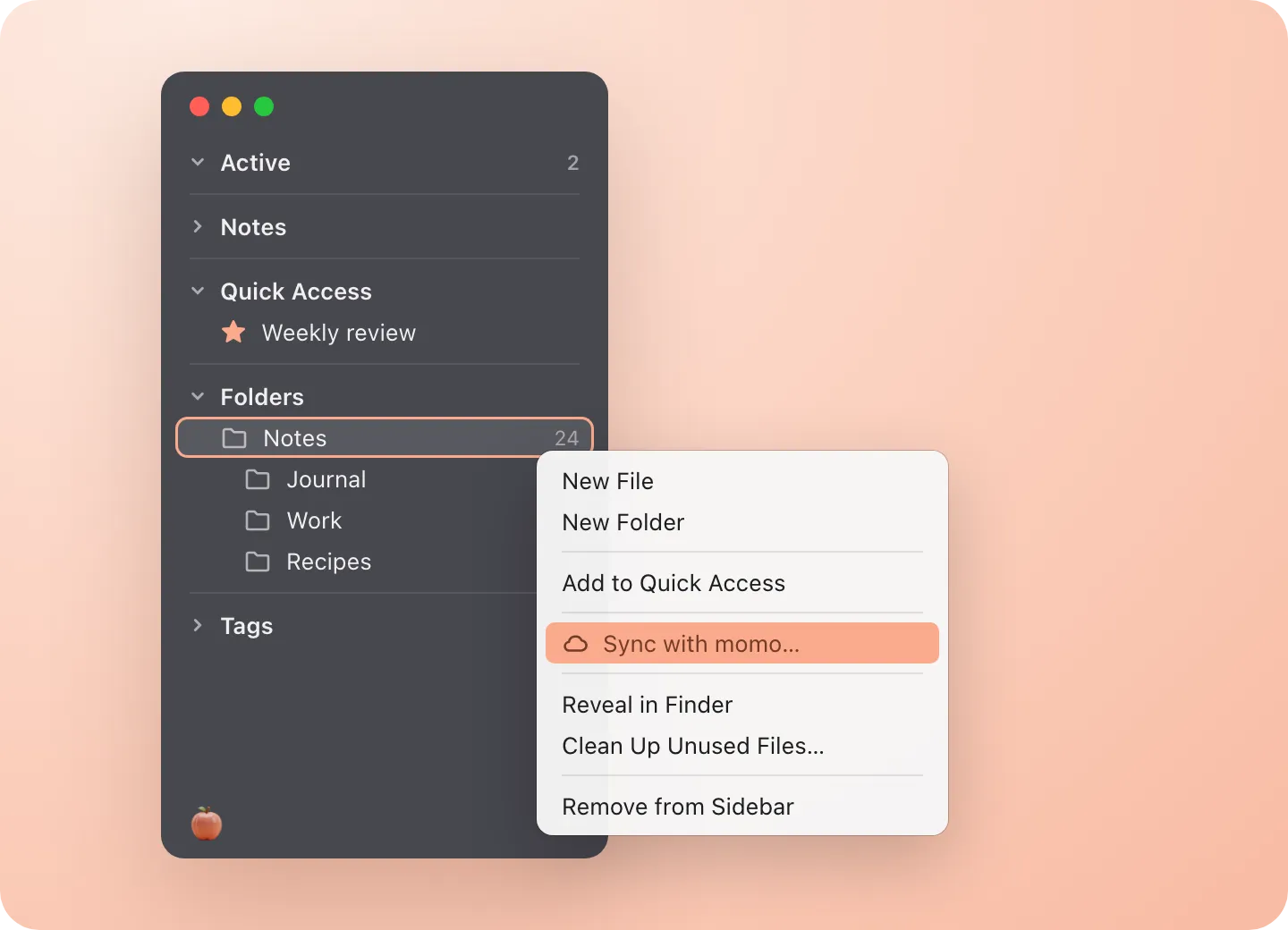
- New File / New Folder: created in the folder you clicked (on a library folder’s own row, at the top of it). A new file opens in the editor right away, with Untitled selected in the sidebar, so typing names it. A new folder’s name is ready to type as well.
- Rename: edits the name in place. Escape cancels.
- Pin / Unpin: pinned files show under Notes → Pinned. Pins are remembered per library folder and survive renames and moves.
- Add to Quick Access / Remove from Quick Access.
- Sync with momo…, on a folder: see Sync with iPhone and iPad.
- Clean Up Unused Files…, on a library folder: see Images and files.
- Move to Trash.
- Reveal in Finder.
Drag and drop any file or folder onto another folder to move it on disk, including into another library folder. If the file you’re editing is renamed, moved or trashed, the open document follows along safely.