
Sync with iPhone and iPad
momo keeps one folder of notes in step on your Mac, iPhone and iPad, through your own iCloud. There’s no momo account and no momo server: each file is stored as an encrypted record in your private iCloud database. The files on your Mac stay ordinary .md files in their folder.
Sync is free on the Mac. On iPhone and iPad it’s free for 14 days, then part of a one-time unlock: see momo for iPhone and iPad.
Turn it on
Section titled “Turn it on”- Right-click the folder in the sidebar and choose Sync with momo….
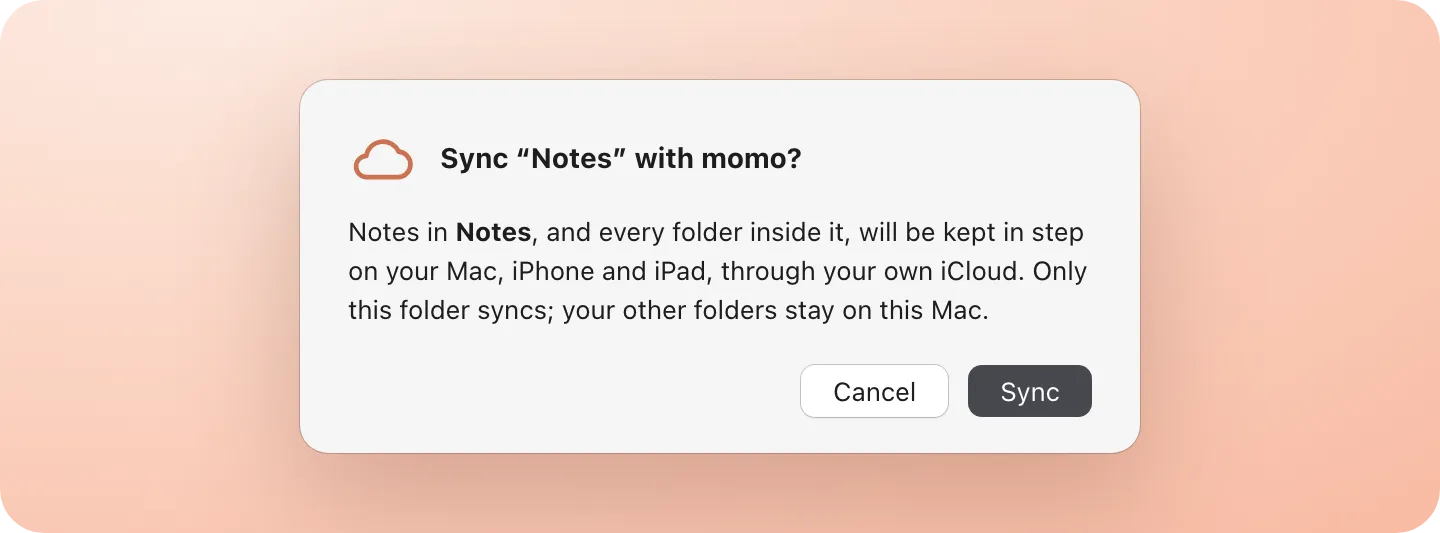
- momo explains what will happen: the notes in the folder, and every folder inside it, will be kept in step on your Mac, iPhone and iPad. Only this folder syncs; your other folders stay on this Mac.
- Click Sync.
The synced folder gets a cloud in the sidebar. Point at it for the status, such as Synced just now.
A folder inside iCloud Drive, Dropbox or another cloud storage service gets a warning first: two sync services on the same files can fight and duplicate notes. Move it out of that service first, for example to Documents on your Mac. The button then says Sync Anyway.
The first folder a Mac syncs is merged with what’s already in iCloud, so notes made on the iPhone first join it.
Choosing another folder later puts it in place of the one synced before. Your iPhone and iPad show the new folder instead. The old folder stays on the Mac as it is, and its notes leave the other devices (to Recently Deleted there). momo says so before you confirm.
What syncs
Section titled “What syncs”- Every note and file in the folder and the folders inside it, images and attachments in
assetsincluded. - Empty folders, before they hold a note.
- Your scratch notes in Active, on their own, alongside the folder.
- Locked notes, still locked: see Locked notes.
Changes go across at once: iCloud tells your other devices, which sync straight away, the iPhone in the background too.
Leave a folder out
Section titled “Leave a folder out”Right-click a folder inside the synced one and choose Don’t Sync This Folder. It stays on your Mac and leaves the other devices (to the Trash or Recently Deleted there). In the sidebar it gets a grey, crossed-out cloud.
Sync This Folder Again brings it back. Folders that do sync inside the synced folder show a small peach dot.
When two devices change a note
Section titled “When two devices change a note”- Edits in different places in a note are merged.
- If the same lines were changed differently on two devices, momo keeps both: the note, and a conflict copy beside it.
- An edit beats a delete: a note edited on one device and deleted on another is kept.
- A note deleted on another device goes to the Trash on the Mac, or Recently Deleted on iPhone and iPad. It’s never deleted straight away.
- Before sync writes over a note on the Mac, the version it replaces goes into the note’s local history.
- A note open on the Mac with unsaved edits merges a synced change, rather than asking. On iPhone and iPad, an open note takes synced changes too, merged with what you’re typing.
Status
Section titled “Status”The cloud’s tooltip on the Mac, and the line at the foot of the sidebar on iPhone and iPad, say how sync is doing:
- Synced just now, or how long ago, or Waiting to sync;
- Offline: changes sync when you’re back online;
- Sign in to iCloud in System Settings to sync your notes;
- Your iCloud storage is full: notes stay on the device until there’s room;
- Signed in to a different iCloud account: sync stops. Choose Stop Syncing and turn it on again to sync with this account.
Stop syncing
Section titled “Stop syncing”Right-click the synced folder and choose Stop Syncing. Its notes stay on this Mac, and on your other devices.