A FLAC player for the Mac that plays your folders as they are
Apple Music won’t play FLAC files. How to play a FLAC library on a Mac straight from its folders — gapless, with album art and without importing anything.
Many people with a large music collection keep it the same way: one folder per artist, one folder per album inside it, and the files in FLAC because that is how they ripped or bought them. On a Mac, that runs straight into a wall. The Music app doesn’t play FLAC, and it wants to import everything into its own library before it plays anything at all.
This guide is about the other approach: a FLAC player for the Mac that treats your folders as the library.
Why the Music app doesn’t fit a folder collection
Apple’s Music app is built around its own library. You add files, it copies or references them, and from then on you browse its database, not your disk. That works well for music bought from Apple or kept in Apple’s formats. It works badly when:
- your collection is in FLAC, which the Music app doesn’t import. The usual workaround is converting everything to ALAC, which doubles the files you need to look after.
- your folders are the organisation. Years of careful folder names mean nothing to a library that sorts by tags.
- your music lives on an external drive or a NAS that isn’t always connected.
What a folder-based player does differently
A folder-based player reads your music where it is. There’s nothing to import and no database to rebuild when you rename a folder. Add an album to the drive and it is there the next time you look. If you used foobar2000 or Winamp on Windows, this is the way you already worked.
What to look for in one:
- Formats. FLAC, but also ALAC, AAC, MP3, WAV and AIFF, so you never have to think about what a file is.
- Gapless playback. Live albums, DJ mixes and records like Dark Side of the Moon are mixed to run without silence between tracks. A player that adds a gap breaks them.
- Album art from the folder. Many collections keep a
cover.jpgorfolder.jpgnext to the files instead of embedding art in every track. - Real details. Sample rate, bit depth and channels, so you can see that the 24-bit release you bought is really what is playing.
- Speed. Opening a folder of a few thousand albums should feel instant.
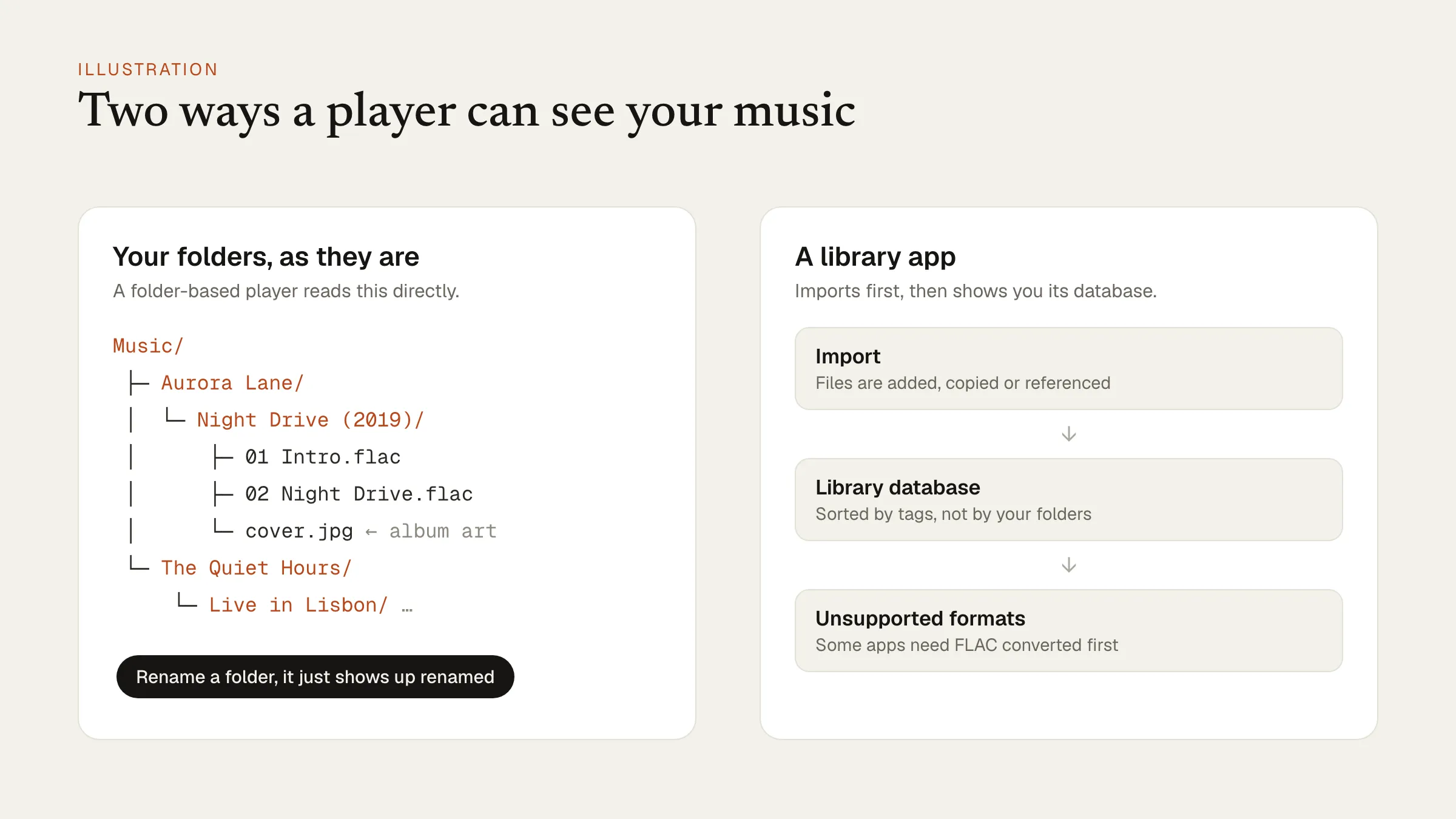 A folder-based player reads the tree on the left as it is. A library app first imports it into a database. Illustration.
How Konpo does it
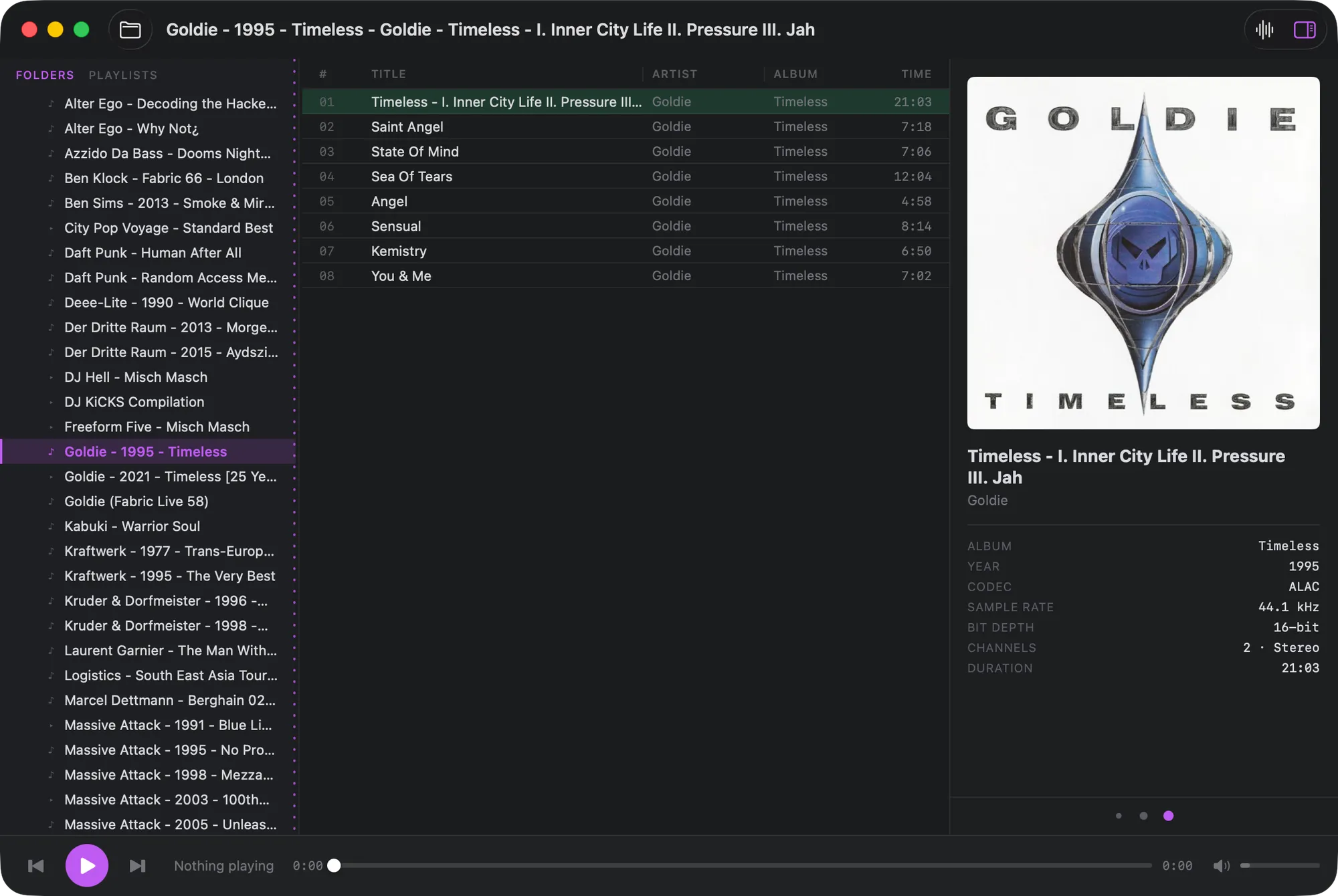
Konpo is a free Mac player we built for exactly this kind of collection. Point it at your music folder and browse it as it is on disk; switch to an album view for a cover grid with live search, where multi-disc albums show as one.
It plays ALAC, AAC/M4A, MP3, FLAC, WAV, AIFF and more, gaplessly. It shows embedded art or picks up cover.jpg and folder.jpg, and lists codec, sample rate, bit depth, channels and length for every track. Playlists save themselves; you can add tracks or whole folders to them.
Konpo is meant to be driven from the keyboard. Tab moves between lists, Return plays, Space pauses, ⌘→ and ⌘← skip, and ⌘1, ⌘2 and ⌘3 switch between folders, albums and playlists. The media keys, Control Center and the lock screen work as you’d expect.
And because it was made by someone who grew up with Winamp, there is one more thing: ⇧⌘V opens the MilkDrop visualizer.
What Konpo doesn’t do
Konpo is a player, not a library manager. It doesn’t edit tags, rip CDs, convert formats or stream from services. If you need those, a tag editor and a converter sit well alongside it, and the music stays in the same folders either way.
Konpo is free, and runs on macOS 14 or later on both Apple silicon and Intel Macs.