On-device AI photo editing on the Mac: what runs locally, and why it matters
AI masks, generative remove and denoise no longer need the cloud. What on-device AI photo editing means on a Mac, what it can do, and what to check.
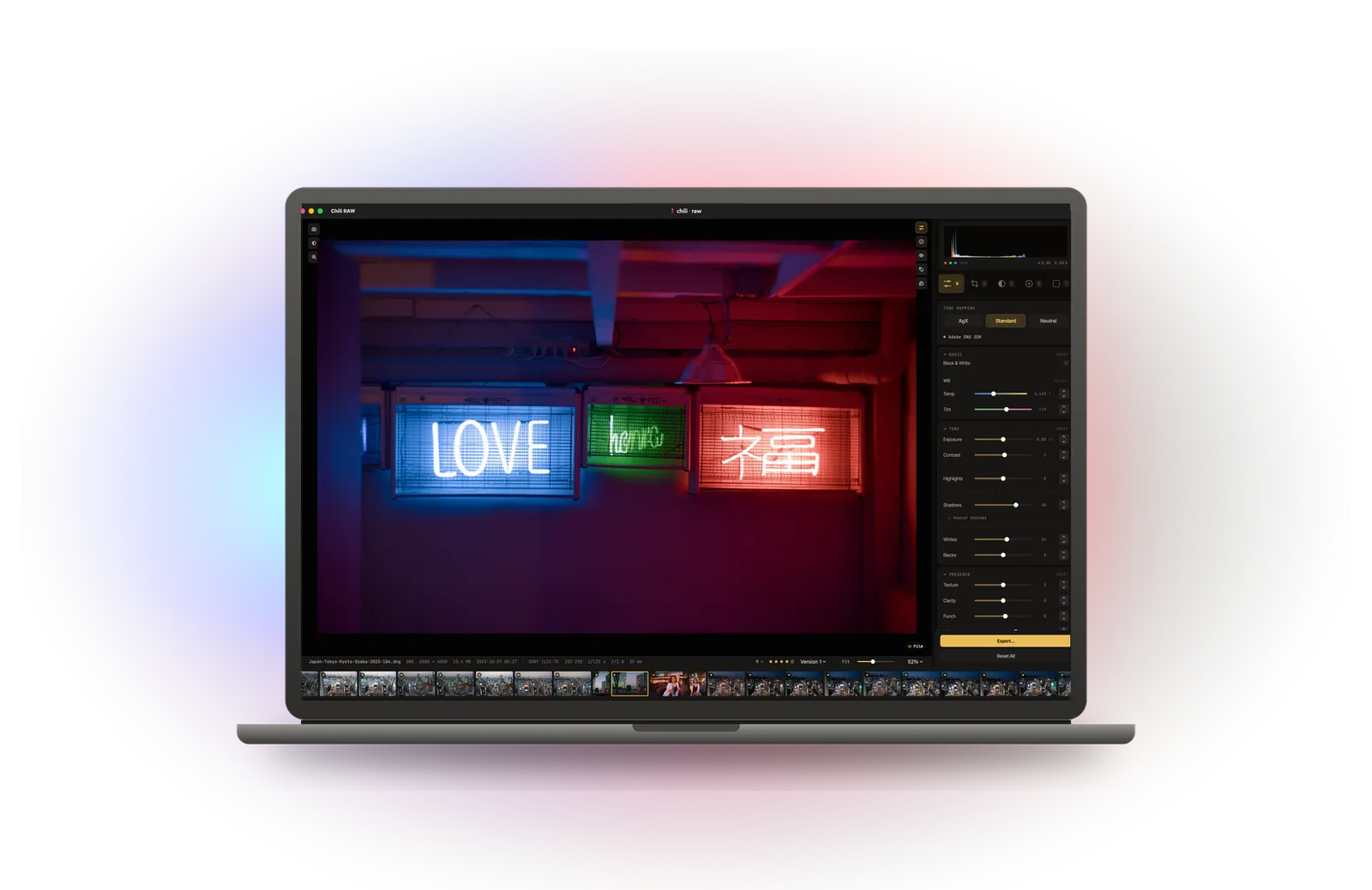
A few years ago, “AI photo editing” usually meant uploading a picture to a server and waiting for it to come back. Today the most useful AI tools in a RAW editor — selecting a sky, masking a person, removing a power line — can run entirely on a laptop. Apple silicon Macs are particularly good at it, because they have a Neural Engine and a fast graphics processor sharing the same memory.
This is a plain explanation of what on-device AI photo editing means, which tasks it handles well, and what to check before you trust an app’s claim that it works offline.
On-device versus cloud
Cloud AI sends your photo, or a smaller copy of it, to a company’s server. The model runs there, and the result comes back. That allows very large models, but it needs a connection, it often costs credits or a subscription, and your photo has left your computer.
On-device AI downloads the model to your Mac once. From then on, the work happens on your own hardware. It works on a plane, it costs nothing per use, and the photo never leaves the drive it is on. The trade-off is that the models have to be small enough to run quickly on a laptop.
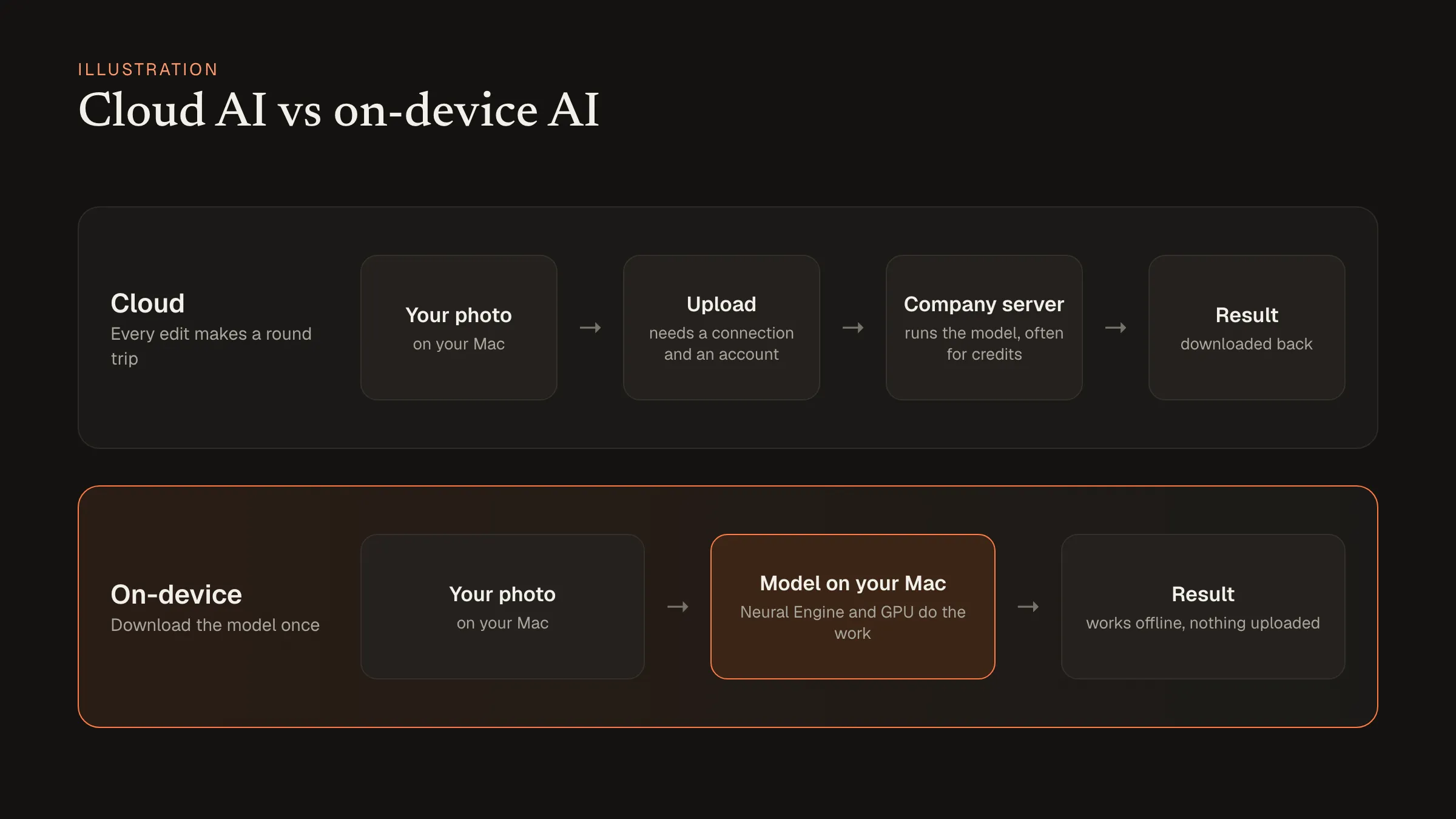 Cloud AI makes a round trip for every edit. On-device AI downloads the model once and works offline. Illustration.
For the everyday tasks of a photographer, that trade-off has become easy. The local models are now good enough that most people can’t tell which kind they are using.
What runs well on a Mac today
- Masks. Sky, subject, background, people and parts of a face. This is the single most useful AI tool in a RAW editor, because masking by hand was the slowest part of editing.
- Depth. A model estimates how far away each part of the scene is. That gives you masks by distance, and realistic lens blur.
- Removal. Taking out a sign, a stranger or a dust spot, and filling the gap convincingly.
- Denoise. Cleaning up high-ISO RAW files before the rest of the editing.
- Search and faces. Finding photos by what is in them, and grouping the same person across a library.
Tasks that still favour big cloud models are the ones that invent a lot of new content: replacing whole backgrounds, or extending a picture far beyond its frame.
What to check in an app
“Runs locally” can mean several things. Some questions worth asking:
- Does it need an account? If an editor needs you to sign in before an AI tool works, something is probably going over the network.
- Where do the models come from? Good apps tell you which model they use, show its licence, and let you delete it.
- Does it work with Wi-Fi off? The simplest test. Turn off the connection and try every AI tool you care about.
- Is AI optional? Some photographers don’t want generated pixels in their work at all. An editor should work fully without any model installed.
How Chili RAW handles it
Chili RAW was built around those rules. No AI model ships inside the app. Each one is downloaded only when you ask for it in Settings, shows its licence, and can be deleted again. The tools are colour-coded, so you can see at a glance whether you are using something built into macOS, a model you downloaded, or a tool you drive by hand. There is no account, and no photo is uploaded for any feature.
The free version includes face grouping and searching by what is in a photo. The Pro licence, a one-time $39.90, adds the model-based editing tools: one-click masks for sky, subject, objects and depth, portrait masks for skin, eyes, lips and hair, generative remove, move and extend, and depth-based lens blur. All of them run on the Mac itself.
If you are comparing editors, our look at RapidRAW, LightCraft and Chili RAW covers how two open-source editors approach the same question.