Winamp skins: where the classics live now, and how they work
Over 100,000 Winamp skins are preserved and browsable today. Where to find them, how to use them on a Mac, and what is inside a .wsz skin file.
For a lot of people, Winamp skins were the first thing they ever made on a computer that other people downloaded. A skin was a handful of small images, and anyone with a paint program could make one: your favourite band, your favourite game, a brushed-metal hi-fi, something entirely made up. Tens of thousands of them were shared on fan sites in the late 1990s and 2000s.
Most of those sites are long gone. The skins, remarkably, are not.
The Winamp Skin Museum
The best place to find Winamp skins today is the Winamp Skin Museum, a project by Jordan Eldredge made with the Internet Archive. It collects classic skins rescued from sites that were going offline, and it has grown to more than 100,000 unique skins.
What makes it special is that every skin is live. The museum runs on Webamp, Eldredge’s rebuild of Winamp 2 for the browser, so you can click any skin and see it working — buttons, sliders and all — and download the original file. There’s a search box, so you can look for a band, a game or a word you half remember.
Classic and modern skins
Winamp had two kinds of skins, and it’s worth knowing which one you’re looking at:
- Classic skins (
.wsz) are the famous ones: fixed-size bitmaps for Winamp 2’s compact window, 275 by 116 pixels. Almost every skin in the museum is a classic skin. - Modern skins (
.wal) came with Winamp 3 and 5. They could be any shape and size, with scripting, and they were much more complex to make.
When Winamp 5 arrived it supported both, which is how classic skins outlived Winamp 3.
What’s inside a .wsz file
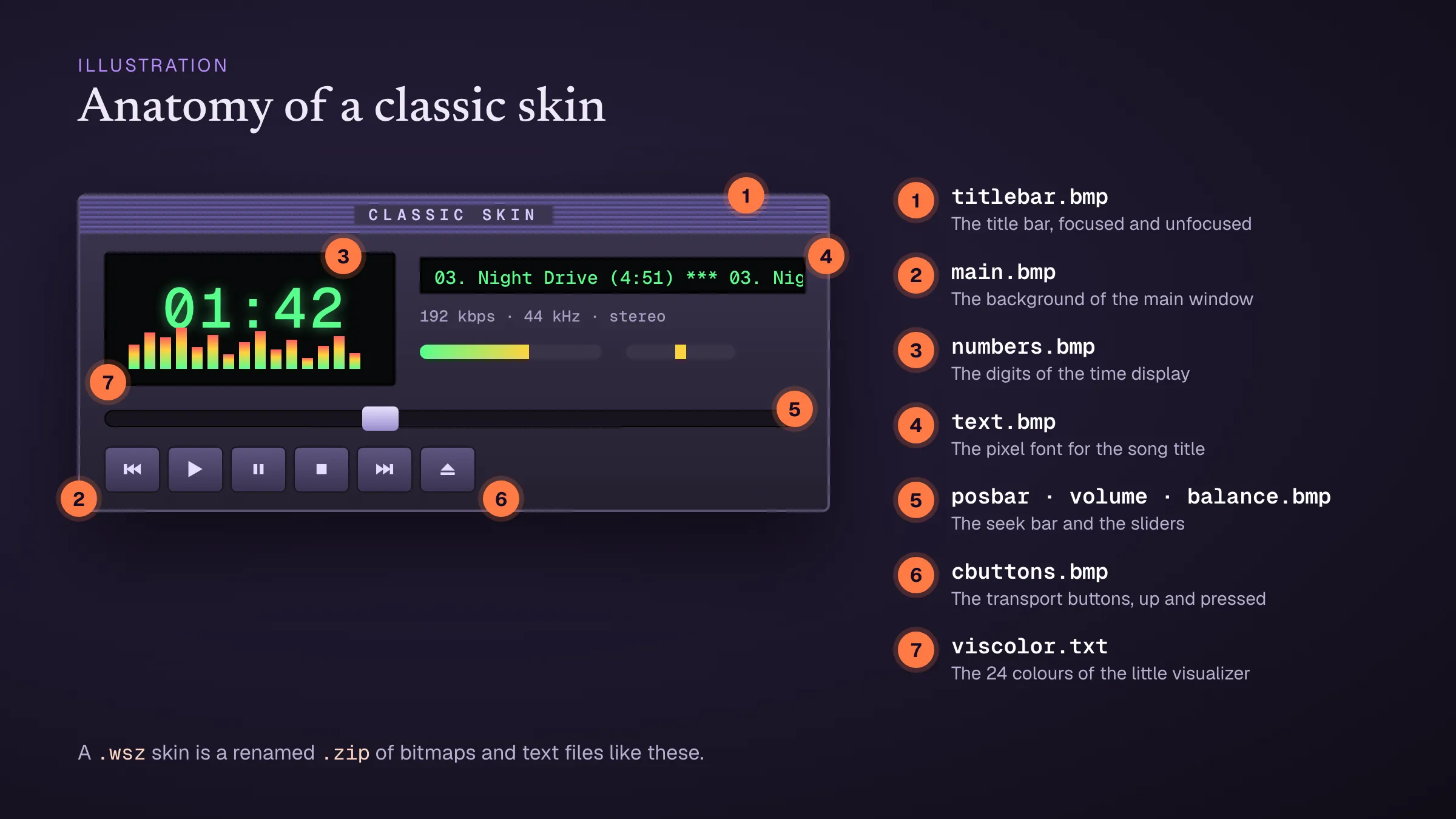
A classic skin is just a .zip file with a different ending. Rename it to .zip, open it, and you’ll find a set of bitmaps, each drawing one part of the player: main.bmp for the background, cbuttons.bmp for the play and stop buttons, numbers.bmp for the digits of the clock, titlebar.bmp, posbar.bmp for the seek bar, volume.bmp, and so on. A few text files set details like the colours of the little spectrum display (viscolor.txt) and the playlist (pledit.txt).
That’s why the skin scene was so big. Making a skin meant opening those bitmaps in a paint program and drawing over them. You could see your changes straight away, and the format never changed.
Making one yourself
The old way still works:
- Take a skin you like as a template, and rename it from
.wszto.zip. - Unzip it and open the bitmaps in any image editor. Keep each file’s exact size, and keep the buttons in the same places.
- Zip the files again, without a folder around them, and rename the result to
.wsz. - Drag it onto Webamp in your browser to try it.
Using skins on a Mac
Winamp itself never properly came to the Mac, but classic skins still have a home here:
- Webamp loads any
.wszskin in a browser tab. - Audacious, an open-source player, has a Winamp-style interface that reads classic skins; check its site for current Mac builds.
There’s more on both in Winamp for Mac: five ways to get the feeling back.
And Konpo?
Konpo, our free Mac player, doesn’t do skins. It took a different part of Winamp’s legacy: a small, fast player for your music folders, run from the keyboard, with the MilkDrop visualizer a keystroke away. You can set its accent colour, but that’s as far as the styling goes — which is a long way from a player shaped like a jukebox. For that, there are 100,000 skins in the museum waiting.