
Filling forms
Most PDFs you’re asked to fill have no form fields: they’re scans or exports with lines printed on them. PDFBoy reads the page the way you would and finds the places you’re meant to write. It calls them blanks.
Blanks
Section titled “Blanks”When you open a PDF, PDFBoy looks for:
- Lines: underscores, drawn rules and dotted leaders. Text sits on the line.
- Boxes: empty rectangles. Text starts at the top left and wraps onto more lines.
- Comb boxes: rows of small cells, one character each (dates, passport and tax numbers).
- Checkboxes: small squares to tick.
- Tables: empty cells in a table. They can be filled like any blank, but don’t count towards the form’s progress.
Real form fields. If the PDF has form fields, each field is a blank too, with no guessing. You fill them the same way, and your values go into the fields themselves. A PDF can have both: fields and printed blanks share one order.
Switch to Fill (⌘2). The blanks glow softly in tangerine, and the boy says how many he found (“I found 12 blanks on 2 pages, plus a table.”). Click Start, press Tab, or click a blank.
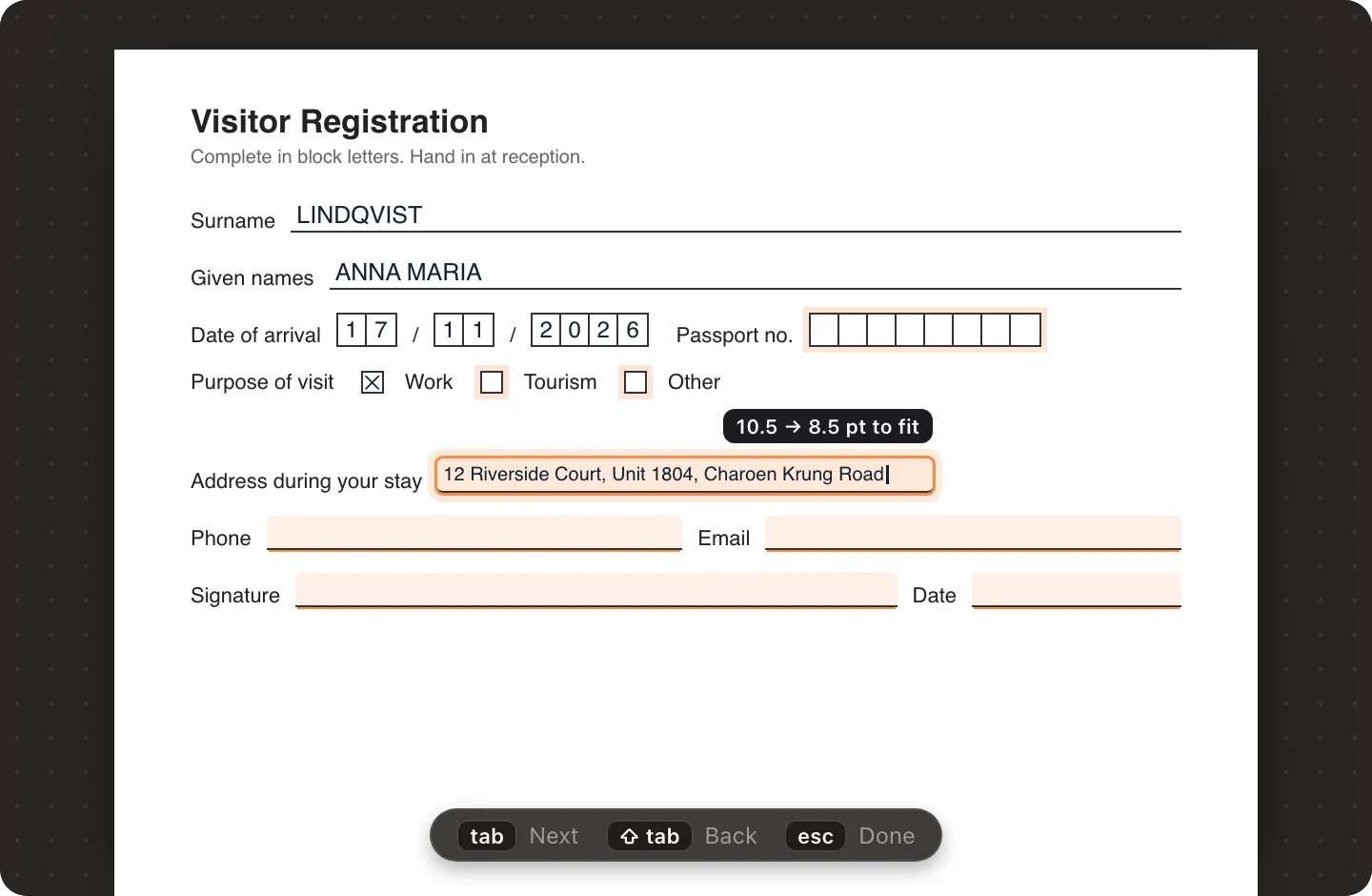
Type into a blank
Section titled “Type into a blank”- Click anywhere on a blank, or press Tab to go to the first one. The caret sits at the start of the line.
- Type. The text sits on the line at a size matched to the printed label next to it.
- Tab finishes and moves to the next blank, ⇧Tab to the previous one. Return or Esc finishes where you are.
Tab moves in reading order: page by page, top to bottom, left to right. Text you placed yourself is part of the order too.
While you type, a small dark chip above the text tells you its size:
- “11 pt · fits”: the text fits the blank at its size.
- “11 → 8.5 pt to fit”: the text is longer than the blank, so PDFBoy shrinks it until it fits. It never goes below a readable minimum.
- “3 of 8”: in a comb box, how many cells you’ve filled.
- “From your profile · return”: a suggestion from your profile is waiting. See Smart fill and profiles.
To change the size yourself, choose Text ▸ Bigger (⌥⌘+) or Text ▸ Smaller (⌥⌘−).
At the bottom, key hints remind you: tab Next, ⇧ tab Back, esc Done.
Comb boxes
Section titled “Comb boxes”A comb box takes one character per cell, evenly spaced. Just type: each character goes into the next cell.
Checkboxes
Section titled “Checkboxes”Click a checkbox to tick it with a centred ✕; click again to clear it. When you reach a checkbox with Tab, it gets a focus ring: press Space or Return to tick it. For a group of radio buttons in a real form, ticking one clears the others.
Your progress
Section titled “Your progress”- The Fill tool on the shelf shows how many blanks are left (“8 left”), then a green tick.
- Each page thumbnail shows its own count, then a green tick.
- The boy’s card shows “6 of 14 blanks” and a progress bar, with a tip beside him. When every blank is filled the card turns green and offers Save Copy.
Free text anywhere
Section titled “Free text anywhere”Not every place to write is a blank. In Fill, click anywhere on the page that isn’t a blank and type: that’s the Type tool, the default. You can also place free text over a blank PDFBoy didn’t find.
- Move it: drag it. It snaps to the left edge and baseline of other text nearby, and a thin tangerine guide shows when it lines up.
- Nudge it: select it and press the arrow keys. With ⇧ it moves 10 steps at a time, with ⌥ a quarter step.
- Edit it: double-click it, or select it and press Return, or select it and just type.
- Delete it: select it and press Delete.
To select and copy the PDF’s own text instead, switch to the Select tool: press V, or choose Text ▸ Select. Press T (or Text ▸ Type) to go back. These letter keys work when nothing is selected.
Highlight Blanks and detection outlines
Section titled “Highlight Blanks and detection outlines”- View ▸ Highlight Blanks (⇧⌘B) turns the glow on and off. The same switch is in Settings ▸ General.
- View ▸ Show Detection Outlines (⌥⇧⌘B) draws an outline round everything PDFBoy detected. It helps when you wonder why a blank was or wasn’t found.
Saving a filled form
Section titled “Saving a filled form”Click Save Copy in the toolbar, or press ⌘S. PDFBoy suggests the name “… (filled).pdf” next to the original, which stays as it was.
If the PDF has real form fields, the save panel offers Form fields:
- Keep fillable (the default): your values stay in the fields, so you or someone else can still change them.
- Flatten into the page: the values become part of the page and can’t be edited any more.
Text you typed into printed blanks is always drawn into the page. If you also made marks in Mark up, the panel has a Marks: choice too.
After saving, the boy’s bubble has Show in Finder.
Undo. ⌘Z undoes typing, moves and deletions, one step at a time. File ▸ Start Over removes everything you added and takes the PDF back to how it came, as one step you can undo.