
Smart fill and profiles
Forms ask for the same things again and again: your name, address, date of birth, passport number. Put them in a profile once, and PDFBoy offers them wherever a form asks.
Your profile
Section titled “Your profile”Choose PDFBoy ▸ Settings… (⌘,) and open Profile. Fill in what you like:
Full name, First name, Last name, Street and number, Postal code, City, Province / state, Country, Nationality, Date of birth, Phone, Email, Company, Tax ID, Passport number.
Profiles are stored only on this Mac.
Several profiles. The first profile is called Me. Click + to add another, for a partner or your company, and give it a name. Pick a profile in the Profile menu to edit it; − deletes the one shown (the last one can’t be deleted).
Smart fill
Section titled “Smart fill”When you open a form, PDFBoy reads the printed label next to each blank: “Full name”, “Postal code”, “Passport no.” If the label clearly asks for something in your profile, he can fill it.
Nothing is filled without your OK. When he can fill two or more blanks, a bar appears at the bottom in Fill:
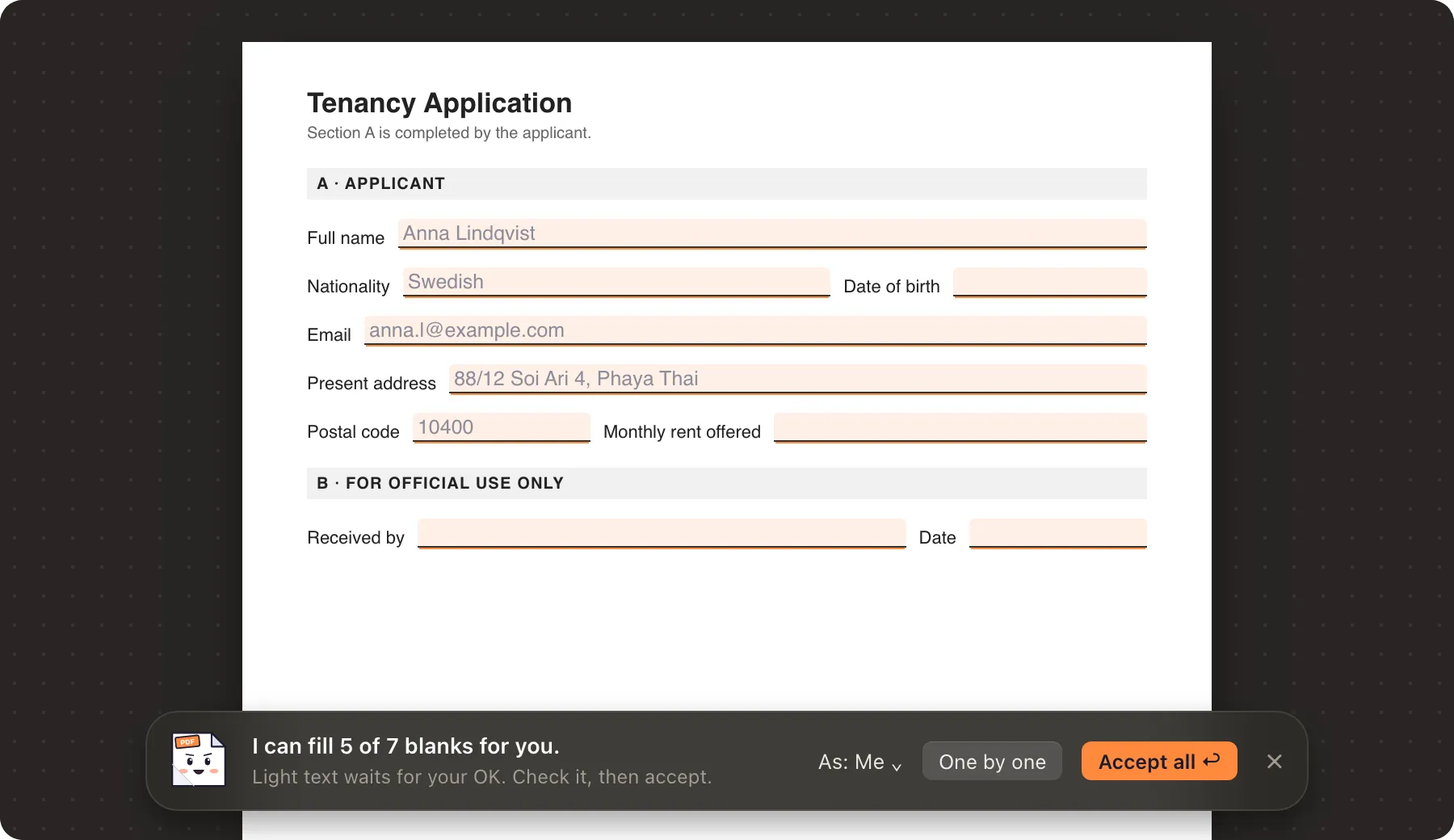
The suggestions show on the form in light grey. Then:
- Accept all ↩ (or Return, when you’re not typing in a blank) fills them all. ⌘Z takes it back in one step.
- One by one takes you through them with Tab. In each blank, Return takes the suggestion; or just type something else.
- ✕ (or Esc) fills nothing.
- As: Me chooses whose details to fill in. Pick another profile and the suggestions change. Edit Profiles… opens Settings.
PDFBoy fills only clear matches, so it won’t fill every blank. A form with 20 blanks may get 9 suggestions.
While you type. When you click into a blank whose label matches your profile, the value shows in grey after the caret, and the chip above says From your profile · return. Press Return to take it, or keep typing to ignore it.
The Autofill menu
Section titled “The Autofill menu”The Autofill menu sits on the boy’s card in Fill.
- Fill Everything I Can makes the suggestions again, for example after you changed your profile.
- Below are your profile’s values. Click into a blank first, then pick one to insert it there.
- Edit Profile… opens Settings.
Other people’s parts of the form
Section titled “Other people’s parts of the form”Many forms are filled by several people. PDFBoy leaves out blanks that belong to someone else:
- blanks below a heading such as “For official use only”, “Vom Amt auszufüllen” or “สำหรับเจ้าหน้าที่”;
- the strip below a dashed cut line with a receipt or an officer named in it.
These blanks can still be filled by hand; they just don’t get suggestions and don’t count towards your progress. The boy says when he left a part out.
It learns from your corrections
Section titled “It learns from your corrections”If you delete a suggestion, or replace it with something that shares no word with it (someone else’s name, say), PDFBoy remembers not to suggest anything there again on this PDF. Fixing the format or adding a middle name doesn’t count as a no.
Languages and formats
Section titled “Languages and formats”Labels are recognised in English, German and Thai (“Full name”, “Vorname”, “ชื่อ”…). On scans, PDFBoy reads the labels with text recognition on your Mac.
In a comb box, PDFBoy drops spaces and separators when that makes a value fit the cells, and skips the box if it still doesn’t.