
Getting started
Install
Section titled “Install”Open the downloaded disk image and drag PDFBoy into your Applications folder, then open it from there.
The trial and your licence
Section titled “The trial and your licence”The trial starts the first time you open PDFBoy. For 14 days every tool works, with no limits.
After the trial you can still open PDFs, fill them and mark them up, and nothing you did is lost. Saving and exporting need a licence. When you try to save, the boy says so and offers Buy for $9.99 and Enter Licence Key.
To unlock PDFBoy, choose PDFBoy ▸ Settings… (⌘,), open the Licence tab, paste the licence key from your receipt and click Activate. One key unlocks PDFBoy on up to 3 of your Macs. See Settings and licence for moving it to another Mac.
You can buy a licence on the PDFBoy page or with the Buy PDFBoy button on the Licence tab.
Open a PDF
Section titled “Open a PDF”When PDFBoy starts, the welcome window opens.
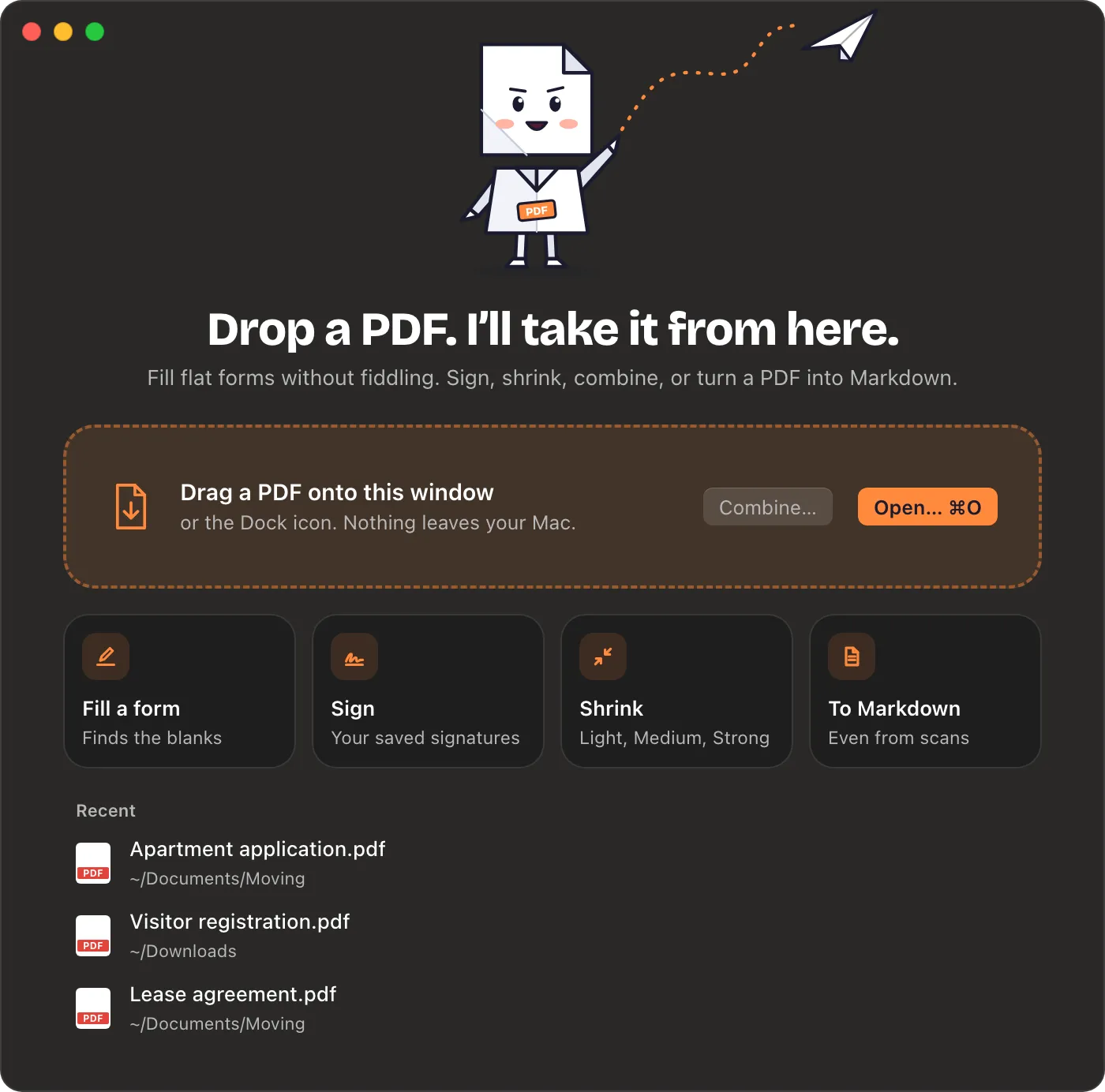
- Drag a PDF onto the window or onto PDFBoy’s Dock icon, or click Open… (⌘O).
- Click a card (Fill a form, Sign, Shrink, To Markdown) to choose a PDF and open it straight in that tool.
- Recent lists the last three PDFs you opened.
- Drop several PDFs at once and PDFBoy asks whether to combine them into one or open each.
A PDF opens in View. Switch tools in the sidebar or with ⌘1 to ⌘7. To bring the welcome window back, choose Window ▸ Welcome to PDFBoy (⇧⌘1).
Make PDFBoy your default PDF app
Section titled “Make PDFBoy your default PDF app”- In Finder, select any PDF and choose File ▸ Get Info (⌘I).
- Under Open with, choose PDFBoy.
- Click Change All… and confirm.
From then on, double-clicking a PDF opens it in PDFBoy.
The window
Section titled “The window”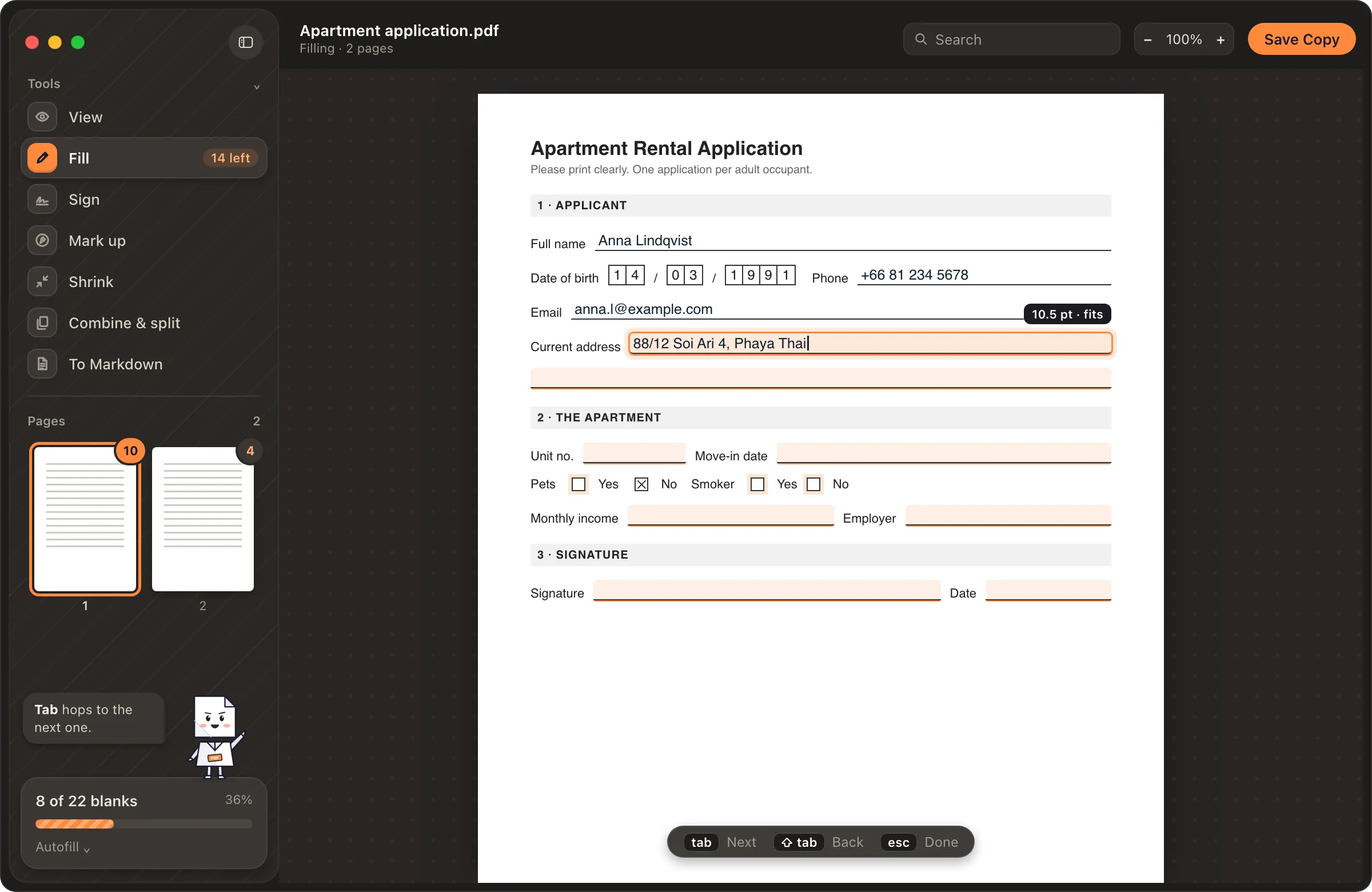
The tool shelf. The seven tools sit at the top of the sidebar. In Fill, the tool shows how many blanks are left, or a green tick when the form is done. Click the Tools header to fold the shelf down to the current tool; click it again to show them all. In a short window the shelf folds by itself.
Pages. Below the tools are the pages. Click one to go there. In Fill, each page shows how many blanks it still has, or a green tick.
The boy. At the bottom, the boy sits on a card. In View and most tools it shows facts about the PDF: pages and paper size, file size, and how many blanks he found. In Fill it shows your progress (“6 of 14 blanks”) with the Autofill menu. When every blank is filled, it turns green and offers Save Copy.
The rail. Hide the sidebar with the sidebar button at its top, and the tools fold into a slim rail beside the page. In Fill, the ring round the boy’s head is your progress. Click him to show the sidebar again.
The toolbar. Search, zoom, and the current tool’s main button on the right: Save Copy in most tools, Save Smaller Copy in Shrink, Save Markdown… in To Markdown. ⌘S does the same.
The boy’s messages. Now and then the boy says what he did (“I found 12 blanks.”) in a bubble at the bottom. Most fade after a few seconds. To make him quieter, see Settings and licence.
Your work is kept
Section titled “Your work is kept”PDFBoy keeps what you typed on a PDF, even if you close the window without saving. Open the same PDF again and the boy says Welcome back. I kept what you typed. Click Start Over in his bubble, or choose File ▸ Start Over, to go back to the PDF as it came.
Work is kept on this Mac only, matched to the PDF’s contents, so renaming or moving the file doesn’t lose it. Work you haven’t touched for 90 days is cleared.
Saving
Section titled “Saving”PDFBoy never changes the PDF you opened. Save Copy (⌘S) writes a new PDF next to it, named “… (filled).pdf”. What the save panel offers depends on the PDF: see Saving a filled form.