
Whiteout and redaction
Both tools are in Mark up, side by side on the palette. They look alike on screen but do very different things to the file.
| Whiteout | Redact | |
|---|---|---|
| On the page | Paper-coloured patch, with your text on top | Black box |
| The old text | Hidden, but still in the file | Removed when you save |
| Use it for | Correcting a date, an amount, a typo | Account numbers, IDs, anything secret |
Whiteout
Section titled “Whiteout”Whiteout covers old text in the colour of the paper so you can type over it, like correction fluid.
- Choose Whiteout on the palette, or press W. W also works in Fill and switches to Mark up.
- Click a word to cover just that word, or drag over what you want to cover.
- Type the new value. It starts on the old text’s baseline, in the same font and size where PDFBoy can tell. The patch grows if your text is longer.
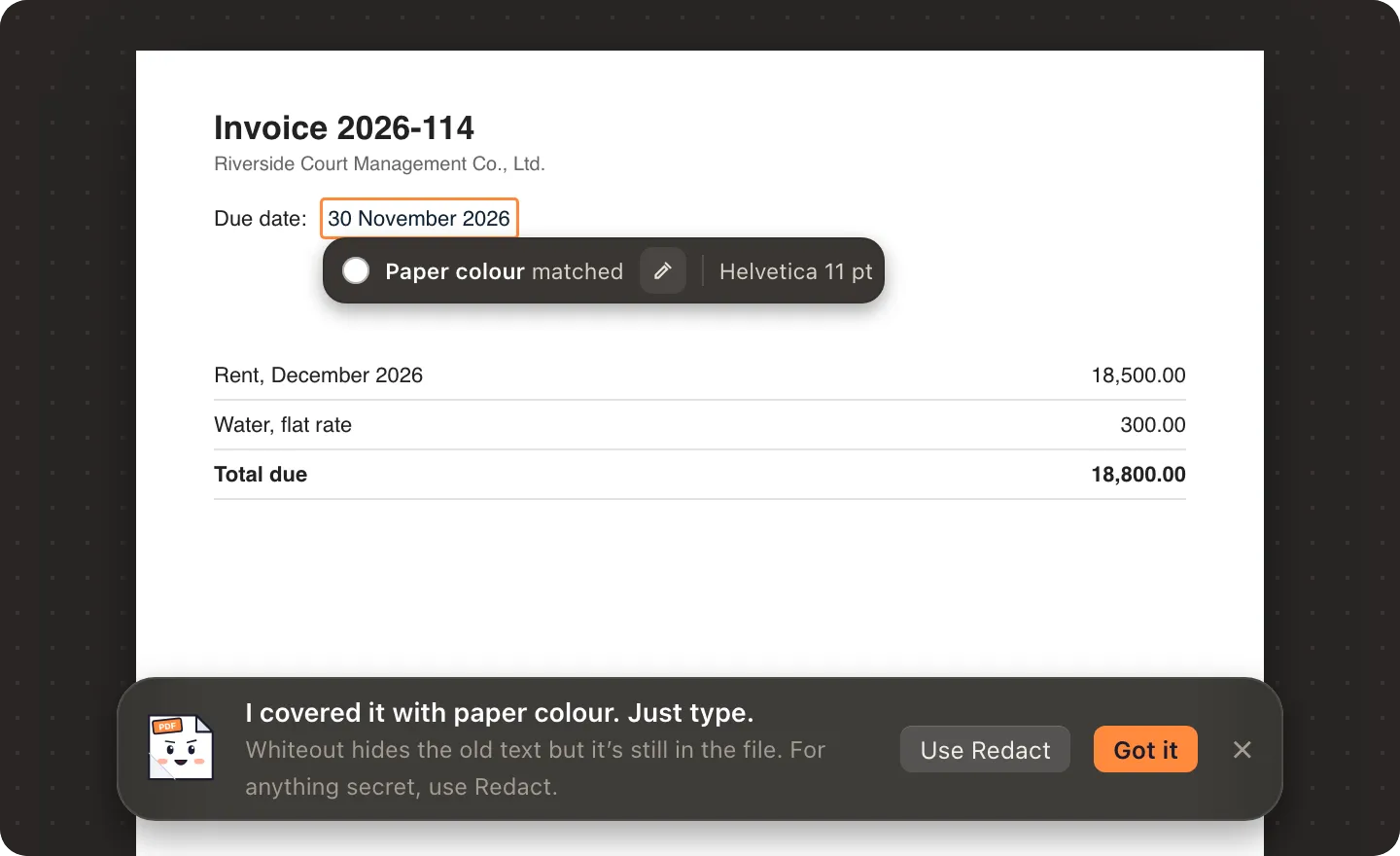
Select a whiteout to see its inspector: the paper colour it picked and the font it uses. If the colour is off, for example on a tinted or scanned page, click the eyedropper and click the paper next to it.
A whiteout with nothing typed on it simply hides what’s under it.
Whiteout doesn’t remove anything. The old text is still in the PDF. Someone can copy it out, find it by searching, or lift the patch in another app. The first time you use Whiteout, the boy says so and offers Use Redact, which turns that patch into a redaction.
Redact
Section titled “Redact”Redact really removes what’s under the box.
- Choose Redact on the palette.
- Drag over what should go, or click a word. A black box covers it.
- Save with Save Copy (⌘S).
When you save, PDFBoy rebuilds every page that has a redaction as a 300 dpi picture, so nothing under the black boxes survives: not the text, not the images, not anything hidden behind them. Then it reads the rest of the page back with text recognition on your Mac and adds it as an invisible text layer, so the page can still be searched and its text copied.
The boy confirms it: “Saved. Redacted 2 areas on 1 page.”
Good to know:
- Only the pages with redactions are rebuilt. The other pages stay as they were.
- A rebuilt page is a picture with a text layer. Text on it looks slightly less crisp when you zoom in a long way.
- Redactions are always drawn into the page, whichever Marks: option you choose when saving.
- The PDF you opened is never changed: redact a copy, and keep or delete the original as you need.