
Item actions
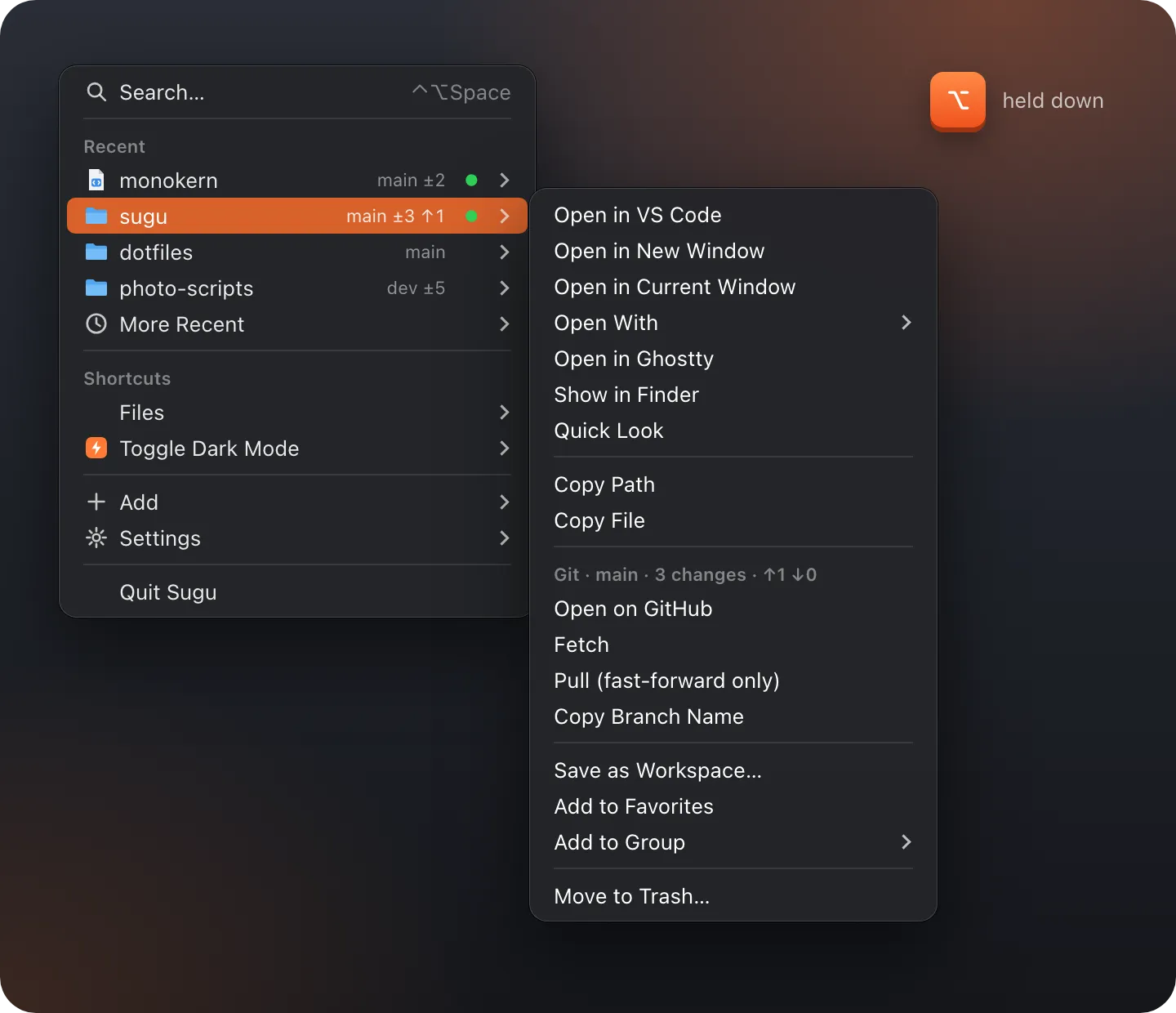
Every item in Sugu’s menu has more to offer than a click. Hold ⌥ while the menu is open and each item becomes a submenu of actions. In Quick Open, press ⌘K for the same list.
Folders, repositories, workspaces and files
Section titled “Folders, repositories, workspaces and files”| Action | What it does |
|---|---|
| Open in VS Code | Opens a folder, repository or workspace in your editor. Files have Open instead, in their usual app. |
| Open in New Window / Open in Current Window | Opens it in a new editor window, or replaces the folder in the current one. Shown for editors that support it. |
| Open With | Any other app that can open the item, editors first. |
| Open in Terminal | A terminal window in that folder (or the file’s folder). Uses the terminal app you chose in Settings. |
| Show in Finder | Selects the item in a Finder window. |
| Quick Look | Previews the item with Quick Look. |
| Copy Path | Copies the full path as text. |
| Copy File | Copies the file itself, ready to paste in Finder, Mail or a chat. |
| Save as Workspace… | Folders and repositories: writes a .code-workspace file for it. See Folders, repos and workspaces. |
| Add to Favorites / Remove from Favorites | Pins it to the Favorites section, or unpins it. |
| Add to Group | Puts it in one of your favourite groups, or a new one. |
| Move to Trash… | After you confirm, moves it to the Trash. |
For a repository, and anything inside one, a Git part shows the branch and its state, for example Git · main · 3 changes · ↑1 ↓0, with:
- Open on GitHub: the repository’s page on its remote, also GitLab, Bitbucket or another host;
- Fetch:
git fetch --prune, which updates the ↓ count; - Pull (fast-forward only): pulls only when no merge is needed, so it never leaves you mid-merge;
- Copy Branch Name.
Sugu never asks for git credentials. A fetch or pull that needs a password you haven’t saved just fails, with a message.
Open, Copy URL, and the favourite and group actions.
Shortcuts
Section titled “Shortcuts”Run Shortcut, Edit in Shortcuts (opens it in the Shortcuts app), Copy Name, and Add to Folder, which puts it in one of your own Shortcuts folders.