
The menu
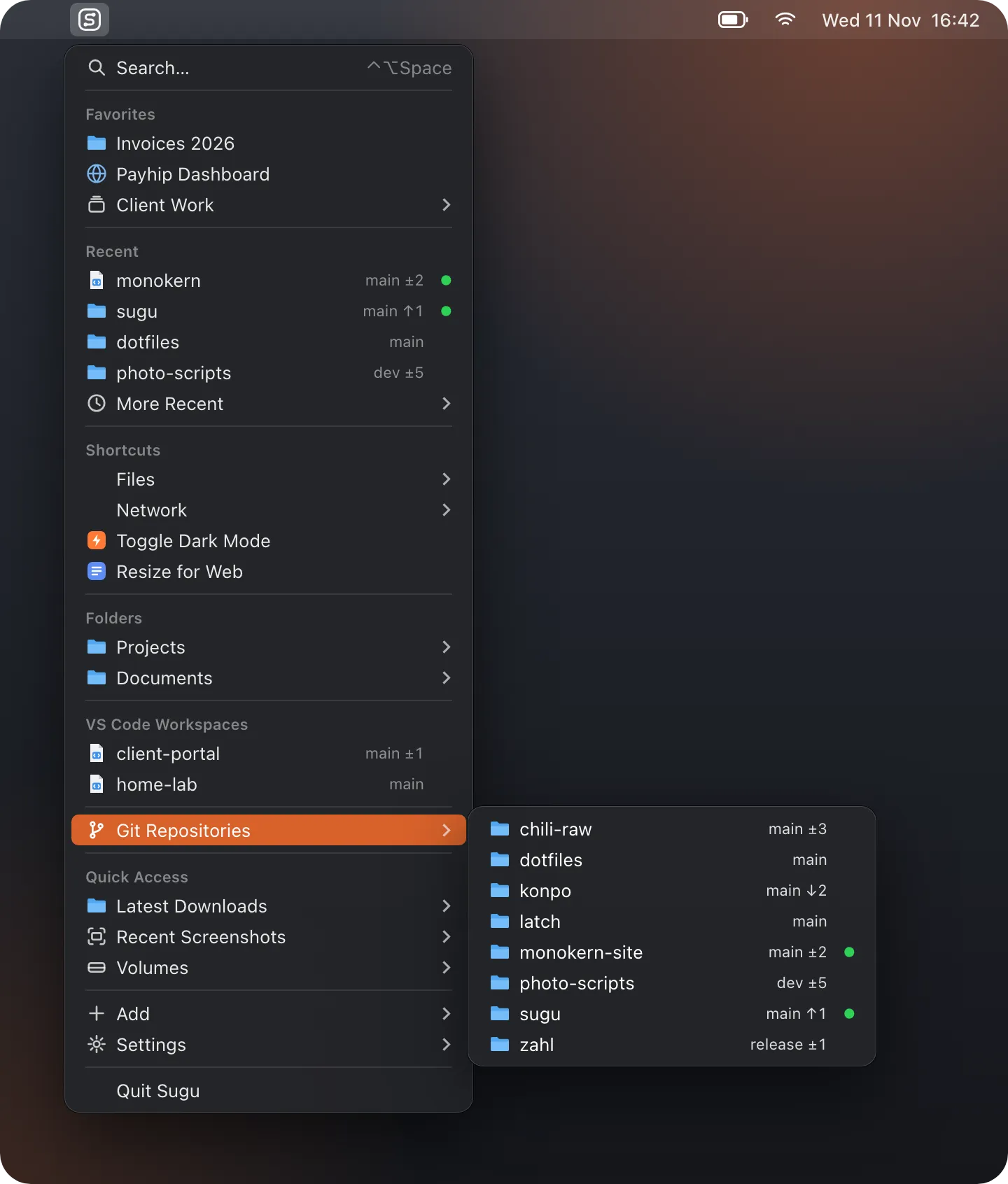
Click the key in the menu bar and Sugu’s menu opens. It always starts with Search…, which opens Quick Open, and ends with Add, Settings and Quit Sugu. In between are the sections.
The sections
Section titled “The sections”| Section | What it holds |
|---|---|
| Favorites | Files, folders, workspaces and links you pinned, and your favourite groups. See Favorites and links. |
| Recent | The last 8 folders and workspaces you opened in VS Code. More Recent holds the older ones, and the files and folders you opened through Sugu. |
| Shortcuts | Your shortcuts from the Shortcuts app. See Shortcuts. |
| Folders | The folders you added, to browse as submenus, or with their contents right in the menu. |
| VS Code Workspaces | Every .code-workspace file inside your added folders. |
| Git Repositories | Every git repository inside your added folders. A submenu at first, as the list can be long. |
| Quick Access | Latest Downloads, Recent Screenshots and Volumes. See Quick Access. |
A section with nothing in it is left out. Each section can be shown inline, put in a submenu or hidden, and the sections can be put in any order: Settings → Sections, then the section. See Settings.
Recent comes from VS Code’s own record of the folders and workspaces you opened, newest first. Folders that no longer exist are skipped. If your default editor is another VS Code-based editor (VS Code Insiders, VSCodium, Cursor or Windsurf), Recent shows that editor’s list instead.
Opening things
Section titled “Opening things”- Click an item to open it. Folders, repositories and workspaces open in your editor (VS Code, unless you chose another). Files open in their usual app, links in your browser, and shortcuts run.
- ⇧-click opens it in the background, so the app you are in stays in front.
- Hold ⌥ and every item turns into a submenu of actions: open in a new window, in Terminal or in Finder, Quick Look, copy the path, git commands and more. See Item actions.
A folder in the Folders section is a submenu. At its top are Open in VS Code, Open in Finder and Open in Terminal (or the terminal you chose), and below them the folder’s contents, folder by folder as deep as you like.
Git status
Section titled “Git status”Repositories, and workspaces, favourites and recent items that point into a repository, show their state in a column on the right:
| You see | It means |
|---|---|
main |
On the branch main, nothing changed, in step with its remote |
main ±3 |
3 files changed or not yet committed |
main ↑1 |
1 commit not pushed yet |
main ↓2 |
2 commits on the remote not pulled yet |
Sugu reads the status with git status in the background while the menu is open, and the numbers fill in as they arrive. It never touches the network for this, so ↓ counts are only as fresh as your last fetch. To bring them up to date, use Fetch on a repository, or Settings → Fetch All Repositories.
Turn the column off with Settings → Show Git Status.
The green dot
Section titled “The green dot”A green dot after an item means it is open in an editor window right now. Clicking it brings that window to the front instead of opening a second one.
The dots are off at first, because they need the Accessibility permission to read your editor’s window titles. Turn them on with Settings → Show Open Windows (green dot) and allow Sugu in System Settings → Privacy & Security → Accessibility. If the permission goes missing later, the menu shows Allow Access for Open-Window Dots…, which takes you back there.