
Shortcuts
Sugu lists the shortcuts you have in Apple’s Shortcuts app and runs them from the menu with one click. A shortcut runs in the background: the Shortcuts app doesn’t open, and you only hear from Sugu if the shortcut fails.
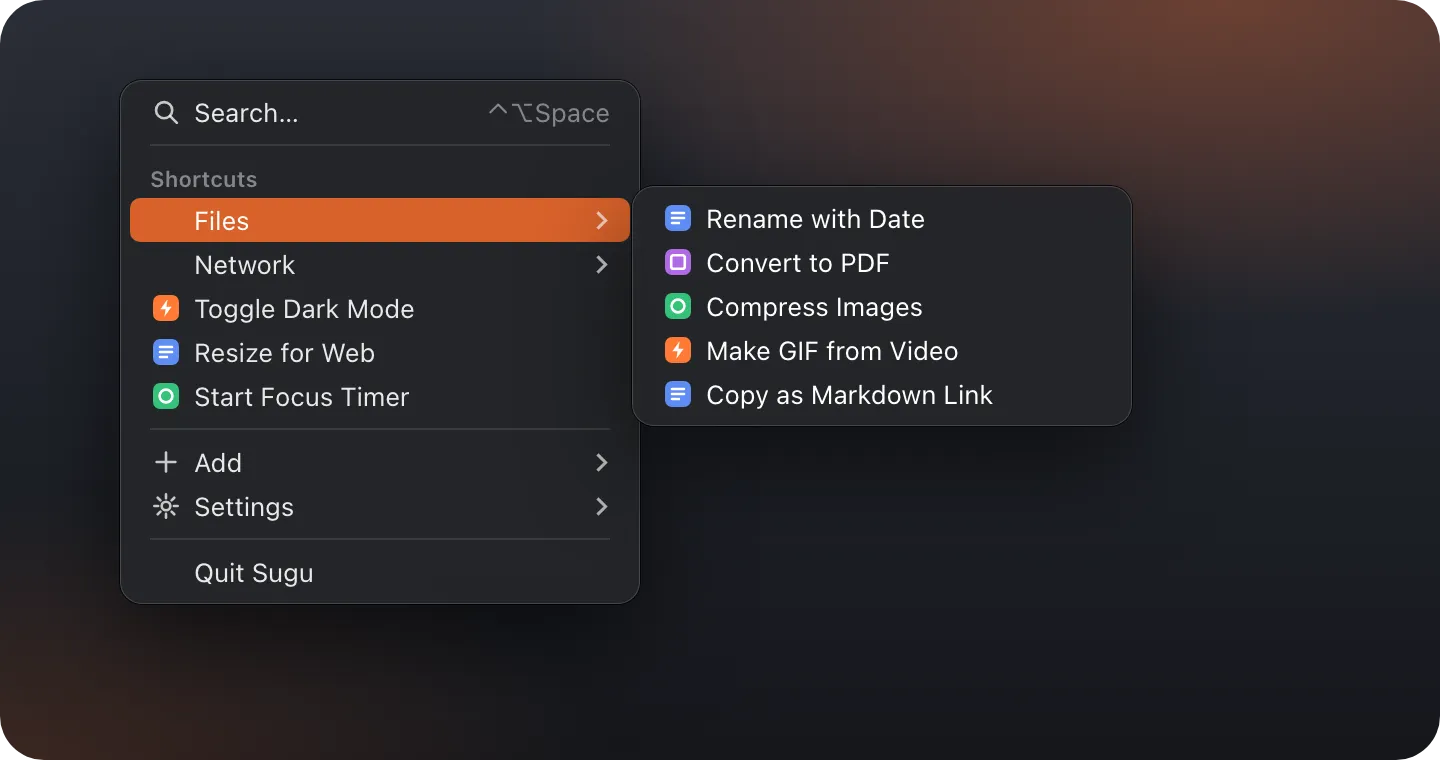
Shortcuts are also found by Quick Open, so ⌃⌥Space and a few letters run one without the mouse. Hold ⌥ on a shortcut for Edit in Shortcuts, Copy Name and Add to Folder.
Sugu reads your shortcuts again when you open the menu, at most once a minute. To see a shortcut you’ve just made right away, choose Settings → Shortcuts → Reload Shortcuts.
There are two ways to arrange them: the Shortcuts app’s own folders, or folders you make in Sugu.
Mirroring the Shortcuts app
Section titled “Mirroring the Shortcuts app”At first Sugu shows your shortcuts as they are in the Shortcuts app: each folder as a submenu, and shortcuts that aren’t in a folder directly in the section.
In Settings → Shortcuts → Shortcuts App Folders you can set each folder to Show as Submenu, Show as Section (its shortcuts listed under its name) or Hide. Hiding is useful for folders of shortcuts that only other shortcuts call.
Your own folders
Section titled “Your own folders”When you’d rather have the menu arranged differently from the Shortcuts app, for example only the ten shortcuts you use daily, make your own folders. They take the place of the Shortcuts app’s folders in the menu and don’t change anything in the Shortcuts app.
- Settings → Shortcuts → New Folder…: name it, choose its style, then tick the shortcuts that belong in it.
- Settings → Shortcuts → Start from Shortcuts App Folders makes one folder for each of the Shortcuts app’s folders, plus an Unfiled one, as a starting point to tidy up.
- Or hold ⌥ on a shortcut in the menu and choose Add to Folder.
Each folder can be shown as a submenu, as a section with its name above it, or without a header, as plain rows. In Settings → Shortcuts → the folder you can Choose Shortcuts…, change the style, Arrange the order of the shortcuts in it, rename it, move it up or down, or delete it. Deleting a folder doesn’t delete its shortcuts.
Switch between the two ways at any time with Use My Folders and Mirror Shortcuts App Folders at the top of Settings → Shortcuts. Your folders are kept either way.