
Export, rename and trash
Export
Section titled “Export”Exporting saves a new file with everything you see: rotation, flip, crop and size. The original stays as it is.
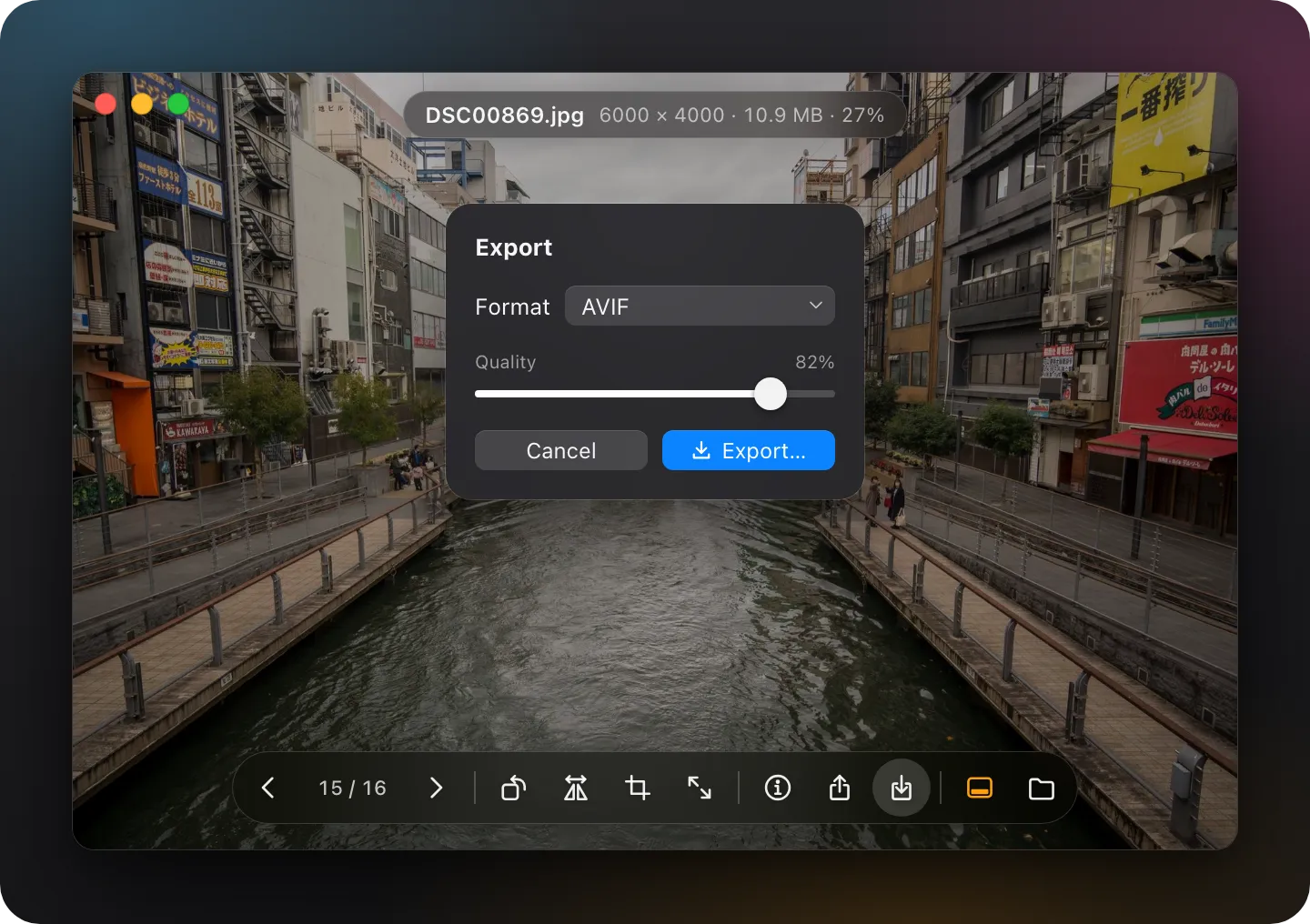
- Export in the toolbar (the tray with a down arrow) opens the Export panel: choose a Format and a Quality (not for PNG), then Export… and pick where to save.
- Right-click → Export As → a format goes straight to the save dialog, at the quality last set in the panel.
- Right-click → Quick Export… goes straight to the save dialog in the format you used last.
The formats are JPEG, PNG and HEIC, plus AVIF when macOS can write it. The format you export to becomes the default; you can also set it under Settings. Exported files don’t carry over the camera data. Export into the folder you’re browsing and the new file joins the strip.
Copy and share
Section titled “Copy and share”- Copy Image (⌘C, or right-click → Copy Image) copies the image as you see it, rotation and crop included, ready to paste into Mail, Messages, Pages and other apps.
- Share (right-click) sends the file itself by AirDrop, Messages, Mail and the other macOS share options.
Rename
Section titled “Rename”Press Return, double-click the name at the top, or right-click → Rename…. The name becomes a text field filled in with the name, without the extension; the extension is kept for you. Return confirms, Escape cancels.
A name that already exists in the folder, or that contains /, : or \, isn’t accepted. Renaming discards unsaved edits to the image.
Move to Trash
Section titled “Move to Trash”⌘⌫ (or right-click → Move to Trash) moves the image to the Trash and shows the next one. To get it back, use Put Back in the Finder’s Trash.
Reveal in Finder
Section titled “Reveal in Finder”Right-click → Reveal in Finder shows the file in its Finder window.