
The thumbnail strip
The strip runs the full width of the screen, just above the Dock, with a thumbnail for every image in the folder. The image you’re looking at is outlined and tinted amber, and the strip scrolls to keep it in the middle.
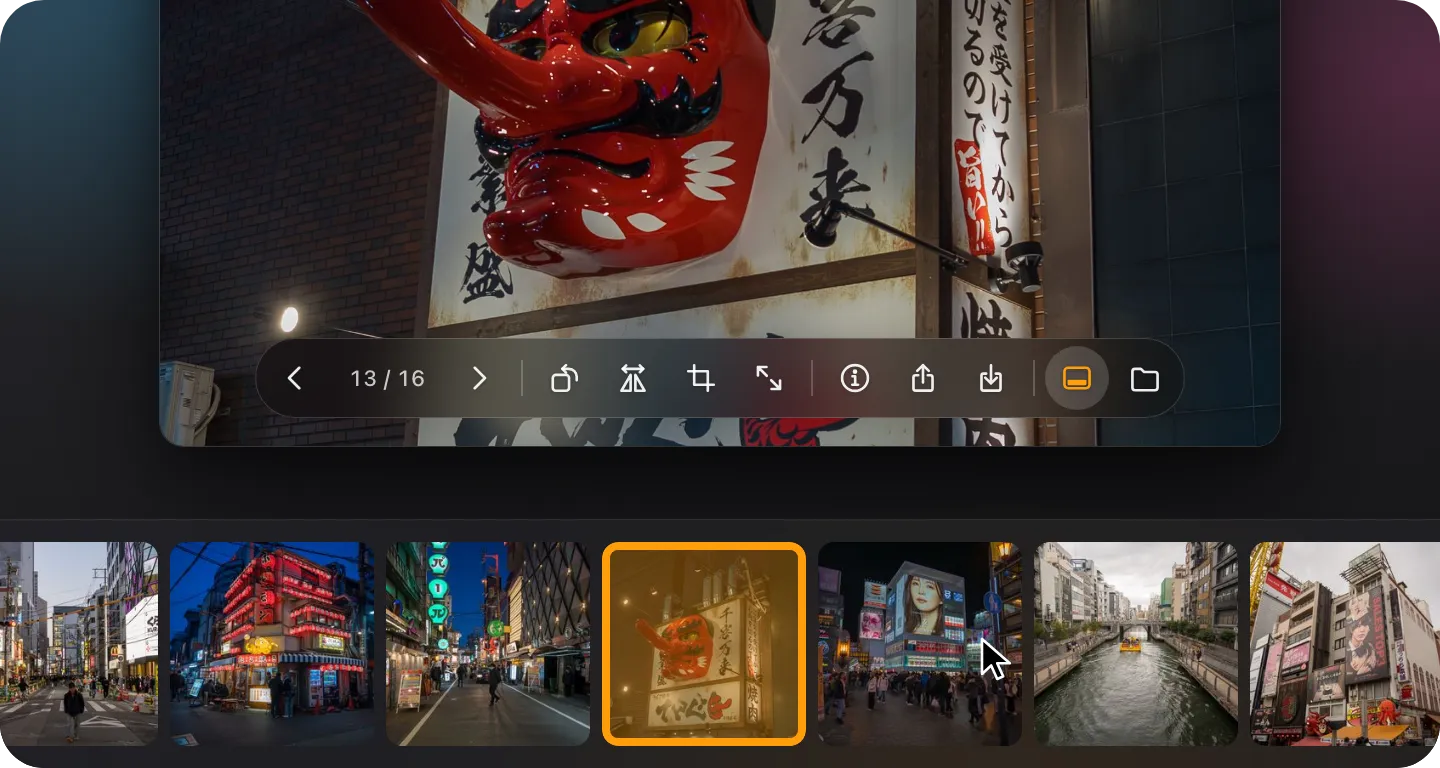
- Click a thumbnail to jump to that image.
- Thumbnails load outward from the current image, so the ones you’re about to see come first, even in very large folders.
- Press T, or click the strip button in the toolbar, to hide or show it. The button is amber while the strip is showing. BlickPix remembers your choice.
- The strip steps aside when BlickPix isn’t the active app, and when the window is closed or minimised.
- It appears on the screen where BlickPix first opened its window.
Selecting several images
Section titled “Selecting several images”| Click | Result |
|---|---|
| Click | Jump to the image. |
| ⌘-click | Add the image to the selection, or remove it. |
| ⇧-click | Select every image from the last one you clicked to this one. |
| ⌘A | Select every image in the folder. |
With two or more images selected, the viewer switches to compare mode. In the strip, every selected thumbnail is amber, and the one in focus also has a thin white inner ring.