
The toolbar
Point at the image and the toolbar appears; move the pointer away and it fades, so nothing covers the photo while you look at it. It sits on dark glass, or in the Scrim layout on a dark fade, so it stays readable on bright and dark photos alike.
The buttons
Section titled “The buttons”| Button | Action |
|---|---|
| ‹ › and the count | Previous / next image, and the place in the folder (“43 / 118”). In Capsule and Scrim only. |
| Rotate | Rotate 90° counter-clockwise (⇧←) |
| Flip | Flip horizontally (H) |
| Crop | Crop on the image |
| Resize | Resize to exact pixels |
| Info | Show or hide the info panel (I) |
| Share | Share the file by AirDrop, Messages, Mail and more |
| Export | Open the Export panel |
| Strip | Show or hide the thumbnail strip (T) |
| Folder | Include or leave out subfolders |
Info, Strip and Folder turn amber while they’re on. Point at a button for its name and shortcut. In a small window the toolbar drops its less-used groups so the rest never overlap. While you crop only the file name stays, and in compare mode the toolbar is hidden.
Four layouts
Section titled “Four layouts”Choose one in Settings → General → Toolbar. Each has a small preview there, and the change shows straight away.
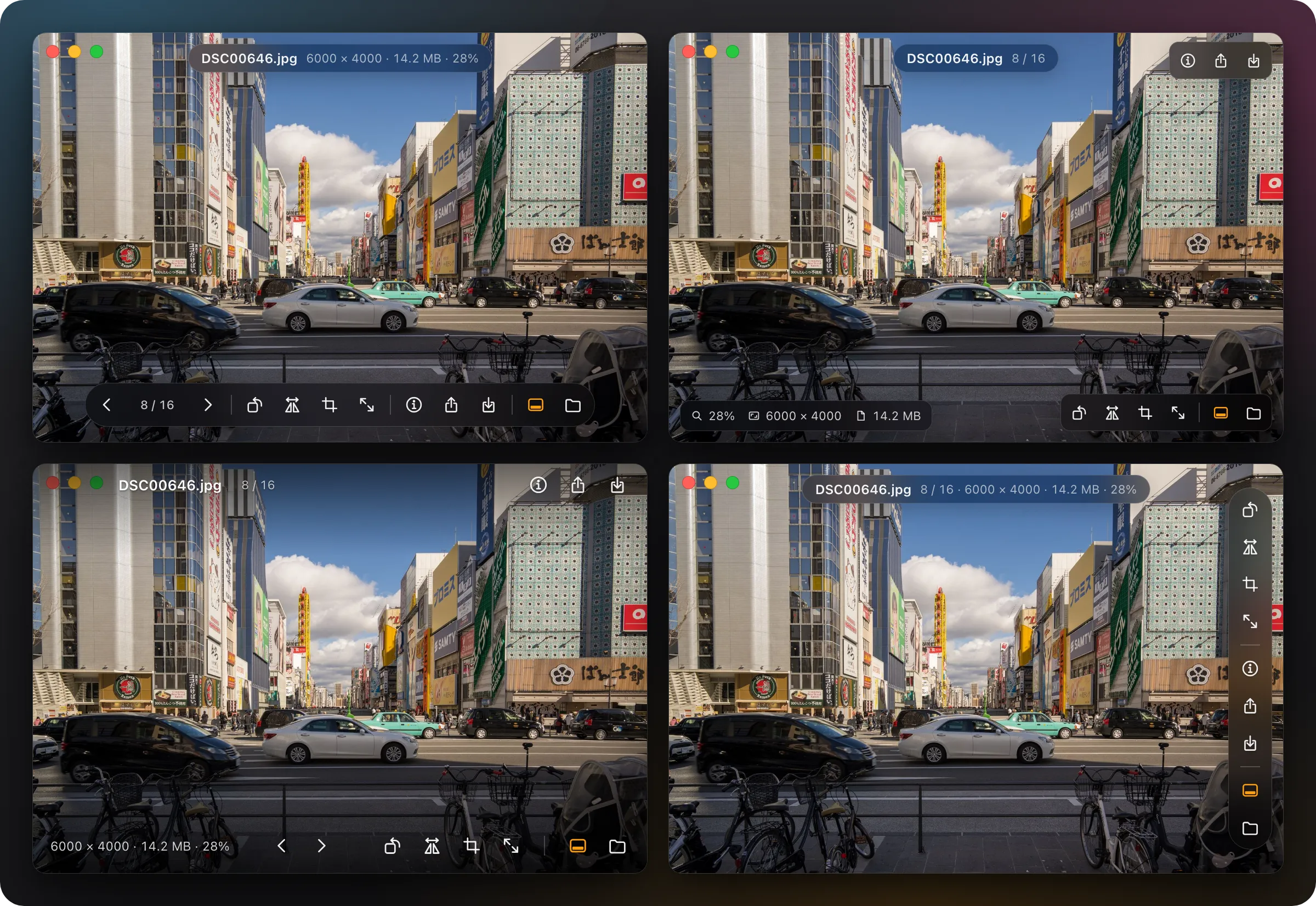
| Layout | What it looks like |
|---|---|
| Capsule (default) | One floating bar at the bottom centre with previous, next and the count. The name, size, file size and zoom are in a pill at the top. |
| Corners | Small glass tiles: Info, Share and Export at the top right, zoom, size and file size at the bottom left, the edit and view buttons at the bottom right. The pill at the top shows the name and the place in the folder. |
| Scrim | No boxes: a soft dark fade along the top and bottom edges with white text and buttons, like a video player. |
| Rail | A vertical bar on the right edge, which keeps the bottom of the photo clear. The details are in the pill at the top. |