
Keyboard and mouse
Keyboard
Section titled “Keyboard”| Key | Action |
|---|---|
| ← / → | Previous / next image |
| ↑ / ↓ | Zoom in / out (window first, then the image) |
| + / − | Fine zoom inside the window |
| ⇧↑ / ⇧↓ | Fill the screen / back to fit |
| Space | Fit / actual size |
| ⇧← / ⇧→ | Rotate left / right |
| H / V | Flip horizontally / vertically |
| ⌘Z / ⇧⌘Z | Undo / redo an edit |
| ⌘S | Save Rotation |
| ⌘C | Copy Image |
| ⌘⌫ | Move to Trash |
| Return | Rename |
| I | Info panel |
| T | Thumbnail strip |
| F or ⌃⌘F | Full screen |
| ⌘A | Select all (compare mode) |
| Escape | Leave full screen, otherwise close the window |
| ⌘O | Open an image or folder |
| ⌘, | Settings |
| ⌘? | This manual |
| ⌘Q | Quit |
In compare mode, ← and → move the focus, and ↑, ↓ or Escape show the focused image on its own. While renaming, Return confirms and Escape cancels. While cropping, Escape cancels.
Mouse and trackpad
Section titled “Mouse and trackpad”| Action | Result |
|---|---|
| Point at the image | Show the name, file details and toolbar |
| Scroll or pinch | Zoom |
| Two-finger swipe left or right | Previous / next image, when not zoomed in |
| Drag | Pan when zoomed in, otherwise move the window |
| Double-click the name | Rename |
| Click a thumbnail | Jump to it; ⌘-click or ⇧-click to select |
| Right-click | The context menu |
The context menu
Section titled “The context menu”Right-click the image for:
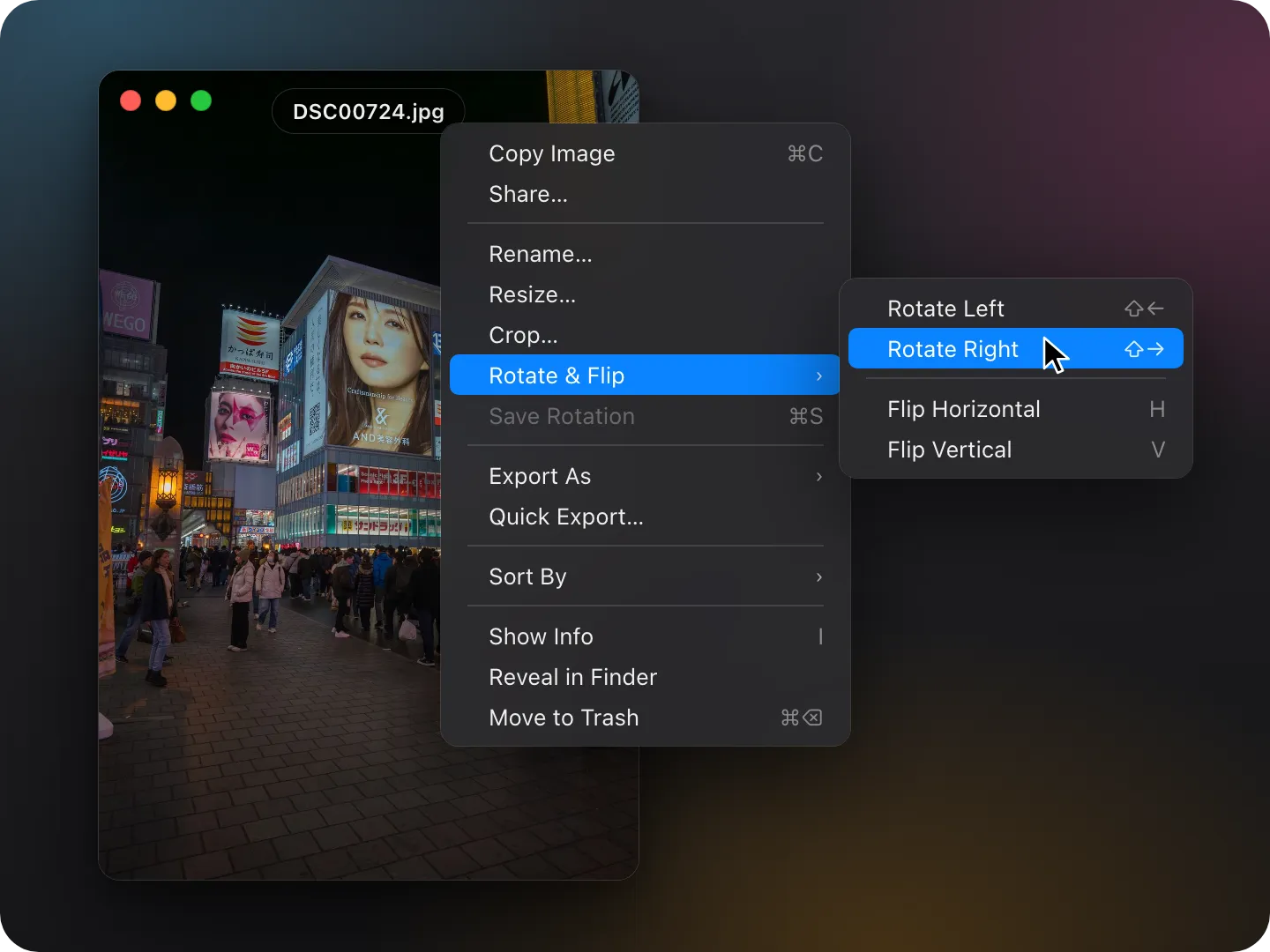
| Item | Action |
|---|---|
| Copy Image | Copy the image as shown |
| Share | AirDrop, Messages, Mail and more |
| Rename… | Rename the file |
| Resize… / Crop… | Resize or crop |
| Rotate & Flip | Rotate Left, Rotate Right, Flip Horizontal, Flip Vertical |
| Save Rotation | Write the rotation into a JPEG, HEIC or TIFF file |
| Export As | Save a copy in a format |
| Quick Export… | Save a copy in the last format |
| Sort By | Name, Date Modified, Date Created |
| Show Info / Hide Info | The info panel |
| Reveal in Finder | Show the file in Finder |
| Move to Trash | Trash the file |