
Rotate, crop and resize
Edits in BlickPix change what you see, not the file. To keep them, export a copy or, for rotations, use Save Rotation.
Rotate and flip
Section titled “Rotate and flip”| Key | Action |
|---|---|
| ⇧← | Rotate 90° counter-clockwise |
| ⇧→ | Rotate 90° clockwise |
| H | Flip horizontally |
| V | Flip vertically |
All four are also under right-click → Rotate & Flip. The toolbar has Rotate Left and Flip Horizontal buttons too.
Save Rotation
Section titled “Save Rotation”Save Rotation (⌘S, or right-click → Save Rotation) writes a rotation or flip into a JPEG, HEIC or TIFF file. It’s lossless: only the file’s orientation tag changes, the image isn’t re-compressed, and the file keeps its name, Finder tags and creation date. For other formats, and after a crop or resize, export a copy instead.
Click Crop in the toolbar, or right-click → Crop…. While you crop, only the file name stays on screen.
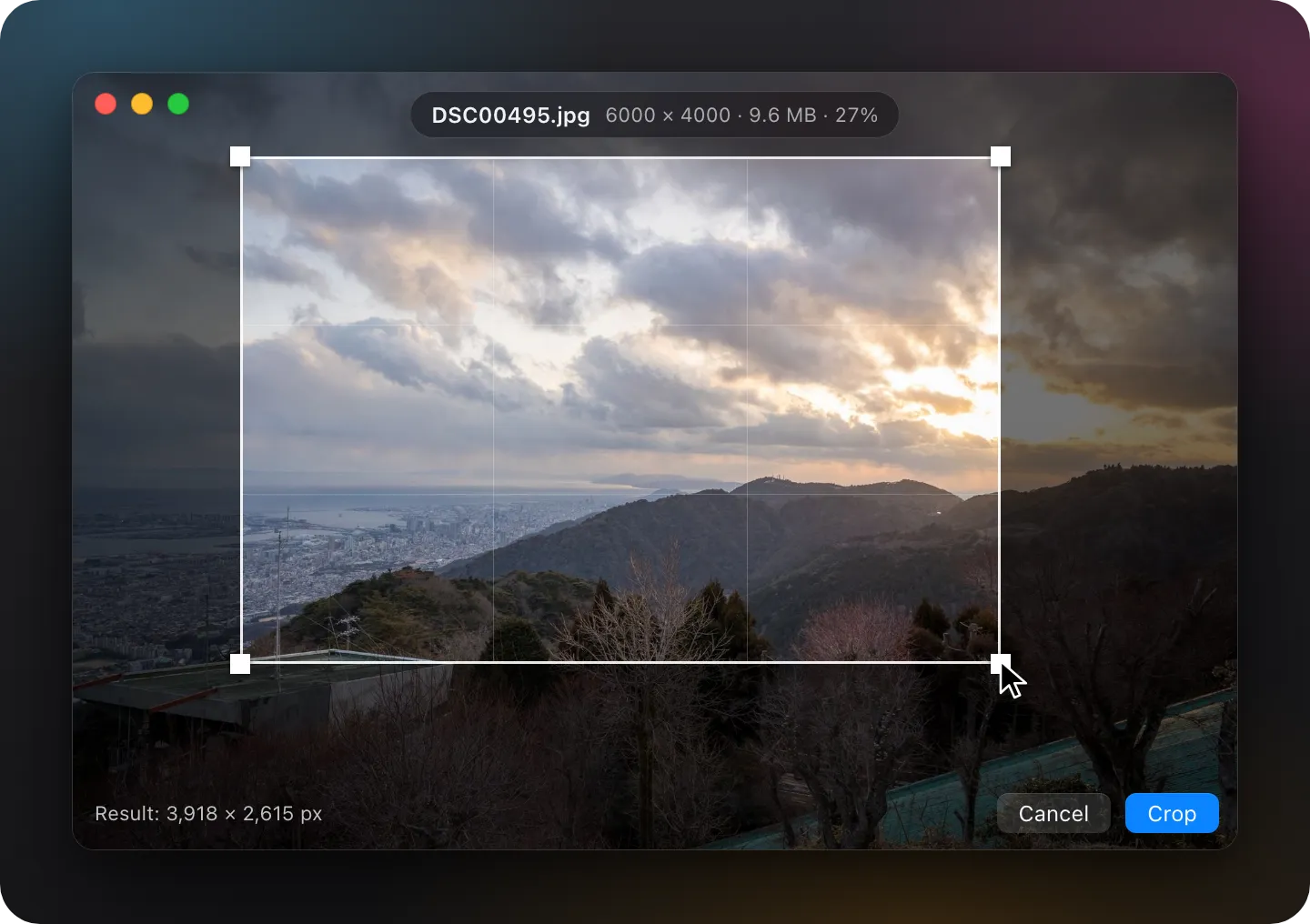
- The selection starts at 80% of the image. Drag a corner to resize it, or drag inside to move it.
- A rule-of-thirds grid helps with composition, and Result shows the size in pixels as you drag.
- Click Crop to apply it, or Cancel (or press Escape) to leave the image as it was.
Resize
Section titled “Resize”Click Resize in the toolbar, or right-click → Resize…. Enter a Width or Height in pixels; with the link between them on, the other follows to keep the proportions. Click the link to set both freely. Original shows the size you started from. The window adjusts to the new size.
⌘Z undoes the last rotate, flip, crop or resize, and ⇧⌘Z redoes it, up to 10 steps (fewer for very large images). The history belongs to the image you’re on and is cleared when you go to another image.