
Pastesmith Manual
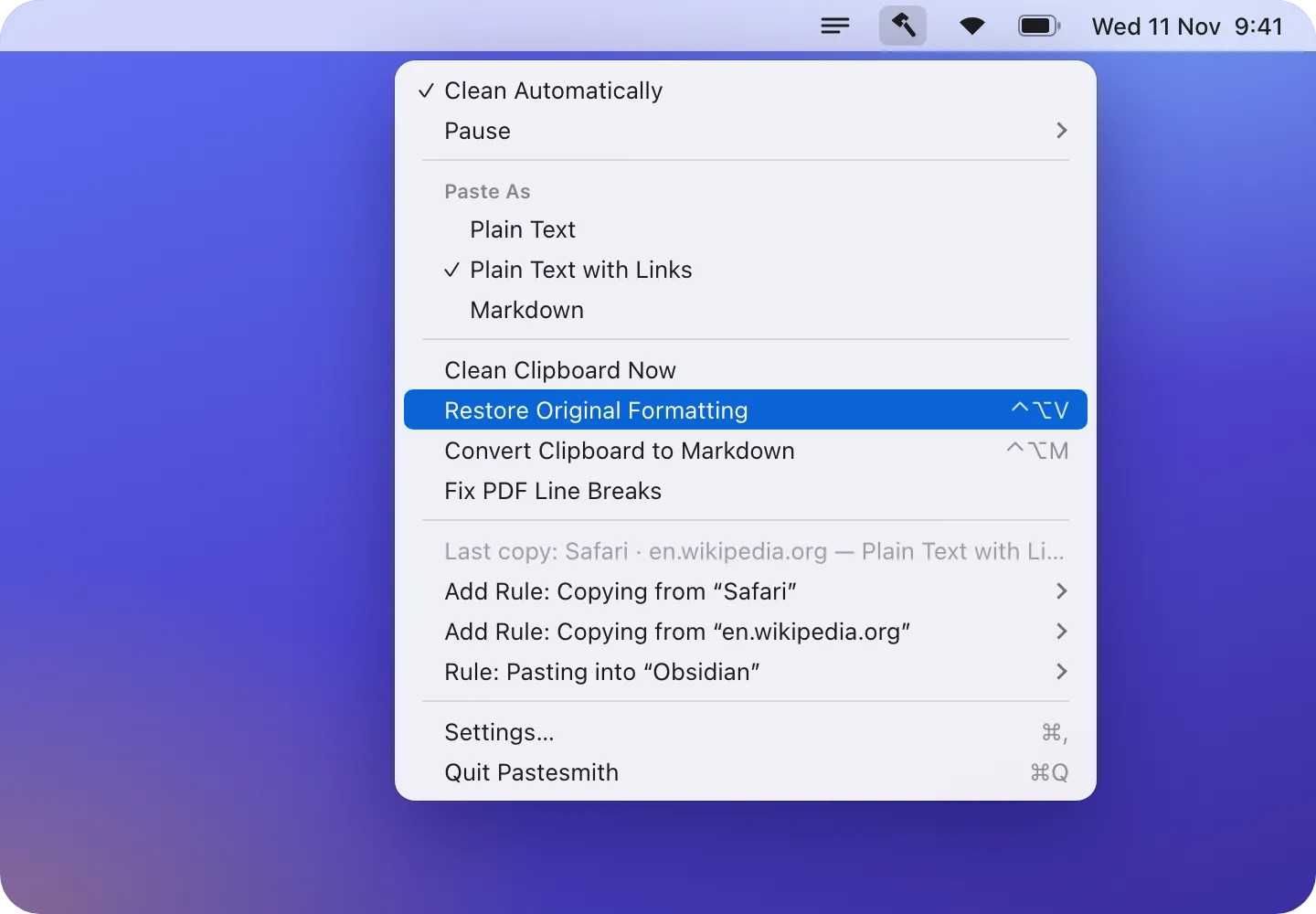
Pastesmith reshapes what you copy before you paste it. Copy text anywhere and it arrives clean: as Plain Text, Plain Text with Links or Markdown. Rules pick the format for each app and website you copy from or paste into, text from PDFs gets its line breaks back, and tracking is stripped from links. The original is always kept, one keystroke away.
- Copy as usual. Pastesmith cleans the copy the moment it lands on the clipboard.
- Paste as usual. If the app you paste into has a rule, the clipboard switches to that format as you press ⌘V.
- Press ⌃⌥V to paste your last copy exactly as copied, with all its formatting.
Pastesmith needs macOS 14 Sonoma or later. It lives in the menu bar, under a hammer, and has no Dock icon.
Getting started
Section titled “Getting started”- Download the DMG from the Pastesmith page, drag Pastesmith to Applications and open it.
- The hammer appears in your menu bar, and Settings opens once so you can look around.
- Pick your Default format under Settings → General: Plain Text, Plain Text with Links or Markdown. You can change it any time from the menu.
- Copy some text and paste it. That’s it: cleaning as you copy needs no permissions.
To use rules for the app you paste into, or the paste shortcuts, give Pastesmith Accessibility access when it asks, or under Settings → General → Permissions. See Rules.
What it leaves alone
Section titled “What it leaves alone”Pastesmith only works on text. Files, images and passwords are never touched, and neither is anything a password manager or another app marks as private or temporary (the nspasteboard.org conventions). Copies from Excel, Numbers and Google Sheets are kept exactly as copied by rules that come with the app, so cells and formulas survive.
In this manual
Section titled “In this manual”- The menu: everything in the menu bar menu.
- Formats: Plain Text, Plain Text with Links, Markdown and Keep Original.
- Rules: a format for each app and website, when copying and when pasting.
- Keeping the original: pasting with formatting, once or for a while.
- Cleaning: invisible characters, quotes, lists and links.
- PDF text: line breaks, hyphens, ligatures and page numbers.
- Shortcuts and automation: hotkeys and the
pastesmith://URL scheme. - Custom script: your own JavaScript step.
- Try It: see what a paste will look like.
- Settings: the General tab, permissions and backups.
- Trial and licence.