
Formats
Every copy ends up in one of four formats. Your default format applies unless a rule picks another.
| Format | What you paste |
|---|---|
| Plain Text | Text only, cleaned. No fonts, colours or sizes. |
| Plain Text with Links | Clean text, but links stay clickable in apps that accept rich text, such as Mail, Notes or Slack. Apps that only take text get plain text. |
| Markdown | Headings, bold and italics, links, nested lists, task lists, code blocks and tables, written as Markdown. |
| Keep Original | Exactly as copied, with all its formatting. Only rules use it; see Keeping the original for other ways. |
Set the default under Settings → General → Default format, or tick it under Paste As in the menu. A shortcut can also cycle Plain → Links → Markdown.
An example
Section titled “An example”The first lines of a Wikipedia article, copied in Safari:
- Plain Text:
Paris is the capital and largest city of France. Its population was about 2.1 million in 2023. - Plain Text with Links: the same text, with France still a link.
- Markdown:
**Paris** is the capital and largest city of [France](https://en.wikipedia.org/wiki/France). Its population was about 2.1 million in 2023.
The footnote markers ([1], [2][3]) are gone in all three, and the link has lost its tracking. See Cleaning.
Markdown options
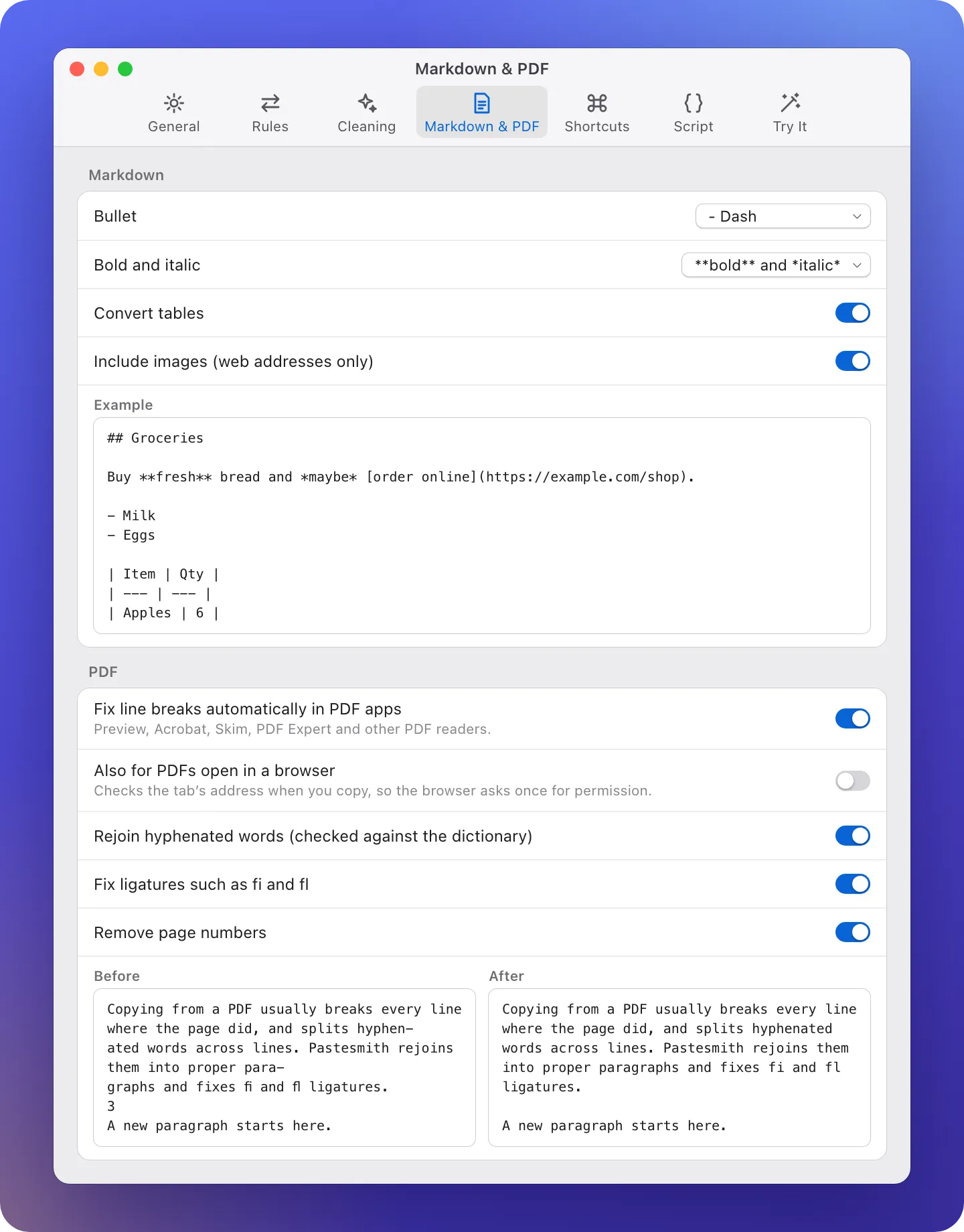
Section titled “Markdown options”Settings → Markdown & PDF sets how Markdown is written, with a live example below the options:
- Bullet:
-Dash,*Asterisk or+Plus. - Bold and italic:
**bold** and *italic*, or__bold__ and _italic_. - Convert tables: tables become Markdown tables. Off, their cells become plain lines.
- Include images (web addresses only): images with a web address become
. Images that only exist on your Mac are left out.
Markdown is built from the formatting the copy carries. Text copied as plain text, with no formatting, still gets its lists tidied into Markdown lists.