
Settings
Open Settings from the menu (Settings…, ⌘,), or open Pastesmith again from Spotlight or Applications. The window has seven tabs:
| Tab | What’s there |
|---|---|
| General | The basics, below. |
| Rules | Rules for apps and websites. |
| Cleaning | Cleaning steps. |
| Markdown & PDF | Markdown options and the PDF fix. |
| Shortcuts | Shortcuts and the URL scheme. |
| Script | Your custom script. |
| Try It | Try It. |
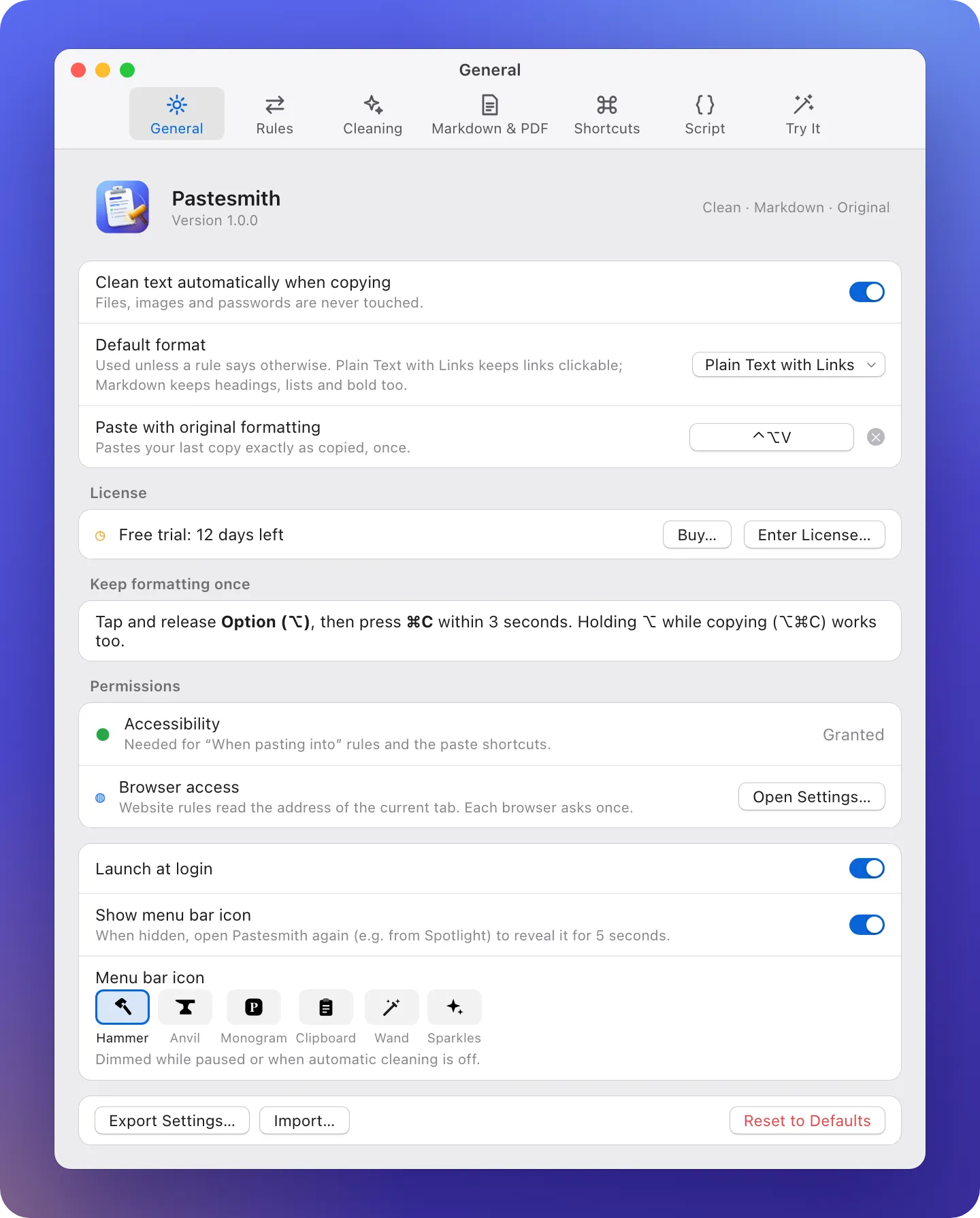
General
Section titled “General”- Clean text automatically when copying: the same as Clean Automatically in the menu.
- Default format: Plain Text, Plain Text with Links or Markdown. See Formats.
- Paste with original formatting: the shortcut, ⌃⌥V to begin with.
- License: the days left in the trial, or who it’s licensed to. See Trial and licence.
- Keep formatting once: a reminder of the ⌥ tap. See Keeping the original.
Permissions
Section titled “Permissions”| Permission | Needed for |
|---|---|
| Accessibility | Paste rules, the paste shortcuts and Copy and clean. Grant Access… opens the right page of System Settings; turn on Pastesmith there. |
| Browser access (Automation) | Website rules, and the PDF fix for PDFs in a browser. Each browser asks once. Open Settings… shows where to change it later. |
Cleaning as you copy, copy rules for apps, and the ⌥ tap need no permission.
Menu bar
Section titled “Menu bar”- Launch at login starts Pastesmith when you log in. If it can’t be turned on, move Pastesmith to Applications and try again.
- Show menu bar icon: turn it off to hide the hammer. Pastesmith keeps working. To reach it, open Pastesmith again from Spotlight or Applications and the hammer shows for 5 seconds.
- Menu bar icon: Hammer, Anvil, Monogram, Clipboard, Wand or Sparkles. It is dimmed while cleaning is off or paused, and becomes a warning sign when the trial has ended.
Backing up your settings
Section titled “Backing up your settings”Export Settings… saves everything, rules, shortcuts and script included, as a JSON file. Import… loads one, for example on your second Mac. Reset to Defaults puts every setting back as it was at the start.