Chili RAW for iPhone: edit your Mac’s photos on the phone, even with the Mac off
Chili RAW for iPhone is out: smart previews you can edit with the Mac off, the same engine as on the Mac, Film Labor, and edits that sync both ways.
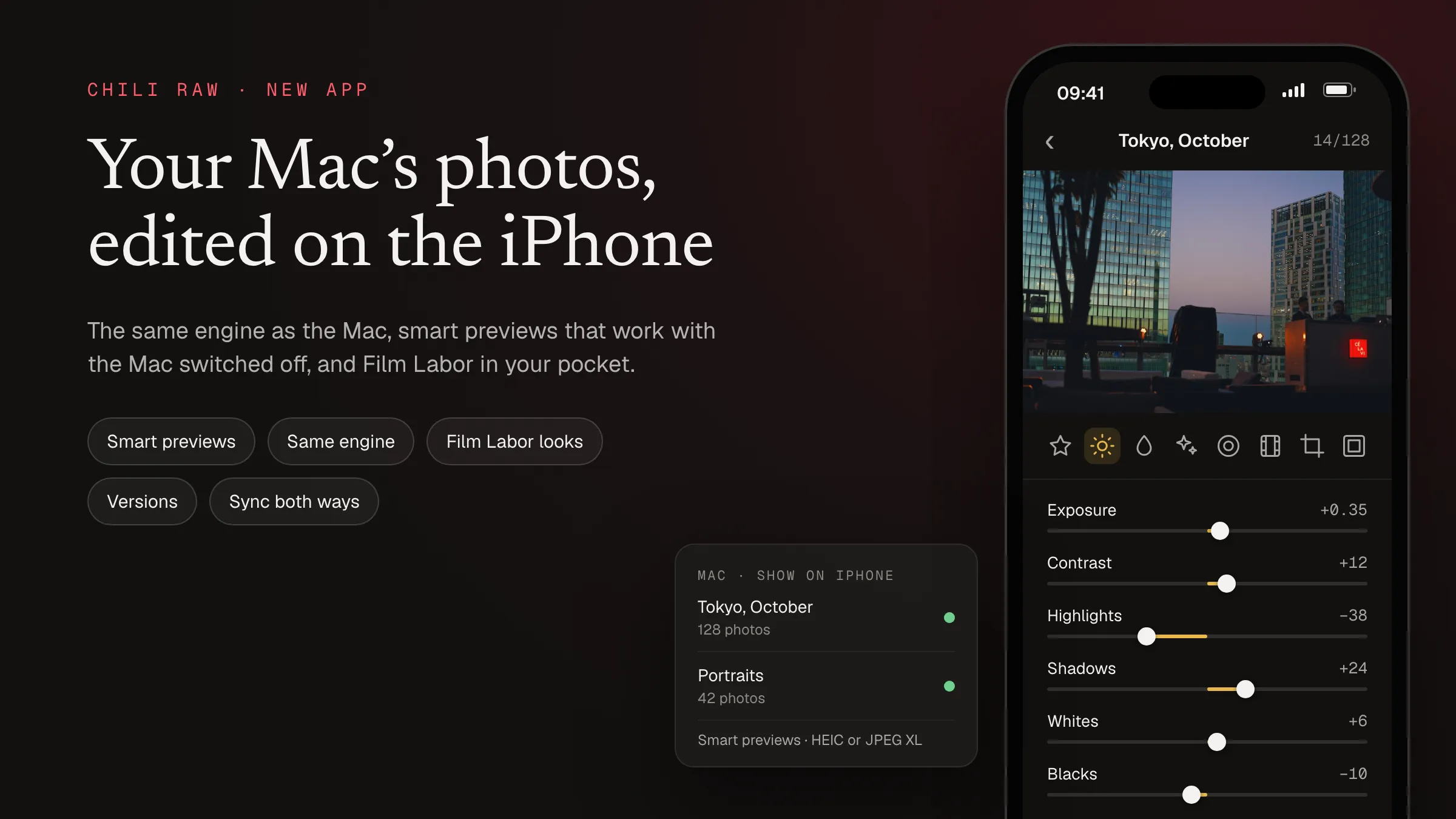
Chili RAW is now on the iPhone. It isn’t a cut-down companion that only shows your photos. It edits them on the same engine as the Mac, and it works on the photos from your Mac library even when the Mac is switched off. Edits made on the phone go back to the Mac, and edits made on the Mac show up on the phone.
Chili RAW for iPhone is on the App Store, free to download. Here is what it does.
Show on iPhone: your Mac library in your pocket
On the Mac, you choose which photos to Show on iPhone, a set at a time: last weekend’s shoot, a client’s selects, your portfolio. Chili RAW prepares them and sends them through your own iCloud. There is no Chili RAW account and no Chili RAW server.
On the phone they appear as sets you can browse, search and swipe through. Photos slide in already showing, with no flash or spinner between them.
Smart previews: edit with the Mac off
A RAW file is far too big to put on a phone by the hundred. So for every photo you show on the iPhone, the Mac makes one smart preview: a compact file, much smaller than the original, that still has enough range to edit properly, highlights and shadows included.
The phone shows and edits from that file, so the Mac doesn’t need to be on. Edit a set on a train, on the sofa or on another continent. When you’re done, the edits travel back and land in your Mac library the next time Chili RAW is open there. As on the Mac, an edit is a set of instructions: the RAW file itself is never changed.
Smart previews are 10-bit HEIC by default. On the Mac you can switch them to JPEG XL instead, for the photos you add or edit from then on.
If you know Lightroom’s smart previews, the idea is the same. The difference is where things live: your originals stay in their folders on your Mac, and the previews go through your own iCloud.
The same engine, so the photo looks the same
Chili RAW’s renderer is now one shared engine, used by the Mac app and the iPhone app alike. A photo you edit on the phone is rendered by the same code that renders it on the Mac, so the colour you choose on the train is the colour you export at your desk. If the Mac ever renders with a newer engine version than the phone, the phone tells you.
Seven tools, one hand
The photo screen keeps the photo large, with an icon bar under it and one tool open at a time:
- Rate: stars, so you can cull on the phone too.
- Light: Exposure, Contrast, Highlights, Shadows, Whites and Blacks, with the histogram over the photo.
- Colour: Temperature and Tint, with As shot one tap away, plus Vibrance and Saturation.
- Structure: Clarity, Texture and Dehaze.
- Grade: the colour wheels from the Mac’s Darkroom, one each for shadows, midtones and highlights.
- Crop: a crop frame on the whole photo, with ratio buttons.
- Frame: a border, square, 4:5 or 9:16 for sharing, in white, grey or black, and a film camera’s orange date stamp if you like.
Sliders reset with a double tap, a swipe goes to the next photo, and everything you change goes back to the Mac.
Film Labor on the iPhone
Film brings Film Labor, the darkroom inside Chili RAW, to the phone, on the same engine. Choose a film and a paper, set the finish and the grain, and the photo develops as it would on the Mac. Colour negatives, slide films and black-and-white all come along.
The Looks you saved in Film Labor on your Mac are in a Looks tab, first, to apply in one tap.
Versions, too
If a photo has several Versions on the Mac, for example a colour edit and a black-and-white one, you can switch between them on the iPhone, and keep editing whichever one you’re on.
The iPhone’s own photos
Chili RAW for iPhone also edits the photos you take with the iPhone itself, with no Mac involved: Light, Colour, Structure, Grade and Crop. When one deserves more, Send to Mac copies the full original, with its stars, into a From iPhone folder on your Mac.
Free, with Pro as one purchase
The app is free to download and edits your iPhone’s own photos. Chili RAW Pro on the iPhone is one in-app purchase, with no subscription. It adds Film, and the photos from your Mac, synced both ways. As on the Mac, nothing renews and nothing expires.
What it means for the Mac app
Nothing changes in how Chili RAW for Mac works: your photos stay in your own folders, the originals are never changed, and the free version stays free. The iPhone app is an addition for the times you’re away from the desk.
If you are choosing a photo editor now, our comparison of the new free RAW editors and Chili RAW 1.4’s film and batch tools are good places to start.