How to keep your Mac awake: System Settings, caffeinate and Latch
Four ways to stop a Mac from sleeping during a download, an export or a talk: System Settings, the caffeinate command, and free menu bar apps such as Latch.
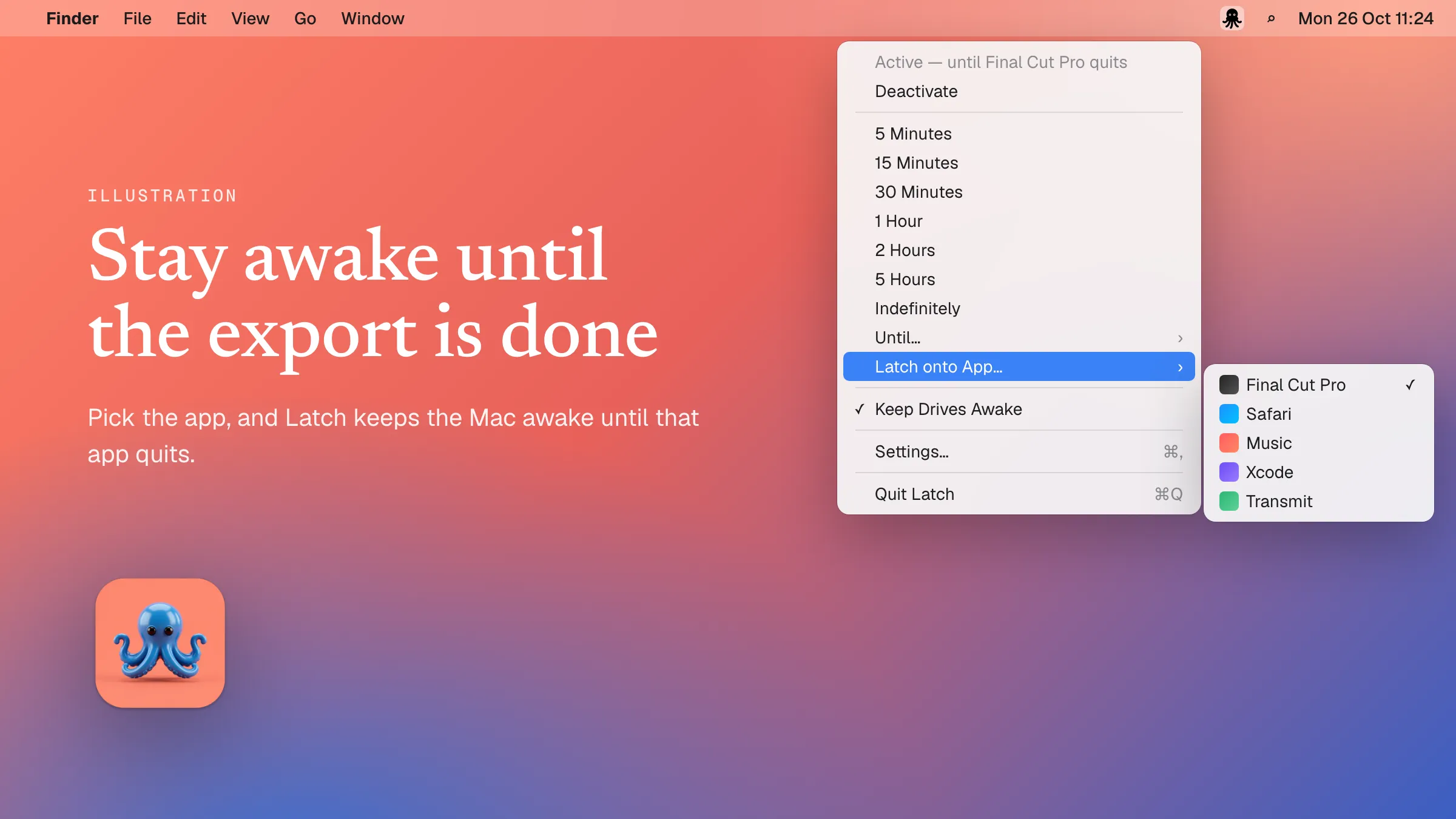
To keep a Mac awake for a while without changing any settings, open Terminal and type caffeinate. The Mac stays awake until you press ⌃C. For something you can click, a free menu bar app such as Latch does the same with one click, and can switch itself off when the job is done.
Which way suits you depends on how long you need it, and how often. Here are four, from the built-in settings to the menu bar.
1. Change when the Mac sleeps, in System Settings
If your Mac should never sleep on its own, change it once in System Settings:
- Screen: Lock Screen → Turn display off when inactive (on a laptop there’s one setting for battery and one for the power adapter). Set it to Never to keep the screen on.
- The Mac itself: on a MacBook, Battery → Options… → Prevent automatic sleeping on power adapter when the display is off. On an iMac, Mac mini or Mac Studio, Energy → Prevent automatic sleeping when the display is off.
This is right for a Mac that works as a server, or that you never want to sleep. It’s the wrong tool for “stay awake for this one download”: you have to remember to change it back, and until you do, the battery pays for it.
2. caffeinate in Terminal
Every Mac comes with caffeinate, a small command that keeps it awake for as long as it runs:
| Command | What it does |
|---|---|
caffeinate |
Keeps the Mac awake until you press ⌃C |
caffeinate -d |
Also keeps the display on |
caffeinate -t 3600 |
For 3,600 seconds, one hour |
caffeinate -i ./backup.sh |
Until that command finishes |
caffeinate -w 1234 |
Until process 1234 quits |
It’s precise, and it’s already installed. The catch is the Terminal window: close it and the Mac can sleep again, and it’s easy to forget one running. If you want to see what is keeping a Mac awake right now, pmset -g assertions lists every app holding it up.
3. A keep-awake app in the menu bar
The menu bar is the natural home for this. The best-known app is Amphetamine, free on the Mac App Store, with a long list of triggers. KeepingYouAwake is a small free, open-source app that puts a cup in the menu bar and runs caffeinate for you.
We made Latch because we wanted two things those don’t do as simply: waiting for an app instead of guessing a time, and keeping external drives awake.
4. Latch: one click, or until the job is done
Latch is a little octopus in the menu bar. Click it and the Mac stays awake; click again and it goes back to normal. Right-click for everything else:
- A time: 5, 15 or 30 minutes, 1, 2 or 5 hours, or indefinitely. The countdown shows beside the octopus, and Extend by 15 Minutes adds time.
- Until…: one of the next eight full hours, such as 6:00 PM, or tomorrow morning.
- Latch onto App…: pick the app doing the work, such as Final Cut Pro, Lightroom or a browser with a download, and the Mac stays awake until that app quits. No guessing how long an export takes.
- Allow display to sleep: the screen turns off as usual while the Mac keeps working. Good for downloads and backups you don’t need to watch.
External drives that keep falling asleep
Many external hard drives spin down after a few idle minutes. Then you open a Save dialog and everything freezes for several seconds while the drive spins back up. In Settings → Drives, Latch can keep the drives you choose awake while it’s active, by writing and deleting a tiny hidden file every few minutes.
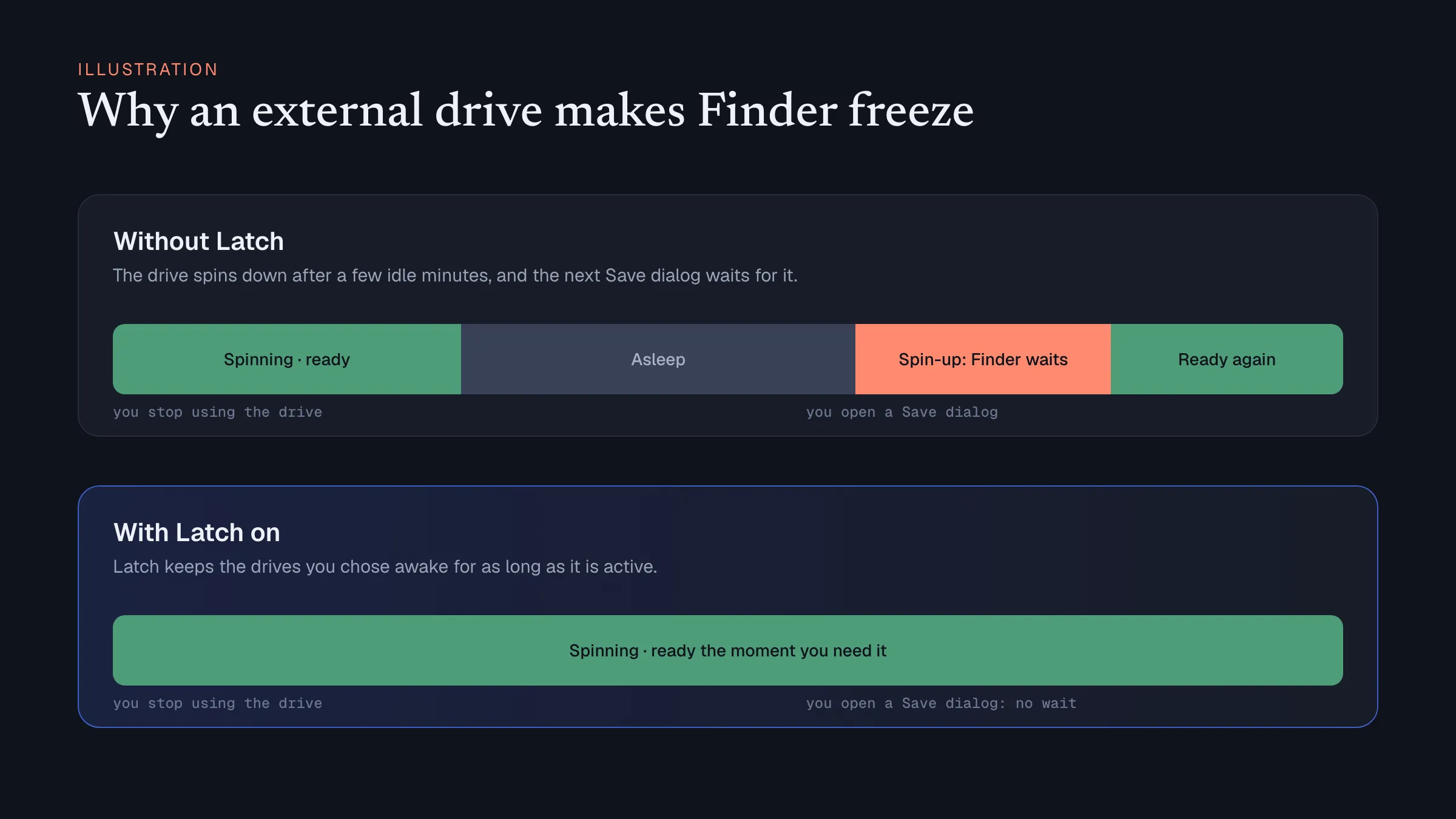 Without Latch the drive spins down and the next Save dialog waits for it. With Latch on, it’s ready.
Switching itself on and off
Latch can also follow rules, so you don’t have to remember it:
- Schedules, such as weekdays 9 to 6.
- On when an external display is connected, for a laptop at its desk.
- Off below a battery level, in Low Power Mode, or while a Focus is on.
From the keyboard, Shortcuts and Terminal
⌥⌘K switches Latch on and off from any app. It adds Activate, Deactivate and Toggle actions to the Shortcuts app, and a latch:// URL scheme for scripts. This keeps the Mac awake for exactly as long as a long command runs:
long-running-job & open "latch:///activate?waitpid=$!"What about closing the lid?
None of these keep a MacBook running with the lid closed by themselves. Closing the lid puts it to sleep unless it’s in clamshell mode: connected to power, an external display, and a keyboard or mouse. If you need the work to carry on, leave the lid open and let the display sleep instead.
Which should you use?
- The Mac should never sleep: System Settings, once.
- One long job, and you live in Terminal:
caffeinate -iwith the command, or-wwith its process ID. - Often, for downloads, exports, presentations or reading: a menu bar app. Latch is free and open source, works on Apple silicon and Intel Macs with macOS 13 or later, and its manual covers every setting.
Latch is one of several Monokern apps you pay for once, or not at all. If you take screenshots for guides while your Mac stays awake, StepSnip turns them into one PDF.