MediaInfo for Mac: how to check a video’s codec and bitrate
How to see the codec, bitrate, frame rate and HDR format of any video on a Mac: MediaInfo, ffprobe, Finder and QuickTime, and the free Media Spy inspector.
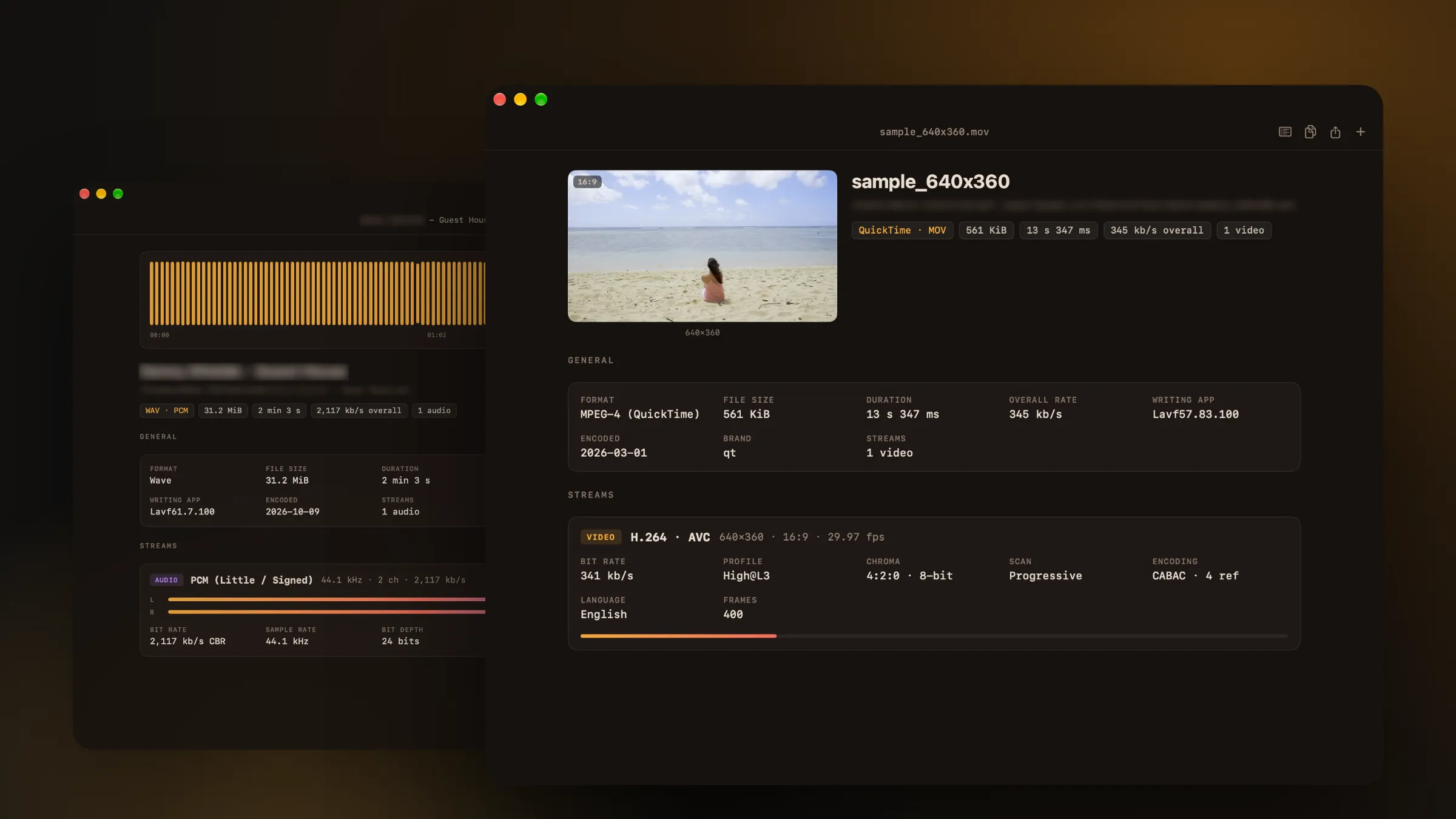
Yes, MediaInfo runs on the Mac. MediaArea, the people behind it, offer a free graphical version and a free command-line version as downloads, and a version on the Mac App Store for $0.99. If you would rather not use Terminal and want a window that feels at home on macOS, Media Spy is a free Mac app built on MediaInfo’s own engine.
Below is what each option shows, what Finder and QuickTime can tell you without installing anything, and how to read the numbers you get. Everything is as of November 2026.
What MediaInfo is
MediaInfo is a small, long-running open-source tool that reads how a media file is built and lists what it finds: the container (MP4, MOV, MKV…), and for each track the codec, profile, resolution, frame rate, bit depth, colour information, HDR format, bitrate, audio channels, sample rate, language and much more. It doesn’t play the file, so it works on formats your Mac can’t play at all.
Its engine, MediaInfoLib, is used inside many other apps. Video editors, archivists and people who download films use it for the same question: what exactly is in this file?
MediaInfo’s Mac versions
MediaArea’s Mac download page lists three builds, all at version 26.10 at the time of writing, for macOS 10.10 and later on Intel and Apple silicon:
- The GUI, as a free download. A DMG with the full app. MediaArea itself says this build is “not well integrated” with macOS and recommends the App Store version.
- The GUI on the Mac App Store. $0.99 in the US. An optional in-app purchase ($7.99 once, or $2.99 a year) adds more settings and comparing several files.
- The CLI. A free command-line tool, also available through Homebrew (
brew install media-info). Thenmediainfo video.mkvprints every field, andmediainfo --Output=JSON video.mkvgives you something a script can read.
All three show the same information, because they share the same library. The App Store version is the nicest of the three to use, and at $0.99 it’s a fair way to support the project.
ffprobe, for Terminal and scripts
If you have FFmpeg installed (brew install ffmpeg), you already have ffprobe. ffprobe -hide_banner video.mp4 prints a short summary of every stream. To get just the numbers you care about:
ffprobe -v error -select_streams v:0 \ -show_entries stream=codec_name,profile,width,height,r_frame_rate,bit_rate \ -of default=noprint_wrappers=1 video.mp4ffprobe is the right tool when you check files in a script or a build pipeline, and its JSON output (-of json) is easy to work with. For looking at one file now and then, its output is hard to read, and you have to remember the options.
What a Mac can tell you without installing anything
Finder’s Get Info (⌘I) has a More Info section that can show the dimensions, codecs and duration of a video. It depends on Spotlight having indexed the file, it shows nothing useful for MKV or WebM, and it has no bitrate per track, no frame rate details, no HDR format. Users on macOS Tahoe also report that the duration often doesn’t appear at all.
QuickTime Player’s Movie Inspector (Window → Show Movie Inspector, ⌘I) is better: the format of each track, the frame rate, the data size and the data rate. But the data rate is the whole file’s average, not each track’s, and QuickTime only opens what it can play, so MKV, WebM and most AVI files are out.
Both are fine for “is this 1080p or 4K?”. For “why is this file so big?” or “is this really 10-bit HDR?”, you need one of the tools above.
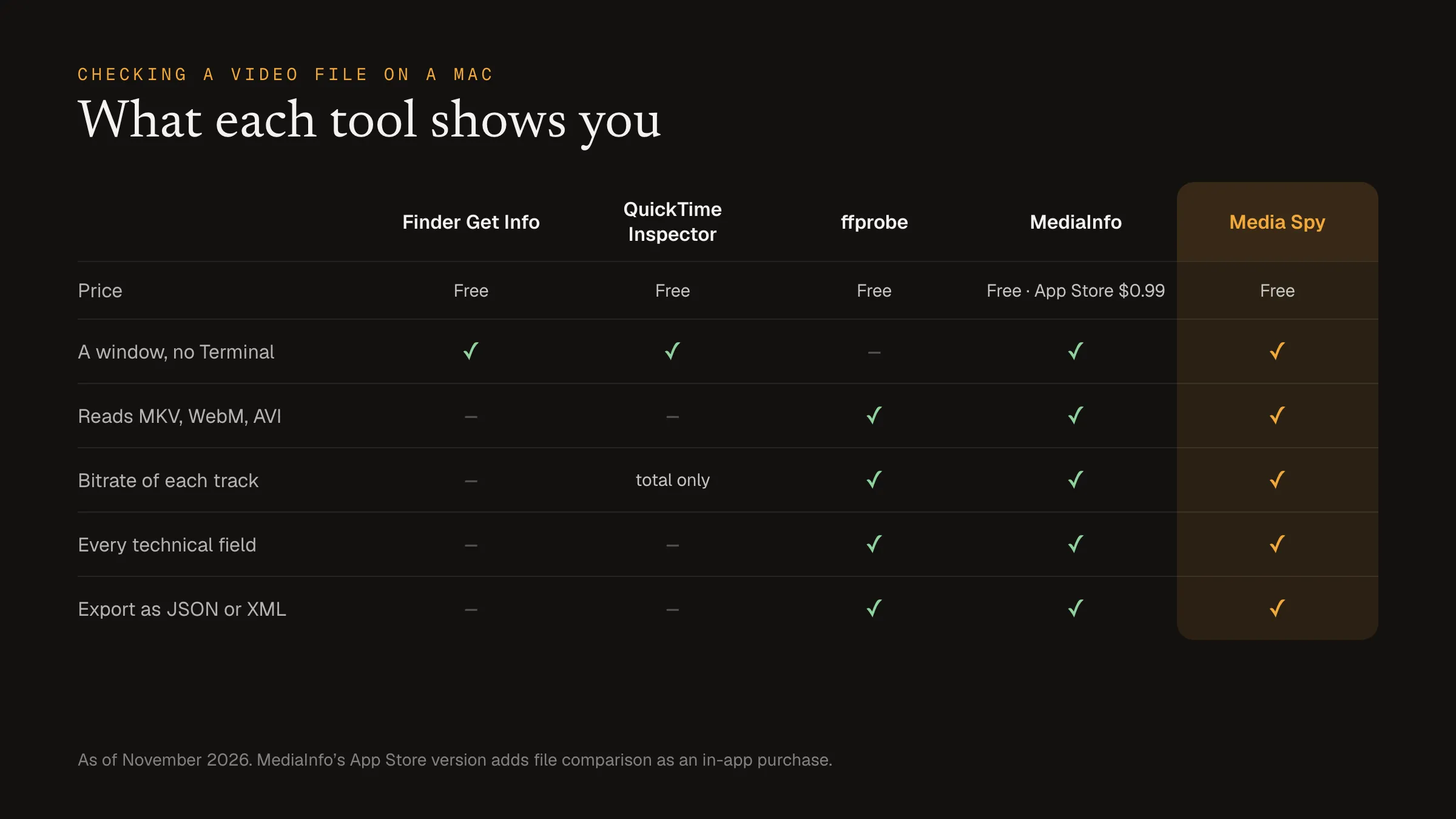 What each tool shows. Only Finder and QuickTime come with the Mac; the rest are free, except MediaInfo’s App Store version.
Media Spy: MediaInfo’s engine in a Mac window
We made Media Spy because we wanted MediaInfo’s accuracy with a window that is quick to read. It uses MediaInfoLib from MediaArea, so its readings are the same, but it lays them out the way you look for them:
- A summary first: format, file size, duration and overall bitrate at the top, then a card for each video, audio and subtitle track.
- Video: codec, resolution, aspect ratio, frame rate, profile, colour format, bit depth and HDR (HDR10, Dolby Vision), with a preview frame so you know which file you’re looking at.
- Audio: codec including Dolby Atmos, channels, sample rate and bit depth, with a waveform of the whole track and peak meters per channel.
- Subtitles, with language and format, marked Default or Forced.
- Every field:
⌘Lswitches to the full list, with a search field, for the details the summary leaves out.
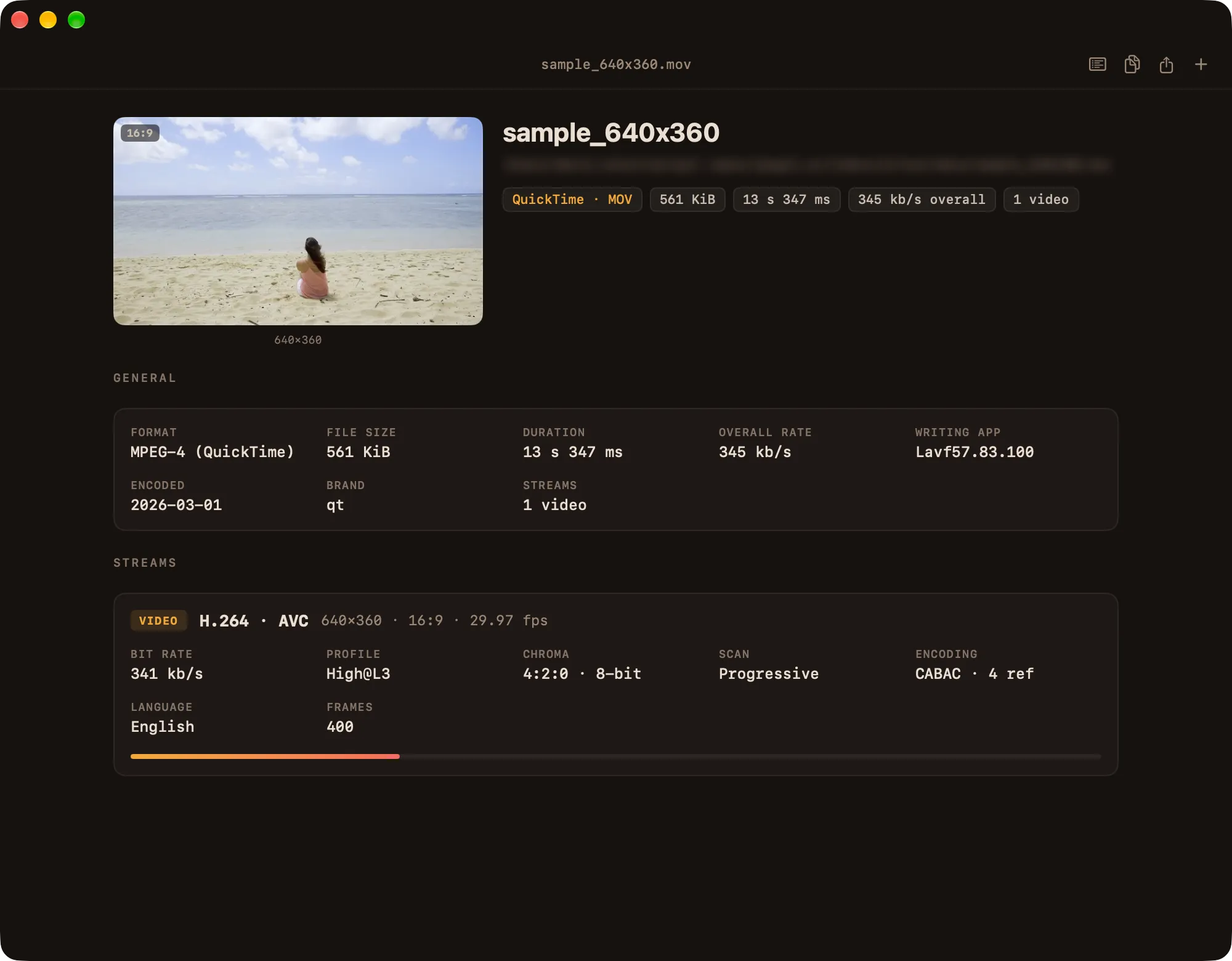 A 13-second MOV: 345 kb/s overall, of which the H.264 video track is 341 kb/s.
It fits into Finder, which is where you usually are when you wonder about a file. Right-click a file and choose Services ▸ Get Media Info or Open With ▸ Media Spy. Or select it and press Space: Media Spy adds its media info to Quick Look, also for formats macOS can’t preview on its own, such as MKV. Drop in a whole batch and switch between the files in the sidebar. ⇧⌘C copies the report, and you can export it as Text, HTML, JSON or XML.
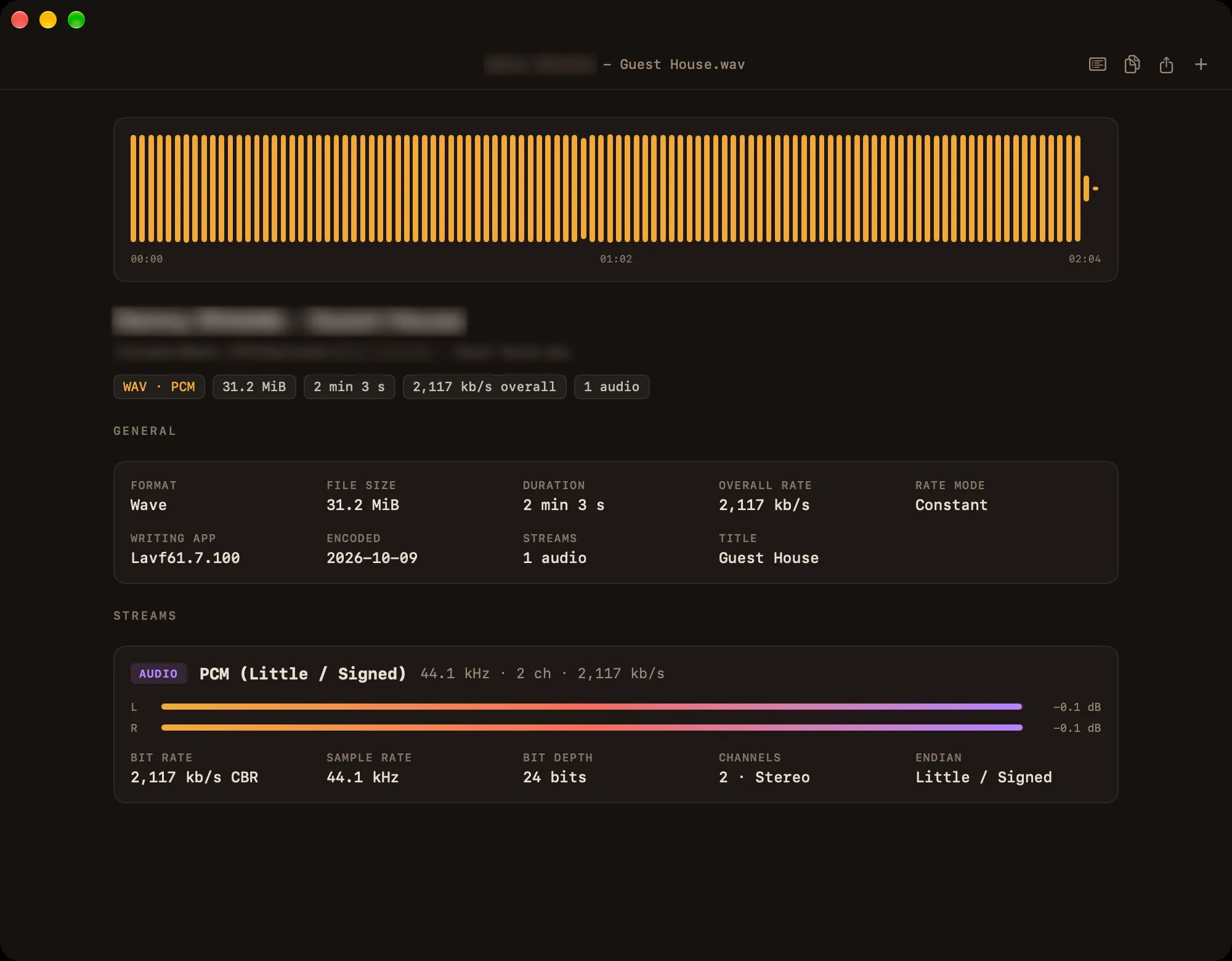 Audio files get a waveform of the whole track and peak meters for each channel.
Media Spy is free. It needs macOS 14 or later and a Mac with Apple silicon. The manual covers every view and shortcut.
And Media Spy Pro
If you check files before you deliver them, there is also Media Spy Pro, $4.90 once. It is the same app with five tools added: compare up to four files side by side with the differences highlighted, check files against delivery specs you save (codec, resolution, frame rate, channels and so on), measure loudness in LUFS to EBU R128, graph the bitrate over the length of an MP4 or MOV, and export a whole folder to CSV. You don’t need it to read a file; the free app does that.
Which should you use?
| You want to… | Use |
|---|---|
| Check one file now and then, in a window | Media Spy, or MediaInfo from the App Store |
| Check files on an Intel Mac or older macOS | MediaInfo (Media Spy needs Apple silicon and macOS 14) |
| Check files in a script | ffprobe or the MediaInfo CLI, with JSON output |
| Use the same tool on Windows and Linux | MediaInfo |
| Peek at a file without installing anything | QuickTime Player’s Movie Inspector |
MediaInfo is the better choice if you need it on an Intel Mac, on old macOS, or on several systems, and it is open source. Media Spy suits you if you are on Apple silicon and want the answer laid out at a glance, right from Finder and Quick Look.
Reading the numbers
- Overall bitrate vs. track bitrate. The overall rate counts everything in the file: video, every audio track and the container. The video track’s rate is the one to compare with your export settings.
- Missing bitrate in MKV files. Matroska doesn’t have to store a bitrate per track. If a tool shows none, or an estimate, that is the file, not the tool.
- Frame rate. 29.97 and 30 fps are not the same, and neither are 23.976 and 24. Mixing them in one project is a common cause of stutter.
- Bit depth and HDR. “10-bit” alone doesn’t mean HDR. Look for the transfer characteristics (PQ or HLG) or an HDR format line such as HDR10 or Dolby Vision.
If you also sort a music library by format, see a music player for FLAC files and folders. Media Spy is one of several Mac apps you pay for once, or not at all.