How to paste without formatting on a Mac, and keep the links
Paste without formatting on a Mac with ⌥⇧⌘V, why it loses links and breaks PDF text, and how to pick plain text, links or Markdown for each app.
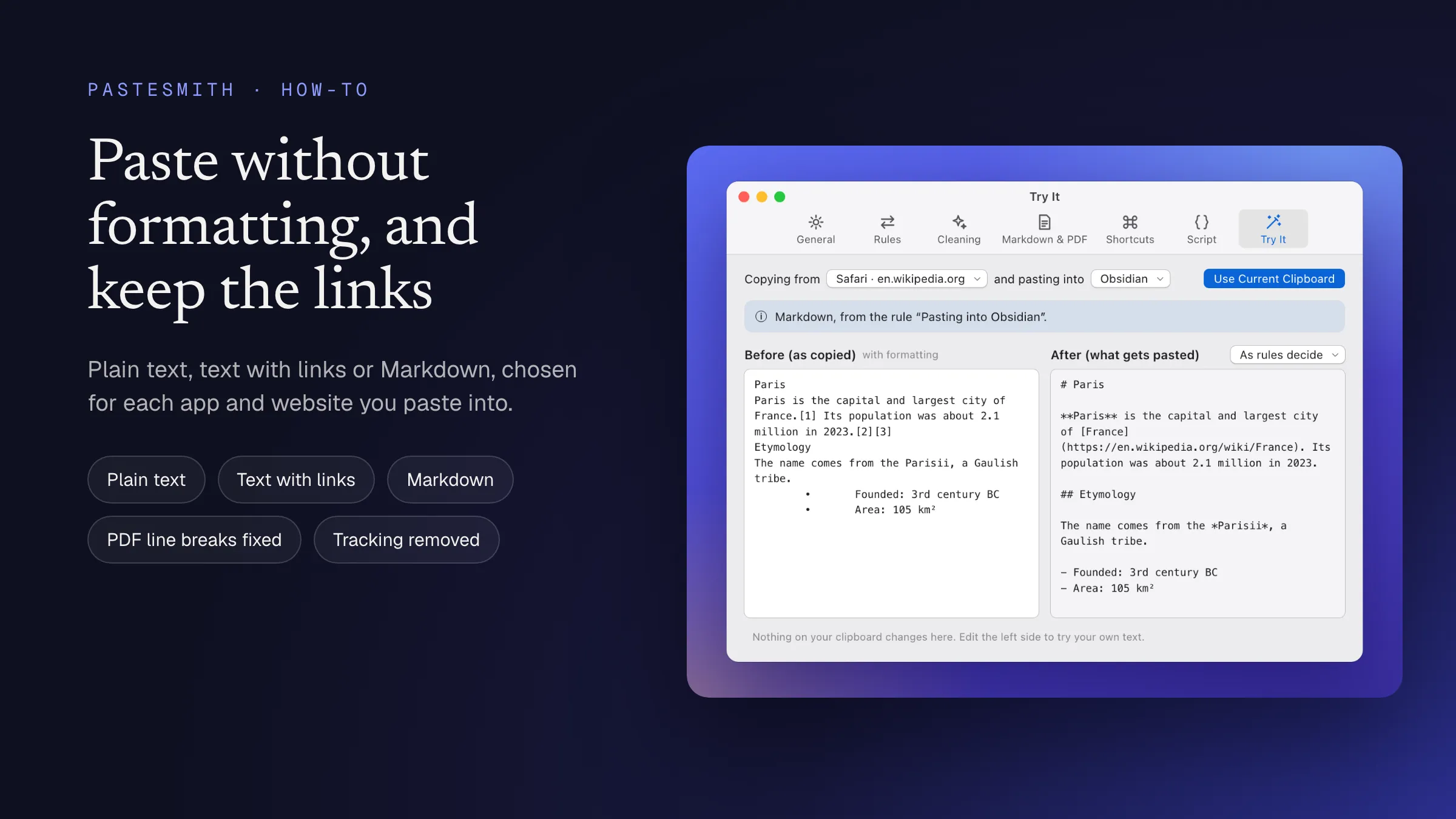
To paste without formatting on a Mac, press ⌥⇧⌘V (Option-Shift-Command-V) instead of ⌘V. In most apps that pastes the text in the style of the place you’re pasting into, without the copied fonts, sizes and colours. The same command is in the Edit menu as Paste and Match Style.
That is the answer most of the time. But it isn’t the whole story: the shortcut doesn’t work everywhere, it throws away links along with the fonts, and it can’t fix text that was broken before you copied it. Here’s what it does, where it falls short, and what to use when you need more.
Paste and Match Style: the built-in way
⌥⇧⌘V works in Apple’s apps and most others: Pages, Mail, Notes, TextEdit and Keynote all take it. A few apps use their own key: Google Docs and Slack paste plain text with ⇧⌘V, and Microsoft Word calls it Paste and Match Formatting, with Edit → Paste Special → Unformatted Text for text only.
TextEdit can clean text in two steps. Paste into a new TextEdit document, choose Format → Make Plain Text (⇧⌘T), then copy it again. Clumsy, but it works in any app afterwards.
Some apps only paste plain text anyway: Terminal, most code editors and plain-text fields. Pasting there drops the formatting by itself.
Where the shortcut falls short
It takes the links with it. Paste and Match Style keeps the words and drops everything else, including the links. Copy a paragraph with three links into an email and you get three dead words. Usually you want the opposite: lose the giant blue heading font, keep the link.
You have to remember it every time, and the key changes from app to app. Press ⌘V out of habit and the formatting is back. There is no Mac setting that makes plain text the default for one app and rich text for another.
Text from PDFs arrives broken. A PDF has no paragraphs, only lines. Copy from Preview or Acrobat and every line ends with a hard break, words hyphenated at the end of a line arrive in two halves, and a stray page number lands in the middle of a sentence. Plain text keeps all of that.
Hidden things come along. Links you share often carry tracking: utm_source, fbclid, si, gclid. Copied text can also hold invisible characters, such as zero-width spaces and soft hyphens, that break a search or a spreadsheet formula later.
Markdown apps want something else entirely. If you write in Obsidian, Bear or on GitHub, you want headings, bold and links written as Markdown, not plain text that has lost them.
Pastesmith: clean paste, chosen for each app
We wrote Pastesmith because of that last list. It sits in the menu bar and cleans what you copy, the moment you copy it. You keep using ⌘C and ⌘V as before.
Three formats instead of one. Every copy becomes:
- Plain Text: words only, cleaned.
- Plain Text with Links: clean text, but the links stay clickable in apps that take rich text, such as Mail, Notes and Slack.
- Markdown: headings, bold and italics, links, nested lists, task lists, code blocks and tables.
Rules for each app and website. A rule can work when you copy (everything copied from Excel stays exactly as it was) or when you paste (anything pasted into Obsidian becomes Markdown). Paste rules switch the clipboard the moment you press ⌘V and switch it back afterwards, so the same copy can go into Obsidian as Markdown and into Slack as text with links. Excel, Numbers and Google Sheets come with a rule already, so cells and formulas survive.
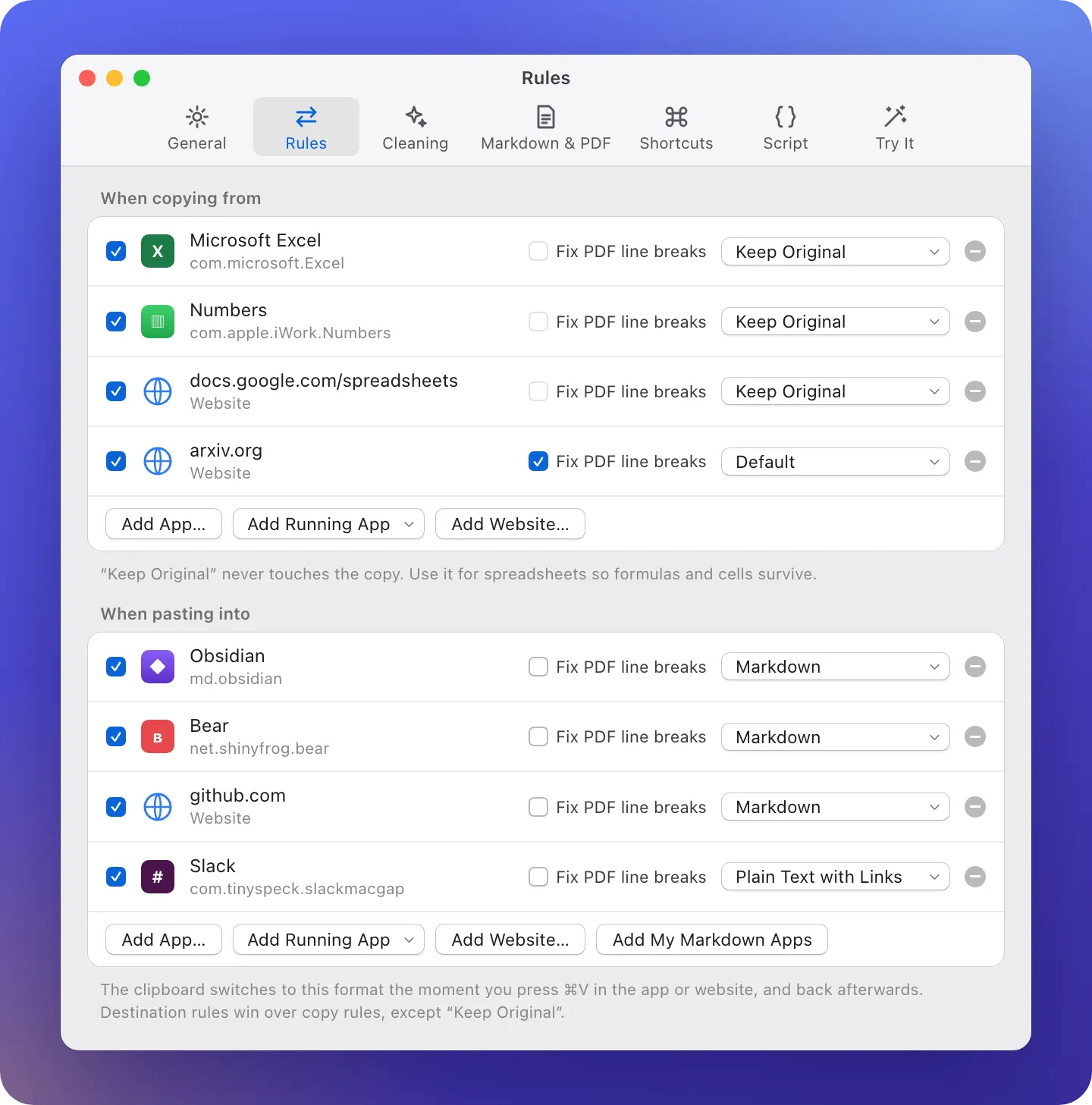 Rules work in both directions: what a copy becomes, and what a paste turns into.
PDF text gets its paragraphs back. Copy from Preview, Acrobat, Skim, PDF Expert and other PDF readers, and Pastesmith rejoins lines into paragraphs. It checks hyphenated words against the macOS dictionary before joining them, so well-known keeps its hyphen. It also turns ligatures such as fi back into normal letters and removes lone page numbers. For a whole document rather than a passage, here’s how to convert a PDF to Markdown on a Mac.
Links come back clean. More than 350 known tracking parameters are removed, and redirect wrappers such as google.com/url?q=… and Outlook Safe Links are replaced with the real address:
Before: https://www.youtube.com/watch?v=xR7mT2kq9Lw&si=AbC123xyz&utm_source=newsletterAfter: https://www.youtube.com/watch?v=xR7mT2kq9LwInvisible characters go. Zero-width spaces, soft hyphens, direction marks and hidden Unicode tag characters, the kind used to watermark AI text, are removed. Emoji made of several characters stay intact.
When you do want the formatting
Sometimes the formatting is the point. Pastesmith keeps the original of every copy:
- ⌃⌥V pastes your last copy exactly as copied, once.
- Tap ⌥, then ⌘C within three seconds, and that one copy is left alone.
- Pause stops cleaning for 5 minutes, 15 minutes or an hour.
Passwords and anything a password manager marks as private are never touched, and neither are files or images.
See it before you paste
Rules can get clever, so Pastesmith has Try It: pick where the text comes from and where it goes, and it shows exactly what will be pasted, and which rule decided. Your clipboard doesn’t change while you try.
Everything happens on your Mac. No text, link or page address is sent anywhere.
Which one should you use?
- Pasting the odd paragraph into an email or a document: ⌥⇧⌘V is enough.
- Copying from PDFs, sharing links, or moving text between apps that want different things: a clipboard cleaner saves you the second step every time.
- Writing in Markdown: have the paste come in as Markdown, instead of retyping the links.
Pastesmith needs macOS 14 or later. It has a free 14-day trial, then costs $3.99 once, with no subscription. The Pastesmith manual explains every setting, and if you also work with a lot of projects and folders, Sugu is its sibling in the menu bar.