How to redact a PDF on a Mac, and why a black box isn’t enough
A black box or highlight in Preview hides text but leaves it in the file. How to check a redaction, use Preview’s Redact tool, and remove text for real.
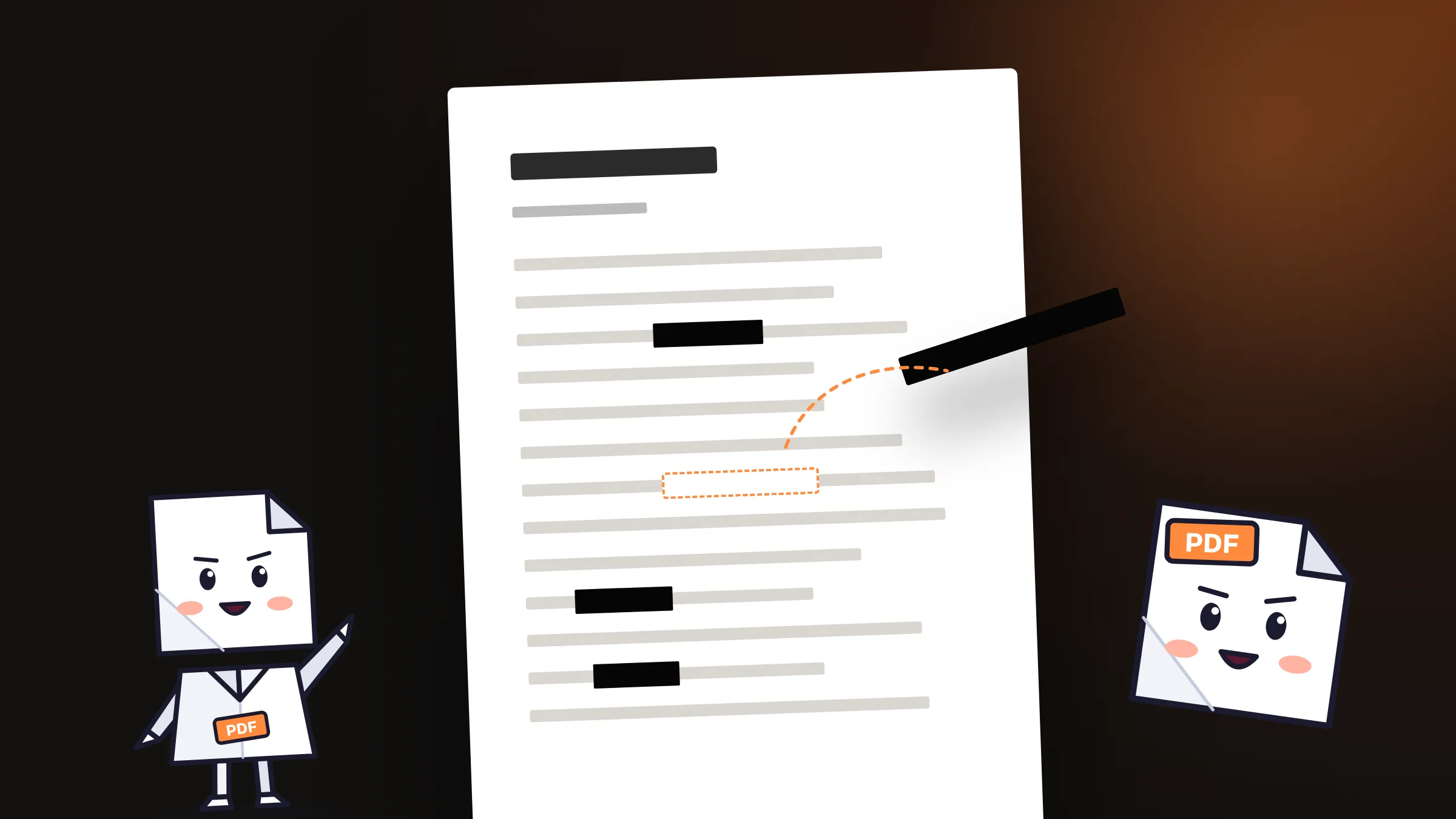
To redact a PDF on a Mac, use a real redaction tool, such as Tools → Redact in Preview or the Redact tool in PDFBoy, and never just a black rectangle or a black highlight. A shape drawn on top hides the words from the eye, but the text underneath stays in the file: anyone can select it, copy it, or find it by searching.
This is one of the most common ways private information leaks out of PDFs, from court filings to bank statements sent to a landlord. Here is why it happens, how to check a PDF in ten seconds, and the tools that remove the text for real.
Why a black box doesn’t remove anything
A PDF page is built in layers. The text of the page sits in one layer. A rectangle, a highlight or a note you add on top is an annotation, a separate object lying over the page like a sticky note.
When you draw a black box over an account number, the account number is still there, in the page’s text, under the box. The screen shows black, a printer prints black, but:
- Select and copy across the box, paste into a text editor, and the number appears.
- Search for it, and the PDF app jumps to the box.
- Open it in another app, and the annotation can be moved or deleted, or isn’t shown at all.
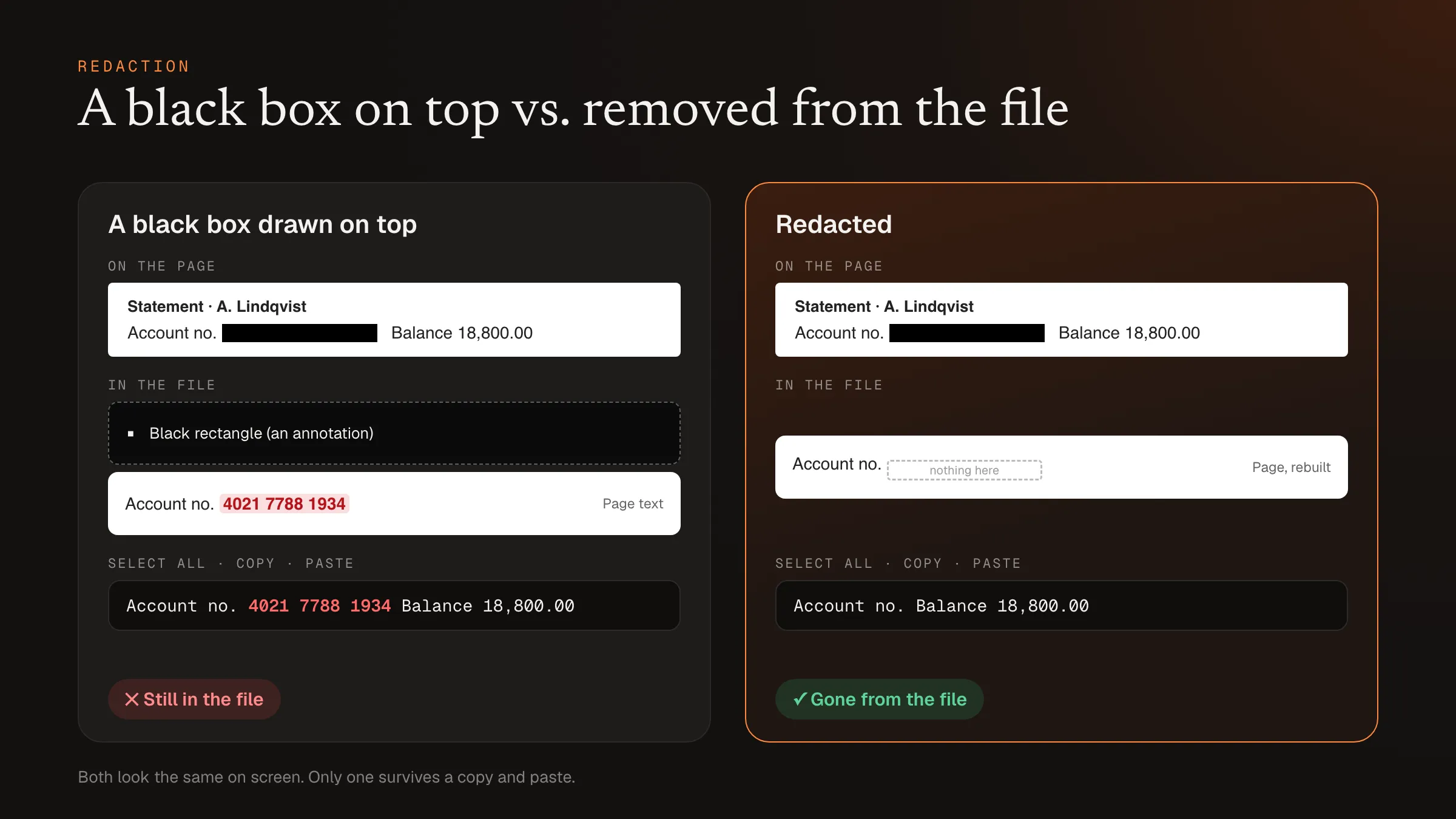 Both look the same on screen. Only one survives a copy and paste.
Flattening the page (printing to PDF, or “flattening annotations”) doesn’t reliably fix it either. It often just merges the black rectangle into the page drawing while the text underneath keeps its place in the text layer.
How to check whether a PDF is really redacted
Before you send a redacted PDF, take ten seconds:
- Open the saved copy, ideally in a different app from the one you redacted it in.
- Press ⌘A to select all, ⌘C to copy, and paste into TextEdit or a note. Is the hidden text there?
- Search (⌘F) for a word or number you redacted.
- Try to click or drag the black box. If it moves, it’s an annotation.
If anything you meant to remove shows up, it’s not redacted. Check the document’s properties too: in Preview, Tools → Show Inspector shows the title, author and other details stored in the file, which no page redaction touches.
Preview’s Redact tool
Preview has a dedicated Redact tool: choose Tools → Redact, then select the text (or drag over an area) you want to remove, and it turns black. Apple’s help says you can change redactions while you edit, and that once you close the document the redaction becomes permanent. It also notes one gap: entries in the PDF’s table of contents that link to redacted text aren’t removed.
Recent versions of Preview also warn you when you draw a rectangle or highlight over text that the content behind it won’t be deleted, and point you to Redact. That’s exactly the trap above.
It’s free and it’s already on your Mac, so for an occasional redaction it’s the first thing to try. Two cautions: redact a copy, not your only original, and do the check above after saving. Users have reported cases where redactions in Preview didn’t behave as expected, so verify every time, whatever the tool.
PDFBoy’s Redact: removed, and still searchable
PDFBoy, our PDF app for the Mac, has Redact on its Mark up palette. Drag over what should go, or click a word, and a black box covers it. Then Save Copy (⌘S).
When you save, PDFBoy rebuilds every page that has a redaction as a 300 dpi picture, so nothing under the black boxes survives: not the text, not images, not anything hidden behind them. Then it reads the rest of the page back with text recognition on your Mac and adds it as an invisible text layer, so the page can still be searched and its text copied. Only the words you blacked out are gone.
- Only pages with redactions are rebuilt; the other pages stay exactly as they were.
- A rebuilt page is a picture with a text layer, so on that page text looks slightly less crisp when you zoom in a long way.
- Redactions are always drawn into the page, whatever you choose for your other marks.
- The PDF you opened is never changed. PDFBoy confirms what it did: “Saved. Redacted 2 areas on 1 page.”
- The loupe and copied areas never show what’s under a redaction.
The whiteout and redaction page of the manual covers it step by step.
Whiteout vs. redact
Whiteout and redaction look alike in an editor and do very different things to the file.
| Whiteout | Redact | |
|---|---|---|
| On the page | A paper-coloured patch, with new text on top | A black box |
| The old text | Hidden, but still in the file | Removed when you save |
| Use it for | Correcting a date, an amount, a typo | Account numbers, IDs, names, anything secret |
PDFBoy has both, side by side. Whiteout covers a word in the colour of the paper and lets you type the new value in the same font and size, like correction fluid. It’s for fixing a document you’re allowed to change, not for hiding anything, and PDFBoy says so the first time you use it, with a button that turns the patch into a redaction.
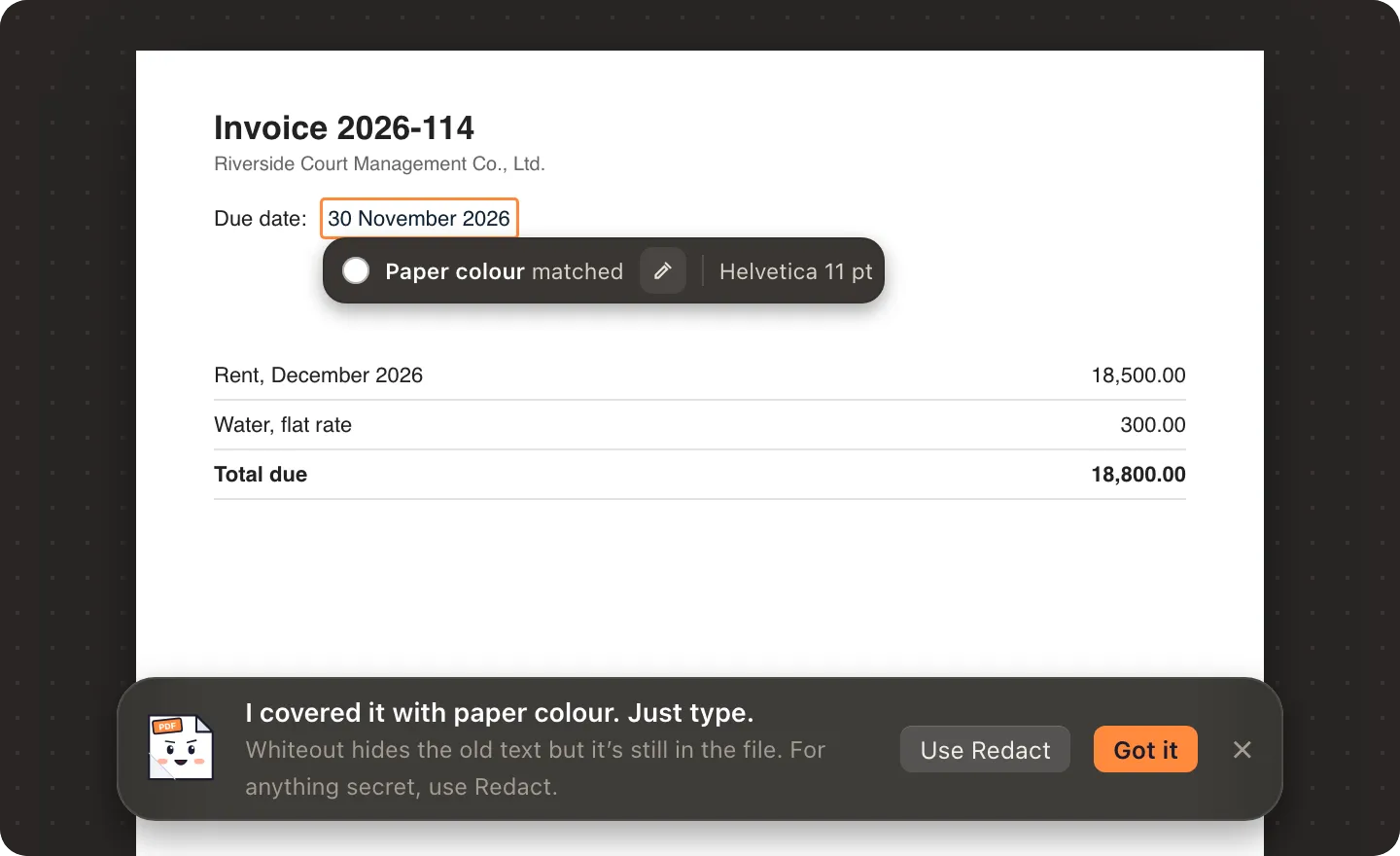 Whiteout warns you that the old text is still in the file, and offers Redact instead.
Which tool should you use?
- Once in a while, a line or two of text: Preview’s Redact, then check the saved copy.
- Scans, images, or anything that must stay searchable: PDFBoy rebuilds the page, so it removes what’s in pictures too, and puts the remaining text back. It costs $9.99 once, with a 14-day free trial.
- Legal or compliance work at scale (search-and-redact across hundreds of pages, redaction codes, audit logs): a professional tool such as Adobe Acrobat Pro, which includes redaction in its paid Pro plan.
Whatever you use: redact a copy, save, then try to copy the hidden text back out. If you can’t, neither can anyone else.
PDFBoy also fills PDF forms that have no form fields, signs, shrinks and combines PDFs. If you’re weighing it against a bigger editor, see PDF Expert without a subscription: the alternatives.