How to fill a PDF form that isn’t fillable on a Mac
PDF has no form fields? How to fill a flat or scanned PDF form on a Mac: Preview’s text boxes and Form Filling, and PDFBoy, which finds the lines for you.
To fill a PDF form that isn’t fillable on a Mac, you have two choices: place text boxes on top of the page yourself, which Preview can do for free, or use an app that finds the blanks on the page for you. A form “isn’t fillable” when it has no real form fields, only lines and boxes printed on the page, and that is true of most forms you get from offices, landlords and schools.
Below: how to tell which kind of form you have, what Preview on macOS can do with it today, and how PDFBoy, our Mac app, fills flat forms and scans by clicking a line and typing.
Fillable, flat or scanned: three kinds of PDF form
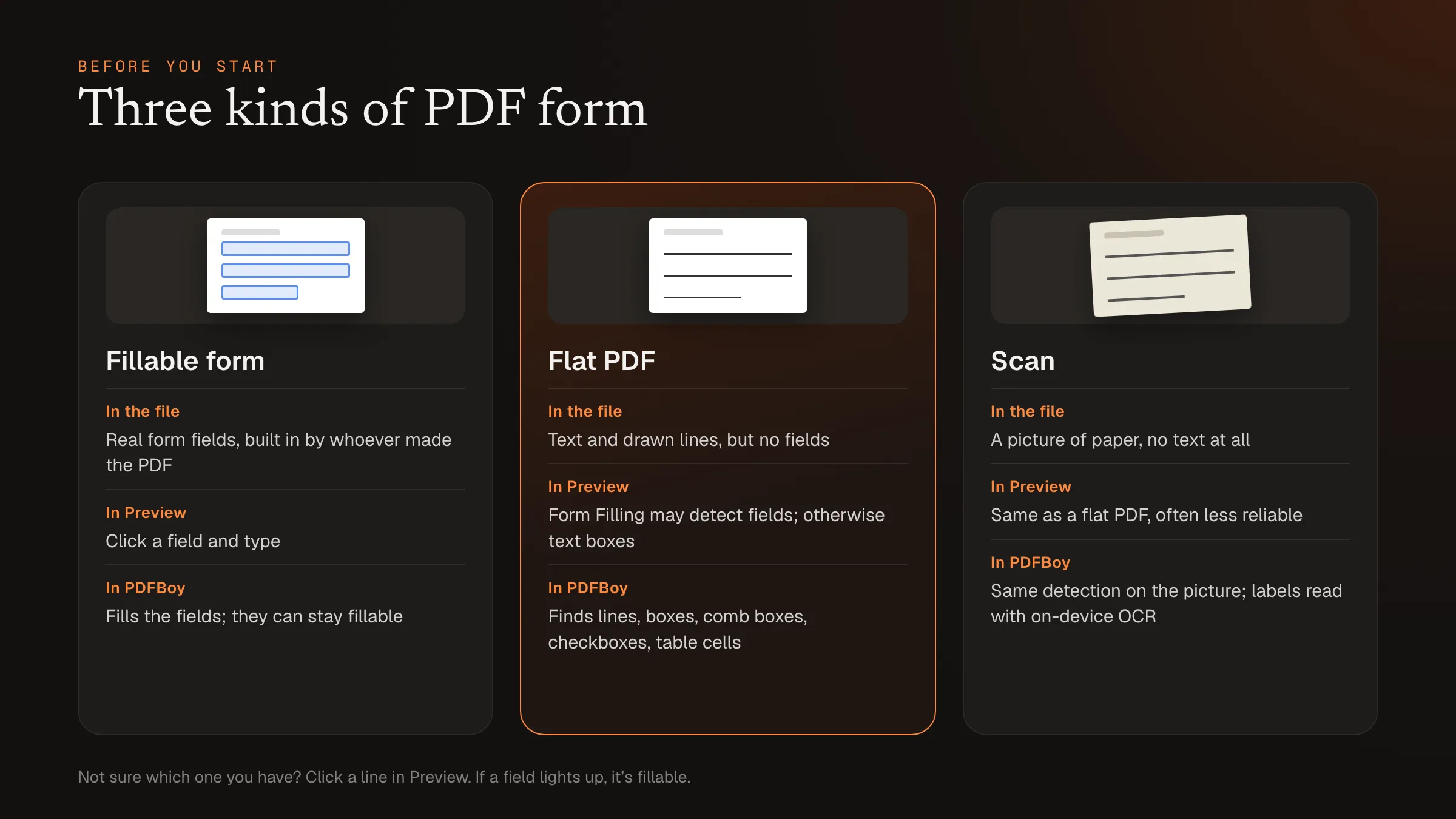 The kind of form decides how much work it is.
- A fillable form has real form fields (often called AcroForm fields) that whoever made the PDF built in. Click a field and type, in any PDF app. If a field lights up when you click it, you have one of these.
- A flat PDF has text and drawn lines, but no fields. It was usually exported from Word or a design app, or a fillable form that someone flattened. You can select the text, but clicking a line does nothing.
- A scan is a picture of a paper form. There is no text in it at all, just pixels, often slightly crooked.
The last two are what people mean by “this PDF has no form fields”. The page looks like a form, but to the computer it is a picture of one.
Filling a flat form in Preview
Preview, which comes with every Mac, has two tools for this.
Form Filling. In current versions of macOS, Preview’s Form Filling toolbar tries to recognise the fields on a flat form or scan and turns them into fields you can click. On a clean, simple form it often finds the lines and boxes, and since macOS 14.2 its AutoFill can put in your name and address from your contact card. Apple’s own help notes that not every PDF supports it, and in practice it misses some fields, puts others in the wrong place, and rarely handles rows of letter boxes the way the form intends.
Text boxes. Where detection doesn’t work, you place text yourself: Tools → Annotate → Text (or the Text Box button in the Markup toolbar) drops a box in the middle of the page. Drag it onto the line, change the font size so it fits, nudge it until it sits on the line, and do the same for the next blank. It works for a one-page form. On a four-page tenancy application with a passport number in letter boxes, it’s a long afternoon.
Two things to know either way:
- Text boxes are annotations, so they can look different, or move, in other apps. If you are sending the form on, it helps to export a copy that flattens them into the page.
- On a scan, neither tool can read the labels, so nothing is filled in for you.
Filling a flat form in PDFBoy
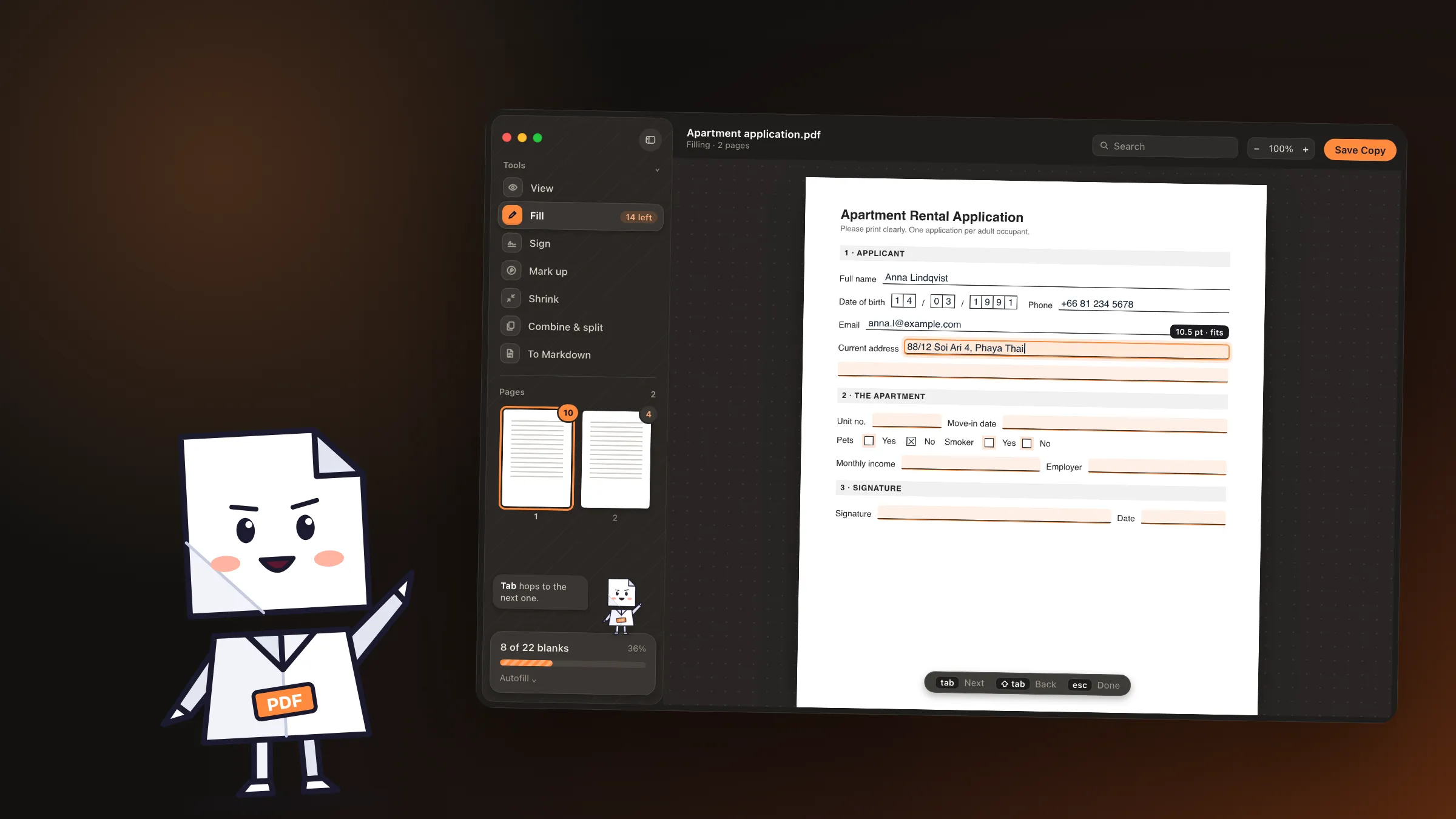
PDFBoy is a PDF app for the Mac that’s built around exactly this problem. When you open a PDF, it looks at each page the way you would and finds the places you’re meant to write. It calls them blanks:
- Lines: underscores, drawn rules and dotted leaders. Text sits on the line.
- Boxes: empty rectangles, where text starts at the top left and wraps.
- Comb boxes: rows of small cells for dates, passport and tax numbers, one character per cell.
- Checkboxes: small squares to tick.
- Table cells: every empty cell of a drawn table.
It works on the picture of the page, not on hidden form data, so it finds the same blanks on a scan. A slightly crooked scan is straightened for detection, and the labels beside the blanks are read with text recognition on your Mac.
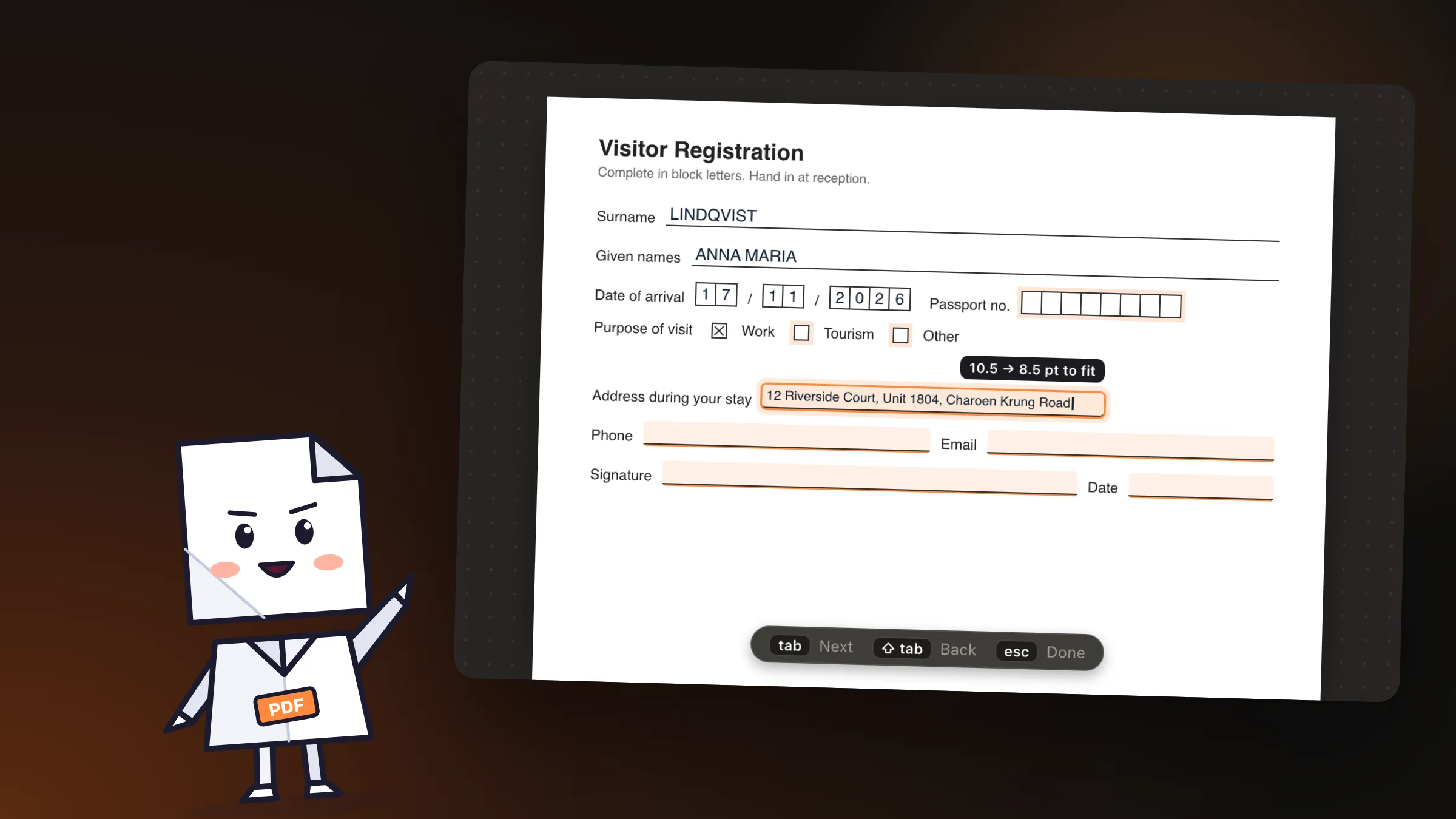
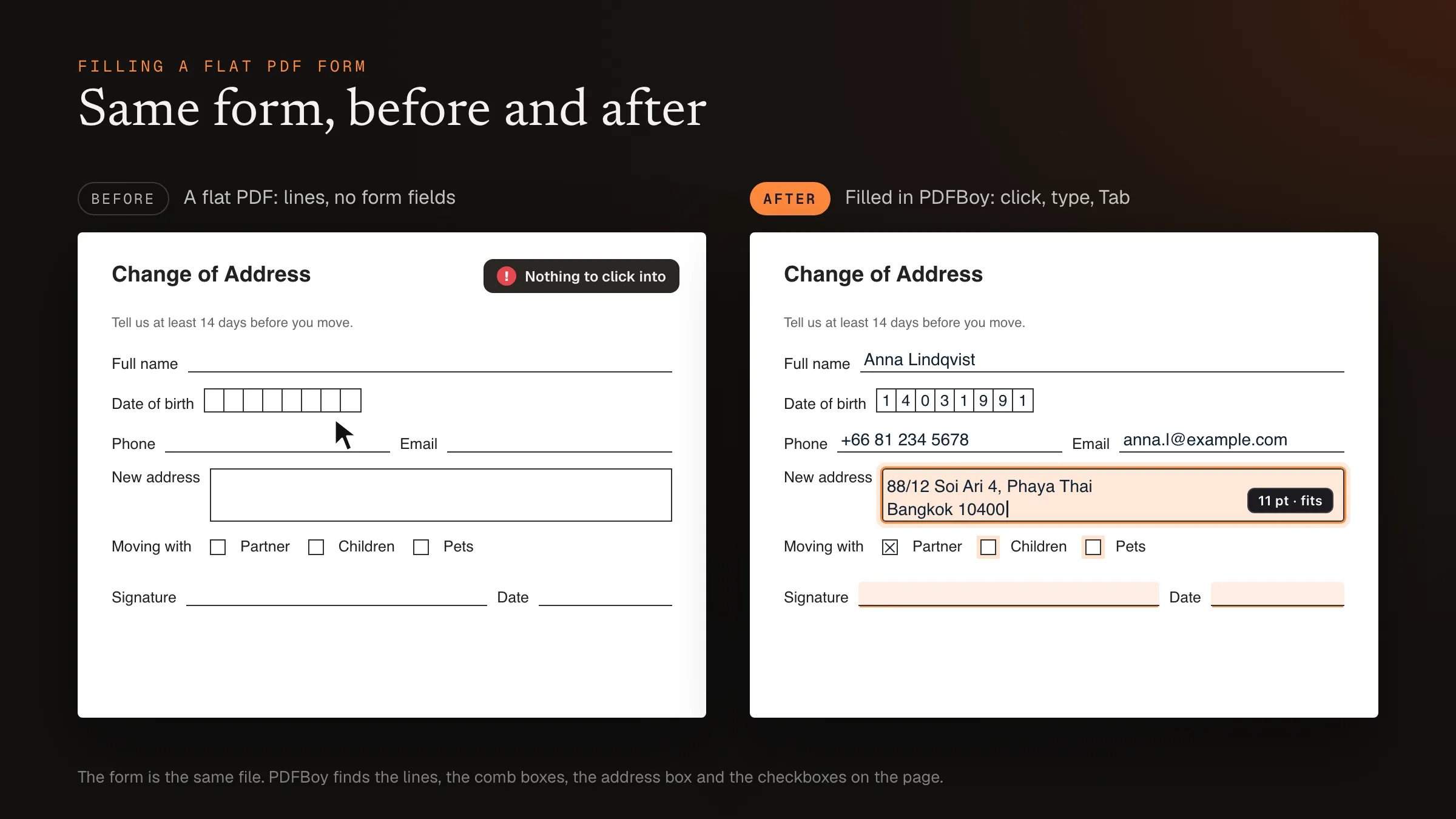 The same file before and after. Nothing was added to the form; PDFBoy found its blanks.
Click near a blank, then Tab
Switch to Fill (⌘2). The blanks glow softly in tangerine and PDFBoy says how many it found. Click anywhere on a blank and the caret sits at the start of the line, on its baseline. Type. Tab moves to the next blank and ⇧Tab back, in reading order: page by page, top to bottom, left to right. There’s no text box to drag and no height to guess.
Text the size of the form
Your text is sized to match the printed label next to each blank, so a form in 9-point type doesn’t get 12-point answers. If an answer is longer than its line, it shrinks until it fits, and a small chip above it says so (“11 → 8.5 pt to fit”). In a comb box, each character goes into the next cell. A click or Space ticks a checkbox with a centred ✕.
Smart fill: your details, after you check them
Forms ask for the same things every time. In Settings → Profile you can save your name, address, date of birth, nationality, phone, email, company, tax ID and passport number, with separate profiles for yourself, a partner or your company. When you open a form, PDFBoy reads each blank’s label and offers the matching value in light grey. Return accepts them all, or you go through them one by one.
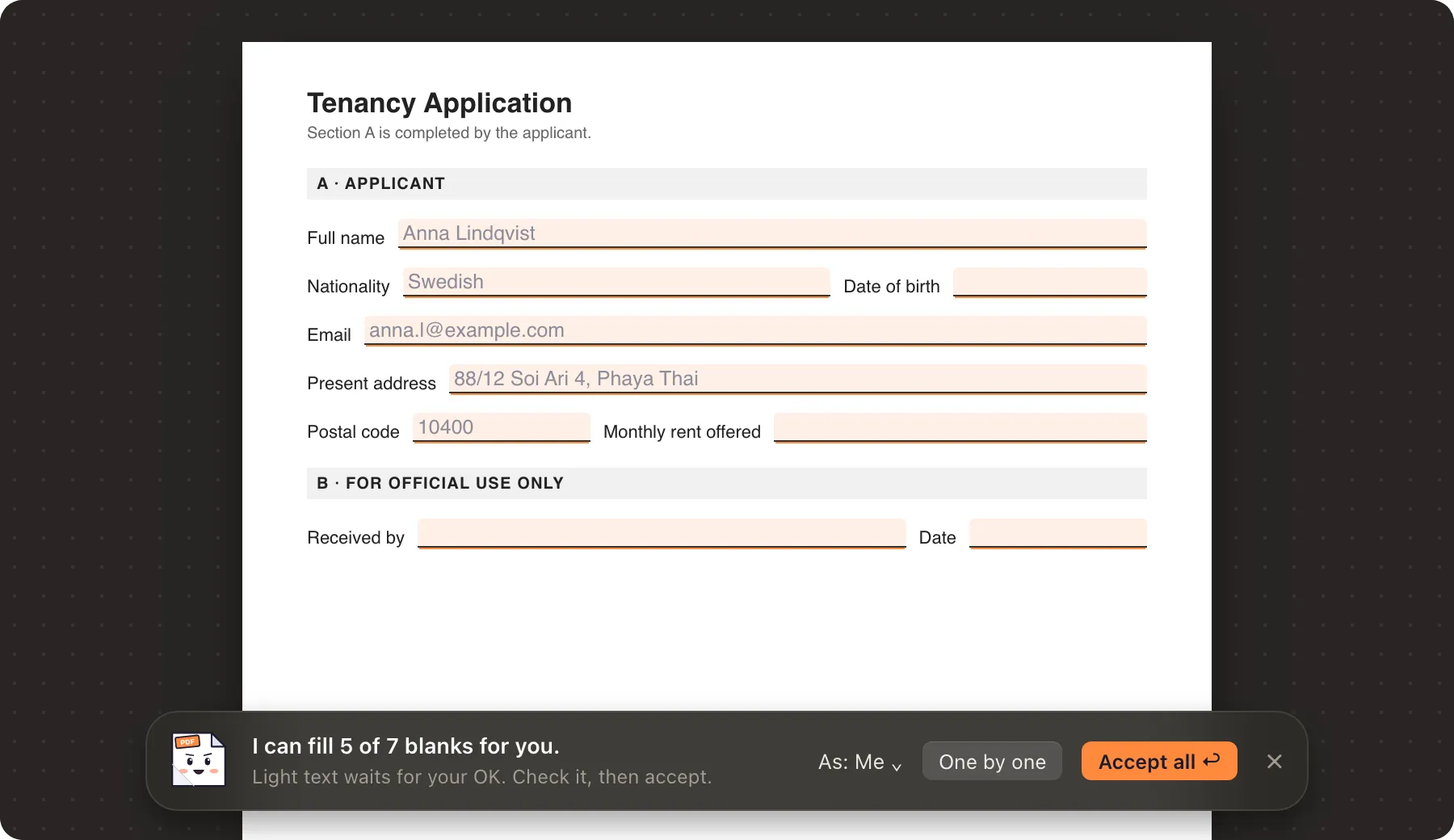 Nothing is filled until you accept it. The “For official use only” section is skipped.
It only fills clear matches, so a 20-blank form might get 9 suggestions. It leaves out sections that belong to someone else (“For official use only”, a receipt below a cut line), reads labels in English, German and Thai, and remembers the suggestions you turn down on that PDF. Profiles stay on your Mac.
Real form fields too
If a PDF does have form fields, PDFBoy fills them the same way, with the same Tab order, and lets you keep them fillable when you save or flatten them into the page. Either way Save Copy writes a new file next to the original, “… (filled).pdf”, and the PDF you opened is never changed. The filling forms and smart fill pages of the manual cover every detail.
Preview or PDFBoy?
| Preview | PDFBoy | |
|---|---|---|
| Price | Free, built in | $9.99 once, 14-day free trial |
| Fillable forms | Yes | Yes, and can keep them fillable |
| Flat forms | Form Filling detection, or text boxes you place | Finds lines, boxes, comb boxes, checkboxes, table cells |
| Scans | Detection sometimes works; no reading of labels | Same detection; labels read on your Mac |
| Text size | You pick it | Matched to the label, shrinks to fit |
| Your details | AutoFill from your contact card | Profiles for you, a partner or a company; skips other people’s sections |
If you fill one simple form a year, Preview is enough: try Form Filling first, and fall back to text boxes. If forms are a regular chore, or they are scans, comb boxes and multi-page applications, that’s what PDFBoy is for.
Common questions
Can I turn a flat PDF into a fillable form? Not in Preview. Apps like Adobe Acrobat Pro can add form fields to a PDF, which is worth it if you make forms for other people. If you only need to fill one in, you don’t need fields: you need the text in the right places.
Will the person I send it to see my text? Yes, as long as it’s drawn into the page. PDFBoy draws text you typed into printed blanks into the page when you save. With Preview’s text boxes, open the saved copy in another app to check.
Do I need to print and scan to sign? No. PDFBoy’s Sign tool puts a signature you drew on the trackpad, sketched on your iPhone or iPad, or photographed on paper onto the line at its real size. Preview can add a signature too.
PDFBoy also redacts PDFs properly, shrinks, combines and splits them, and costs $9.99 once, not a subscription: see how it compares to PDF Expert. For more apps that don’t charge every month, see Mac apps without a subscription.