How to see which apps on your Mac connect to the internet
Which apps on your Mac phone home, and where to? Check with Activity Monitor, nettop and lsof, then see domains in MacBulwark and block the telemetry.
To see which apps on your Mac are using the internet, open Activity Monitor and click the Network tab: it lists every process with the data it has sent and received. To see where they connect, use nettop or lsof -i in Terminal. Both come with every Mac. They show IP addresses rather than names, though, so for a readable list of domains per app, with what each one is for, you need a firewall app such as MacBulwark.
Here is each way, from the built-in tools to blocking what you find.
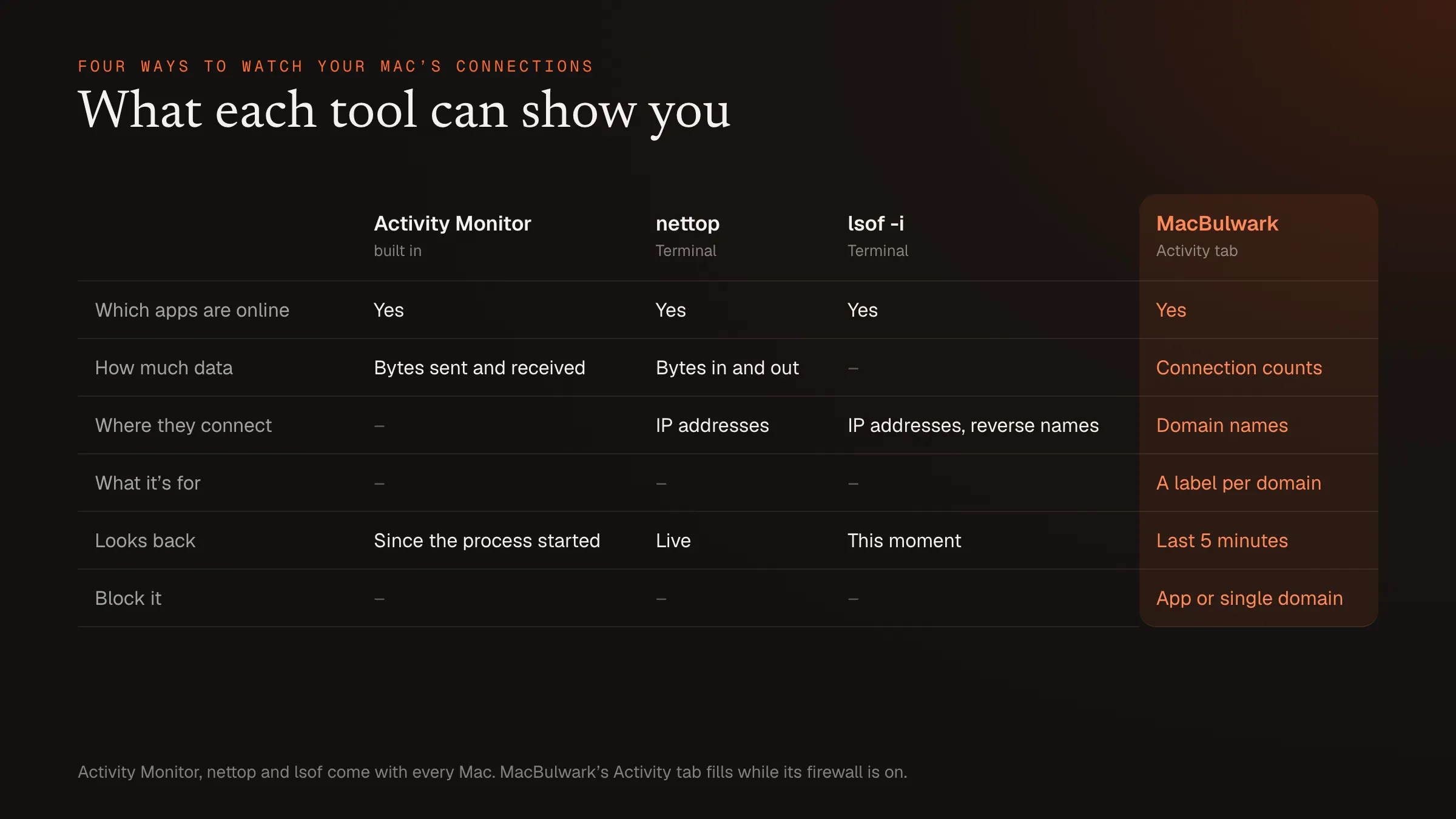 What each tool shows. The first three are already on your Mac.
Why apps phone home
Not every connection is a problem. A typical app goes online to:
- check for updates and download them,
- sign in and check your licence or subscription,
- sync your data with its server,
- load content: music, maps, fonts, images,
- send crash reports and diagnostics (telemetry),
- send usage statistics (analytics), often to a third party.
The last two are the ones most people would rather switch off, and they are rarely the ones an app needs to work. The goal is to find them without breaking the rest.
1. Activity Monitor: which apps use the network
Open Activity Monitor (Applications ▸ Utilities) and click Network. Choose View ▸ All Processes so background processes appear too, then click the Sent Bytes column to sort by what went out.
Each row is a process with its sent and received bytes and packets, counted since it started. An app that has sent a lot while you weren’t using it is worth a closer look. Helper processes often carry the traffic, so a chat app might show up as its “Helper (Renderer)”.
What it doesn’t show is where the data went. For that you need Terminal.
2. nettop: live connections per app
nettop is a built-in, live view of network use, like top for the network. Open Terminal and type:
nettop -P-P shows one line per process instead of every connection. Leave it out, and each process opens up into its connections, with the local and remote address, the interface and the state. Useful variations:
| Command | What it does |
|---|---|
nettop -m tcp |
Only TCP connections |
nettop -p Safari |
Only one process, by name or PID |
nettop -n |
Don’t look up names, show raw addresses |
nettop -P -L 1 -J bytes_in,bytes_out |
One snapshot as CSV, bytes per process |
Press q to quit. The remote side is usually an IP address. When nettop does show a name, it’s the address’s reverse lookup, which tends to name a cloud provider’s machine rather than the service the app was talking to.
3. lsof -i: every open connection, right now
lsof lists open files, and network connections count as files. -i limits it to those:
sudo lsof -i -P | grep ESTABLISHEDsudo asks for your password and adds processes that don’t belong to you; -P shows port numbers instead of names like https. Each line has the process name (cut to nine characters), its PID and the connection, your-address:port->remote-address:port. Add -n to skip name lookups and get the list faster. To watch a single app, find its PID in Activity Monitor and run lsof -i -P -a -p 1234.
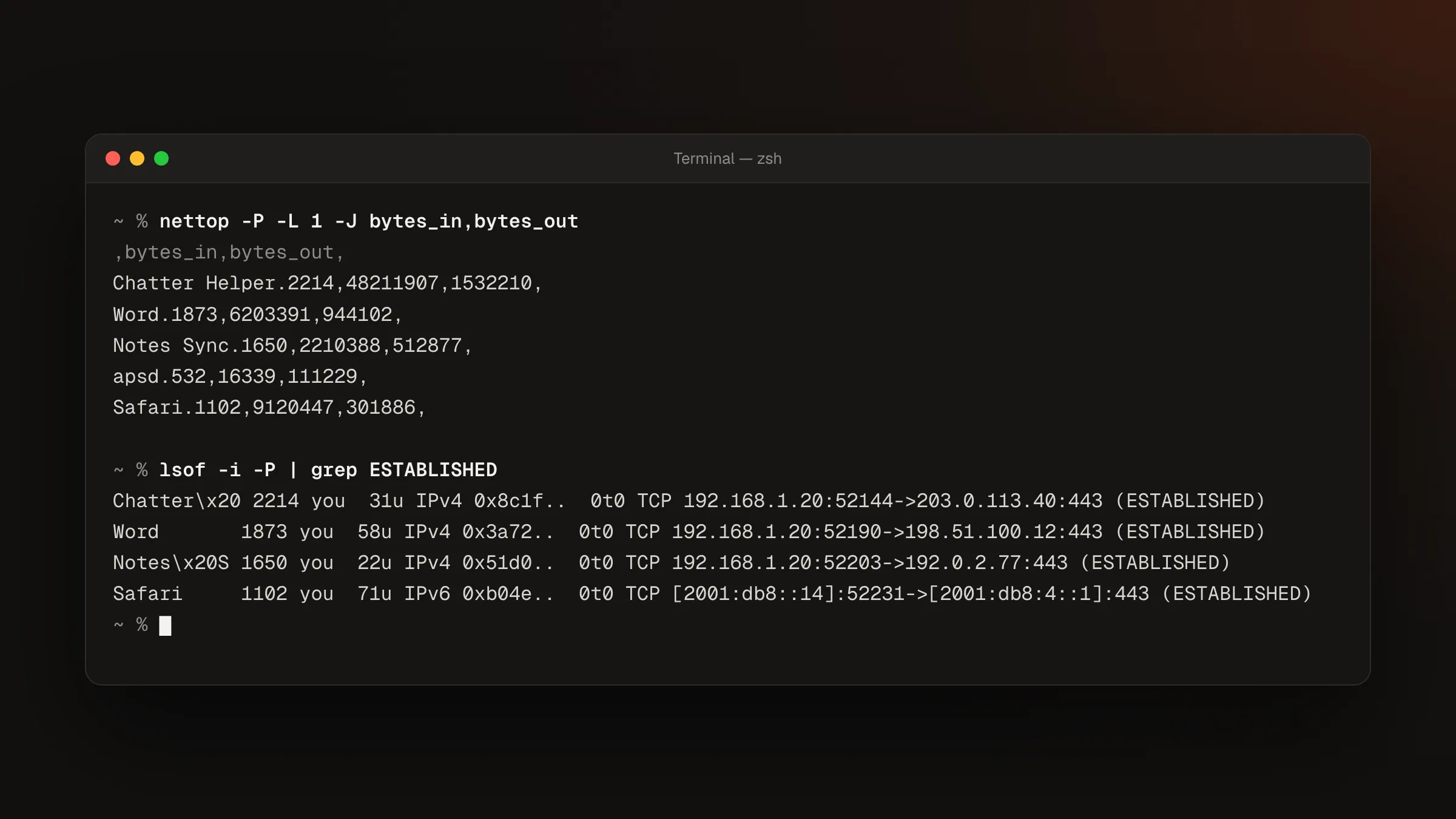 Made-up output: you see who is connected, and to which address, but not what that address is for.
That’s the limit of the built-in tools. You learn that Notes Sync has a connection open to some address on port 443, and nothing about whether that is its sync server or an analytics service. Viewer apps help a little: the free version of Little Snitch Mini, for example, shows recent connections with five minutes of history, but blocking needs its paid subscription.
4. MacBulwark’s Activity tab: apps, domains and what they’re for
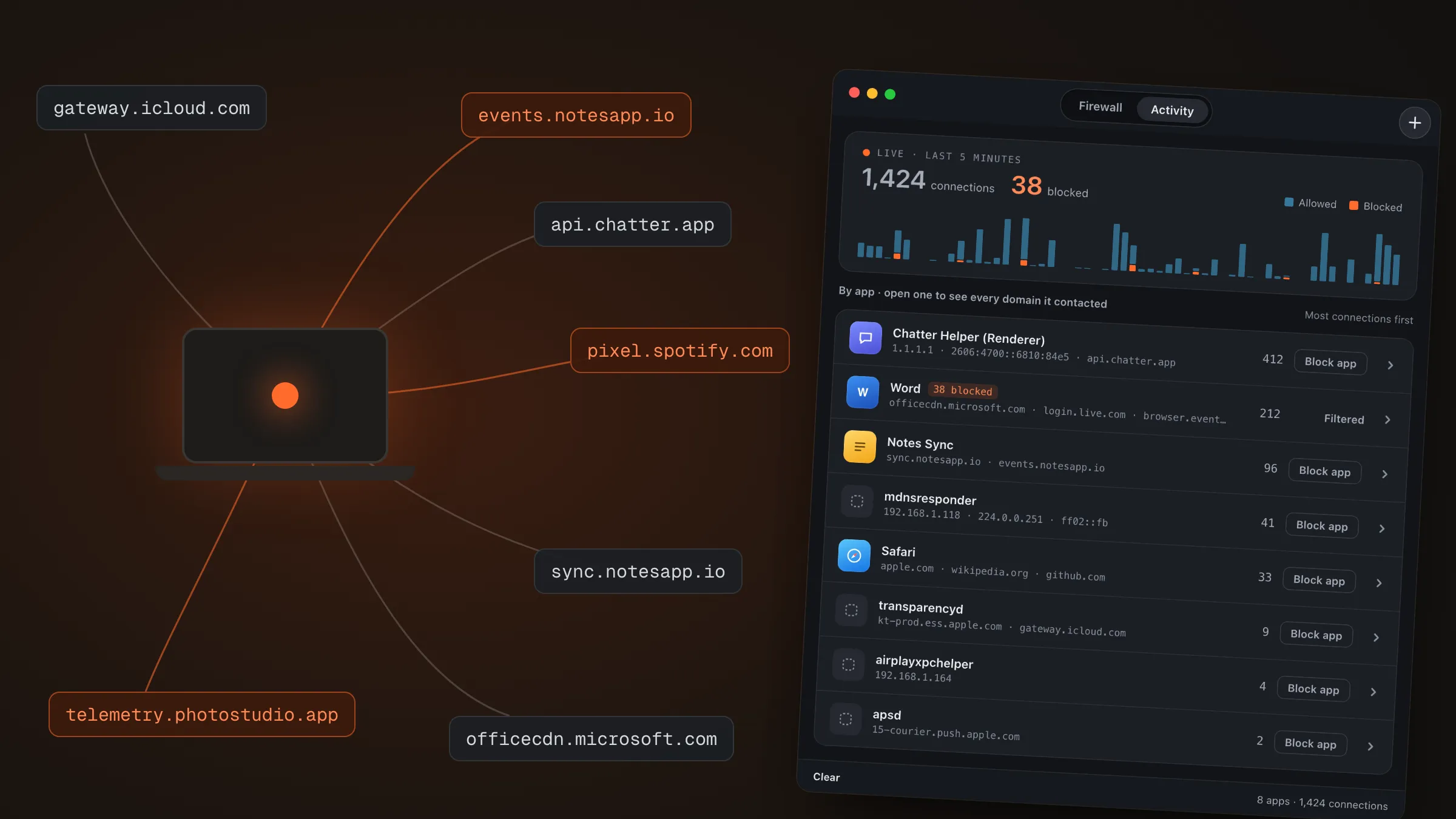
MacBulwark is a firewall for outgoing connections, and its Activity tab answers the question directly. Once the firewall is on, it lists every app and background process that went online in the last five minutes, busiest first:
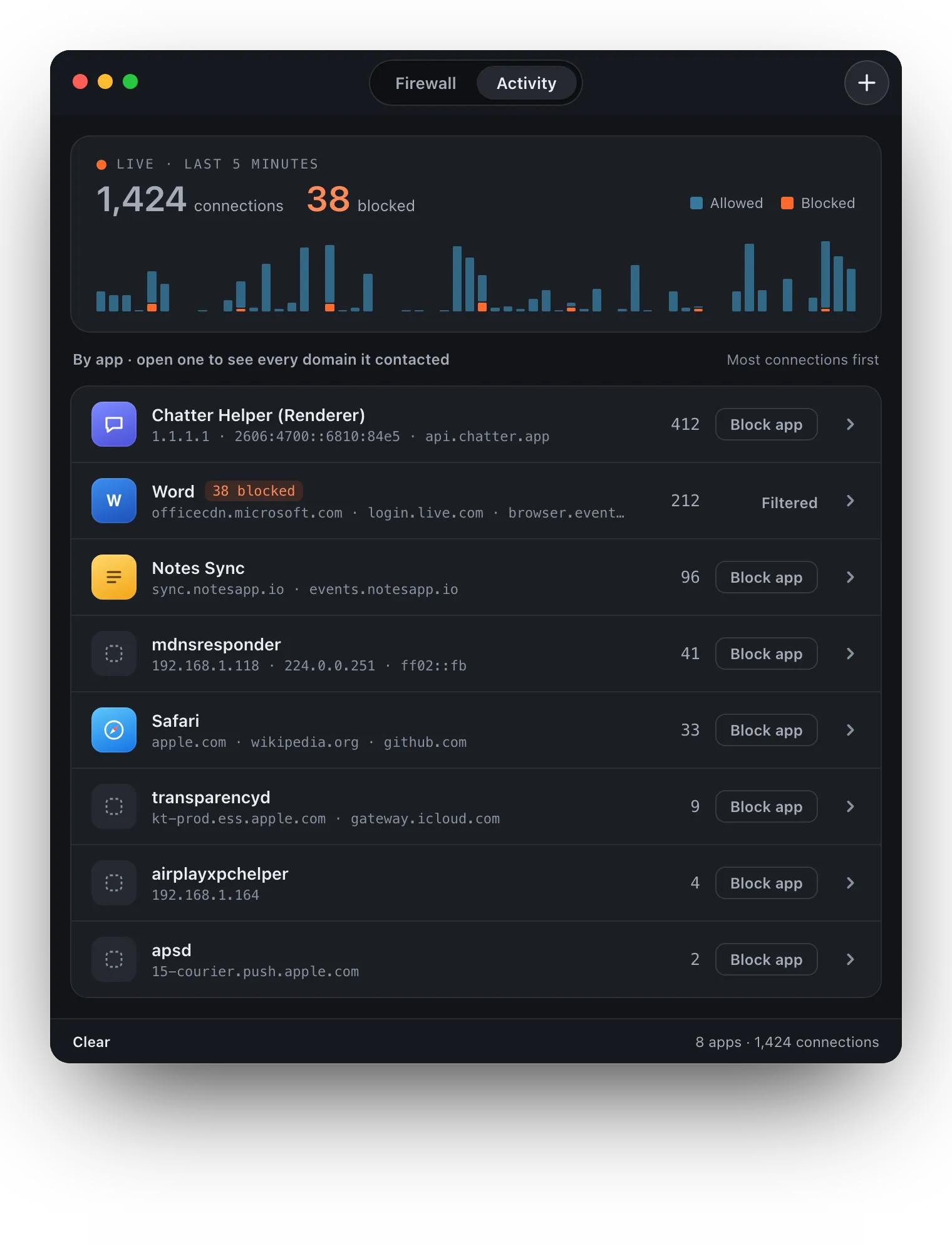 Each row shows the domains or addresses an app reached most recently.
- The card at the top counts connections and blocks, with a timeline.
- Each row shows the app, its connection count and the domains it reached, not just addresses.
- Background processes without an icon, such as
mdnsresponderorapsd, belong to macOS. - Open a row to see every domain that app contacted, how often, and a label: Telemetry, Analytics, CDN, Auth, Sync, Account, Playback, Metadata, Update or AI. Telemetry and Analytics are orange.
To get there: install MacBulwark, click Turn on firewall, approve its network extension in System Settings and allow it to filter network content. It takes about a minute, and the getting started page walks through it. Then use your Mac as usual for a while and open Activity.
When the app reports only an IP address, MacBulwark shows that instead; some apps look up addresses themselves. The Activity page of the manual has the details.
5. Block the telemetry, keep the app
Seeing it is half the job. In MacBulwark you can act from the same list:
- Open the app’s row in Activity.
- Click Block next to the domains labelled Telemetry or Analytics. The choice is saved to that app’s rule, and the app is added to your Firewall list if it wasn’t there yet. A message with Undo appears after each change.
- Leave the rest alone. Domains labelled Auth, Sync, Playback or Update are usually what keeps the app working.
- Quit and reopen the app, so that connections it already had open are closed and the rule applies to everything.
The app now shows Filtered on the Firewall tab: only those domains are blocked, everything else still works. If an app can still reach a telemetry or analytics domain, it’s flagged Tracker allowed, so a missed one is easy to spot later. Block app cuts an app off completely, when you don’t need it online at all.
Rules are enforced by a macOS network extension, so they keep working with MacBulwark closed and after a restart. MacBulwark is $6.90 once for two Macs, with a free 7-day trial.
Quick answers
Does the macOS firewall show outgoing connections? No. The firewall in System Settings ▸ Network only controls incoming connections. It doesn’t show or block what your apps send out.
Is it safe to block an app’s telemetry? Usually, yes; telemetry and analytics are rarely needed for an app to work. If something breaks, unblock the last domain you blocked, or use Undo.
Can I see connections from the past day? Activity Monitor counts totals since each process started. nettop and lsof show the present. MacBulwark’s Activity keeps five minutes. For months of history, Little Snitch’s Network Monitor is the tool; we compare it with the alternatives in Little Snitch alternatives for Mac, and MacBulwark with Radio Silence in Radio Silence vs MacBulwark.